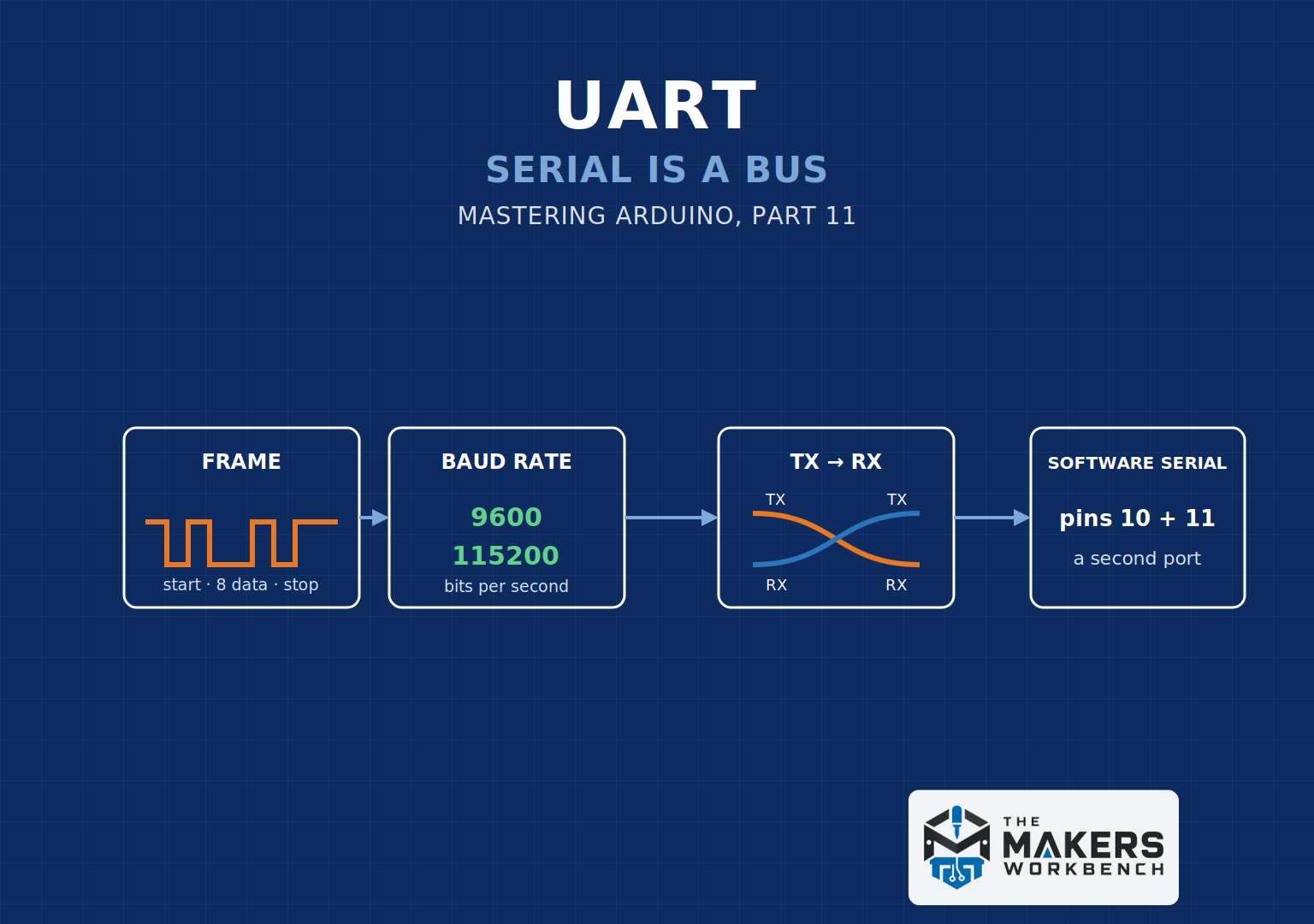
Mastering Arduino Part 11: UART: Serial Is a Bus
Part 10 turned a wobbly ADC number into a measurement you could trust, and every result along the way showed up in the Serial Monitor. That's been true since Part 3. Every exercise, every debugging session, every calibrated voltage reading has traveled through Serial.print(). We've leaned on it like a light switch: flip it on with Serial.begin(115200), and text appears on your screen. This part finally opens that switch up and looks at the wiring inside.
You've probably already met the problem behind this part. Maybe you opened the Serial Monitor and got a screen full of backwards question marks and random symbols instead of your nice readings, and fiddled with things until it went away. Maybe an upload failed with a "not in sync" error, and it turned out a module was plugged into pins 0 and 1. Or maybe you bought a GPS or Bluetooth module, read that it "talks serial," and had no idea how to connect it to a board whose only serial port is already busy talking to your computer. All three come from the same place: Serial isn't magic. It's UART, a specific, simple, and slightly fussy way of sending bytes down a wire, and once you see how it works, every one of those problems explains itself.
As usual, pin numbers are for the Uno R3 and classic Nano, and Part 2 covers what changes on other boards (there's one important Uno R4 difference called out below). By the end of this part, you'll know what a UART frame looks like, why the baud rate has to match, what "hardware serial" and "software serial" really mean, and how to wire two Arduinos together so they can talk. The practical project ties it all together: a Two-Board Command Link, where you type commands into one Arduino and a second Arduino carries them out and answers back.
One heads-up before we start. The project uses a single small C++ feature you haven't seen in this series yet, a reference parameter (the & symbol in a function's parameter list). It's there so one function can read from two different serial ports. I'll explain it in a couple of sentences right where it shows up, and you don't need anything else new.
Bill of Materials
This covers every component used across this part's exercises and its practical project. Exercises 1 through 4 need only one Arduino and nothing else. Exercise 5 and the project need a second board.
| Component | Description | Buy on Amazon | Buy on Temu | Buy on SparkFun | Buy on Seeed Studio | Datasheet |
|---|---|---|---|---|---|---|
| Arduino Uno (×2) | Two standard Uno boards, one for each end of the link. A classic Nano works as the second board. | Amazon Link | Temu Link | SparkFun Link | Seeed Link | Uno R3 datasheet |
| USB A-to-B cable (×2) | The square, printer-style USB cable the Uno uses; one per board so each can have its own Serial Monitor open | Not yet available | Not yet available | SparkFun Link | Not yet available | N/A |
| Breadboard & Jumper Wires | For the link wires and the project's LED and knob | Amazon Link | Temu Link | SparkFun Link | Seeed Link | N/A |
| Resistor and LED assortment kit | Supplies the project's LED and its 220 Ω current-limiting resistor | Amazon Link | Temu Link | SparkFun Link | Not yet available | N/A |
| 10 kΩ potentiometer | The knob the second board reads and reports back over the link | Amazon Link | Temu Link | SparkFun Link | Not yet available | N/A |
The products linked above may contain affiliate links. The Makers Workbench earns from qualifying purchases when these links are used.
No hardware? Exercises 1 through 4 run in your browser in the Lab section below. The two-board exercise and the project need two real boards for now.
How Arduino Serial Actually Works
The road from Serial.print() to your screen
When you call Serial.print("Hello"), it feels like the word jumps straight onto your screen. It actually takes a surprisingly long trip, and each stop along the way explains something you've probably bumped into.
- Your sketch hands the characters to the Serial library.
- The transmit buffer. The library drops them into a small waiting area in memory called a buffer, 64 bytes on an Uno, and returns to your sketch right away.
- The UART hardware. Inside the ATmega328P (the main chip on the Uno) is a dedicated circuit called a USART, which is a UART that can also run in a clocked mode we won't use. It pulls bytes out of the buffer one at a time and shifts them out, bit by bit, on digital pin 1, which is labeled TX for transmit.
- The USB bridge chip. On an Uno R3, pin 1 is wired to a second, smaller chip near the USB connector (an ATmega16U2) whose whole job is to translate UART into USB.
- Your computer sees that USB connection as a serial port (COM3 or similar on Windows,
/dev/ttyACM0or similar on Linux and macOS), and the Serial Monitor reads from it.
Data you type into the Serial Monitor runs the same road backwards, arriving on digital pin 0, labeled RX for receive.
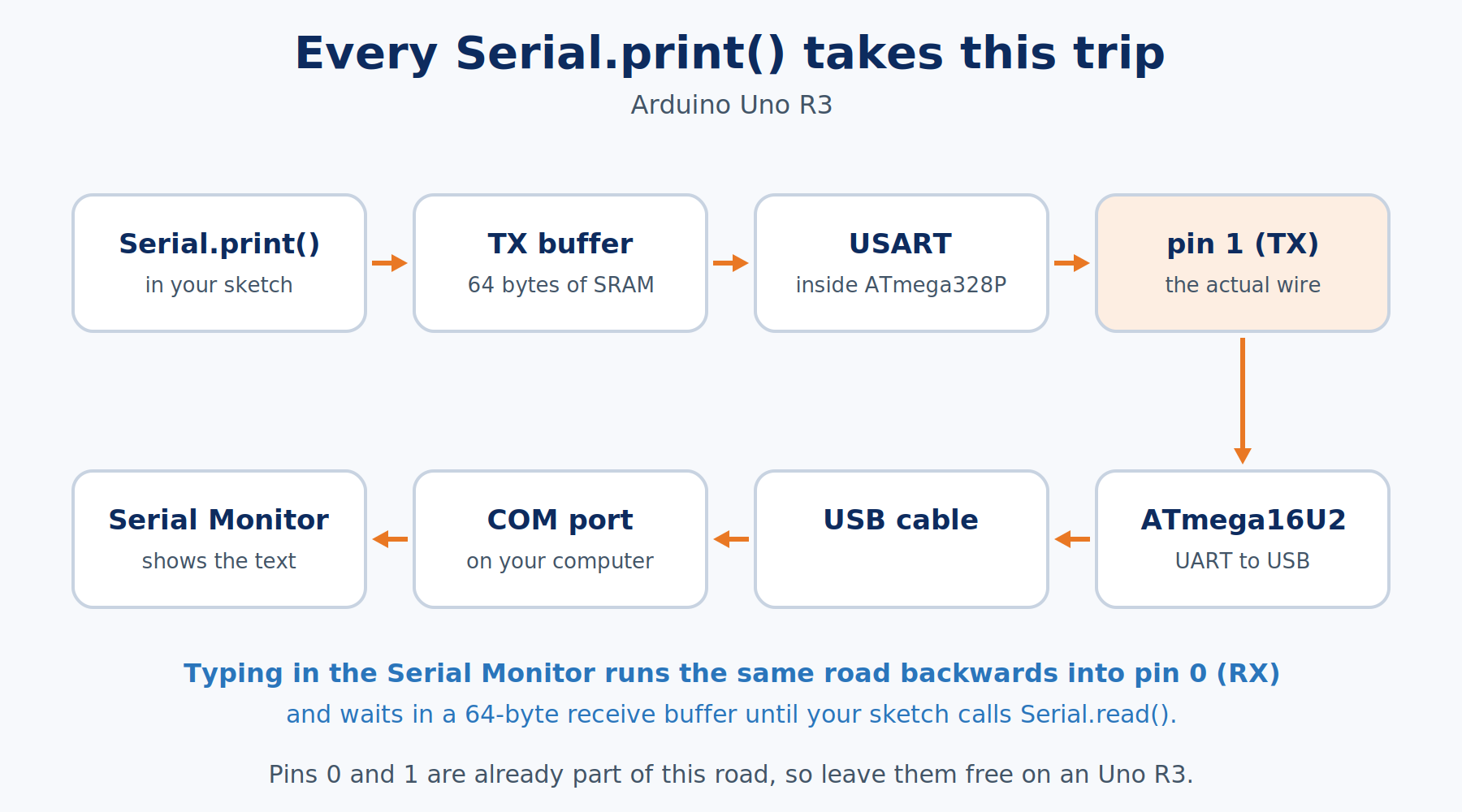
Two things fall straight out of this picture, and both are gotchas to know before you hit them.
Pins 0 and 1 are already in use. They're physically wired to the USB bridge chip. If you connect a GPS module or another Arduino to pins 0 and 1, two transmitters end up fighting over the same wire, and the most common symptom is a failed upload, because uploading new code also travels over this same serial link. Leave pins 0 and 1 alone on an Uno R3 unless you really know why you're using them. We'll use different pins for our second port.
The buffer can make Serial.print() slow without warning. Printing usually costs almost nothing, because the library only copies your text into the buffer and moves on. But if you print more than the buffer can hold faster than the UART can send it, the 65th byte has nowhere to go, so Serial.print() quietly waits until there's room. Your "non-blocking" Part 4 loop suddenly isn't. Exercise 2 measures this so you can see it.
Uno R4 callout. The Uno R4 Minima and R4 WiFi take a different road. Their main chip (a Renesas RA4M1) speaks USB directly, so
Serialmeans the USB connection and is not connected to pins 0 and 1 at all. Those pins are a separate, free hardware port calledSerial1. On an R4, useSerial1wherever this article uses SoftwareSerial for the second port. Everything else here, framing, baud rates, and wiring, works the same.
What one byte looks like on the wire
UART stands for Universal Asynchronous Receiver-Transmitter. "Asynchronous" is the important word. It means there's no shared clock wire telling both sides when to read. Instead, both sides agree ahead of time on how long each bit lasts, and they each keep time on their own.
The deeper story, including where the idea came from, lives in our companion reference article, How UART Communication Works. Here's the short version you need for this part.
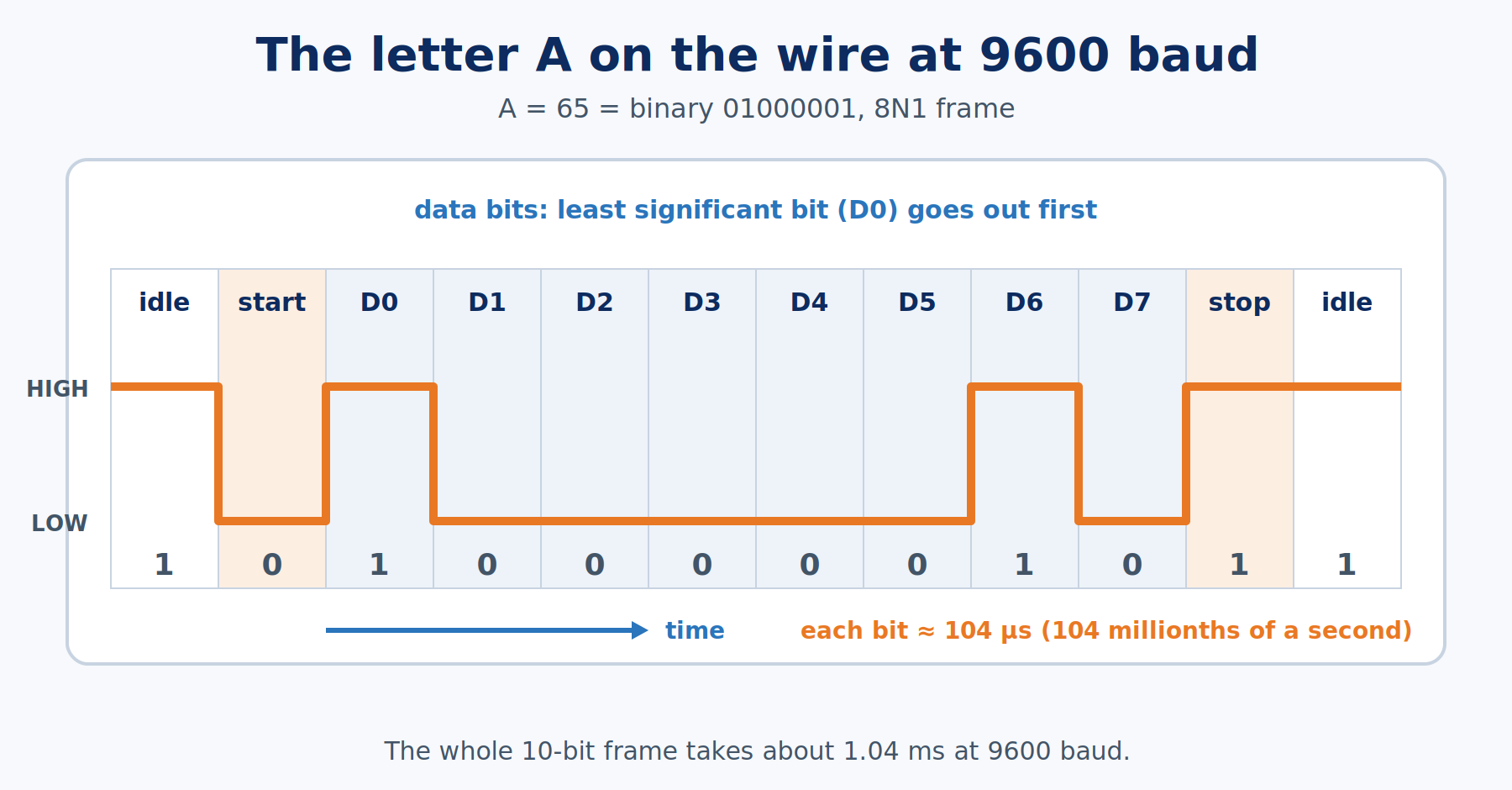
When nothing is being sent, the TX line sits HIGH (5 V on an Uno). To send one byte, the UART sends a frame:
- a start bit: the line drops LOW for one bit-time, which says "a byte is coming"
- eight data bits, the rightmost (least significant) bit first, HIGH for 1 and LOW for 0
- a stop bit: the line goes back HIGH for one bit-time, which says "done"
That's 10 bits on the wire for every 8 bits of data. The usual name for this setup is 8N1: 8 data bits, No parity bit, 1 stop bit. Serial.begin(115200) uses 8N1 unless you tell it otherwise.
Baud rate is the beat both boards count
The number inside Serial.begin() is the baud rate: how many bits per second the line carries. At 9600 baud, each bit lasts about 104 microseconds. That's 104 millionths of a second. At 115200 baud, each bit lasts under 9 microseconds.
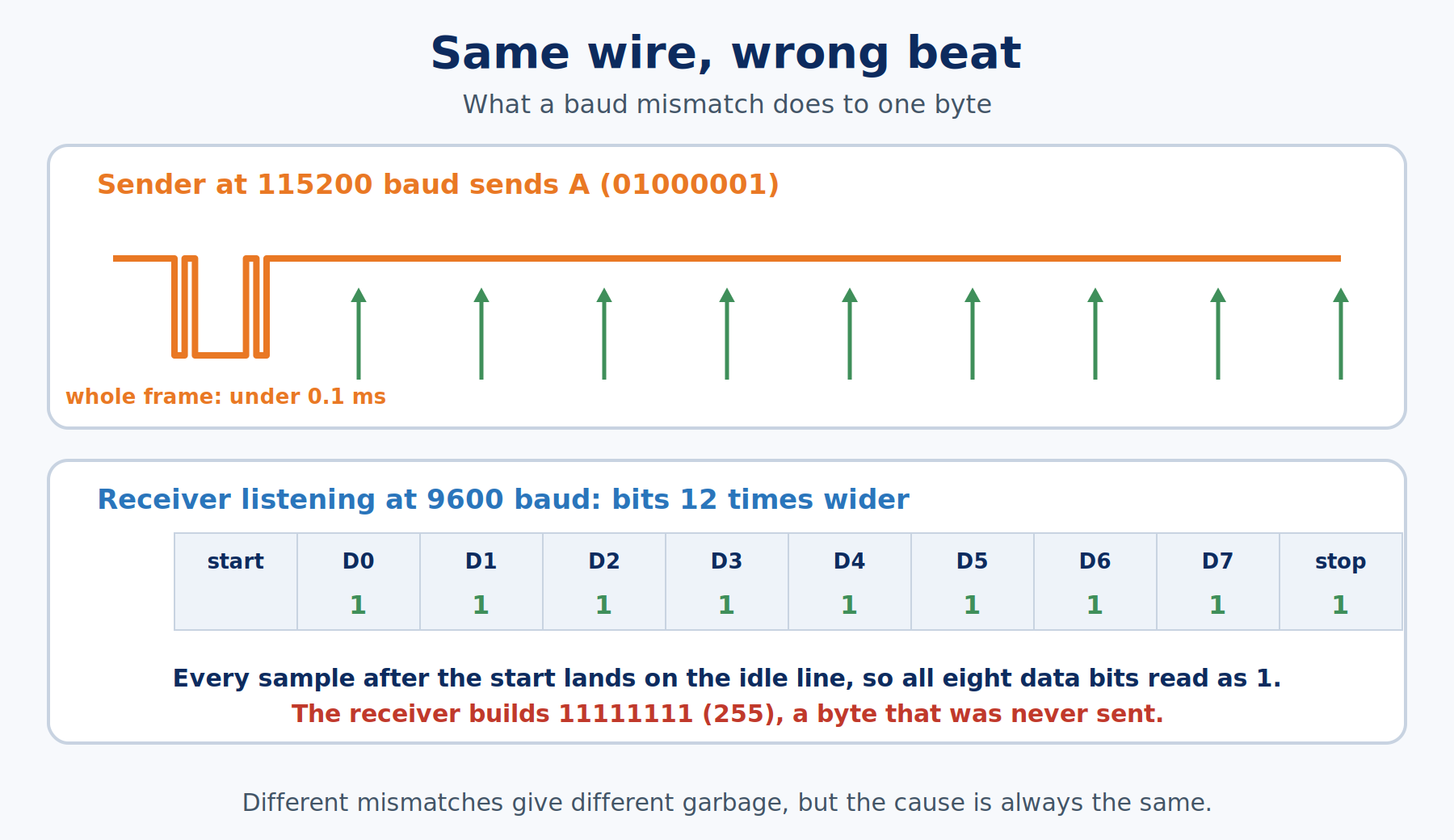
Because there's no shared clock, the receiver finds each bit by timing alone. It sees the start bit's falling edge, starts a stopwatch, and samples the line in the middle of each bit-time after that. If the two sides disagree about the baud rate, the receiver samples at the wrong moments and stitches together bytes that were never sent. That's where the garbage characters come from. The Arduino can't detect a mismatch and fix it for you. Exercise 2 breaks this on purpose so you'll recognize it instantly from now on.
A quick bit of math to keep in your head: with 10 bits per character, divide the baud rate by 10 to get characters per second. 9600 baud moves about 960 characters per second. 115200 baud moves about 11,520. That's why this series uses 115200 for the Serial Monitor. At 9600, a single 60-character line of debug output takes over 60 milliseconds to send, long enough to make a fast loop stutter.
Bytes, not numbers
UART carries bytes, plain numbers from 0 to 255, and nothing else. It has no idea what a "number" or a "word" is. So how does Serial.print(42) show up as "42"?
Serial.print() translates for you. It turns the number 42 into the two text characters "4" and "2", and sends their codes. Those codes come from ASCII (American Standard Code for Information Interchange), the table that gives every common text character a number. In ASCII, "4" is 52 and "2" is 50, so Serial.print(42) actually sends two bytes, 52 and 50. The Serial Monitor receives them and shows the characters "4" and "2".
Serial.write() doesn't translate. It sends the exact byte you give it. Serial.write(65) sends one byte, 65, and since 65 is the ASCII code for "A", the Serial Monitor shows the letter A. Exercise 1 makes this concrete.
Typing works the same way in reverse. When you type ON in the Serial Monitor and press Send, your board receives the bytes 79 ("O") and 78 ("N"), plus, depending on a setting in the Serial Monitor, an invisible line ending: a byte that marks the end of a line. Exercise 3 shows you exactly which bytes arrive.
Why the title calls Serial a bus
In electronics, a bus is a shared set of wires plus a set of rules that let separate pieces of hardware exchange data. The "rules" part is the important part. A wire on its own is only copper. A bus is copper plus an agreement about what the voltages on it mean and when.
UART fits that description. The wires are TX, RX, and ground. The rules are the frame and the baud rate. Any two devices that follow those rules can talk, whether one of them is your computer, a GPS module, a Bluetooth module, or another Arduino. Your Serial Monitor connection was never a special "debug feature" of the Arduino. It's one UART link that happens to end at a USB chip, and the same pins and the same rules can connect your board to anything else that speaks UART.
UART is the simplest kind of bus, though. It's point-to-point: one transmitter drives each wire, so a UART link connects exactly two devices. If you want many devices sharing the same wires, you need a bus with addressing, which is exactly what Part 12 (I²C: Addressing a Bus) is about.
Wiring two UART devices together
Three wires connect two UART devices:
| From board A | To board B | Why |
|---|---|---|
| TX | RX | What A sends, B receives |
| RX | TX | What B sends, A receives |
| GND | GND | Both boards need the same reference for "HIGH" and "LOW" |
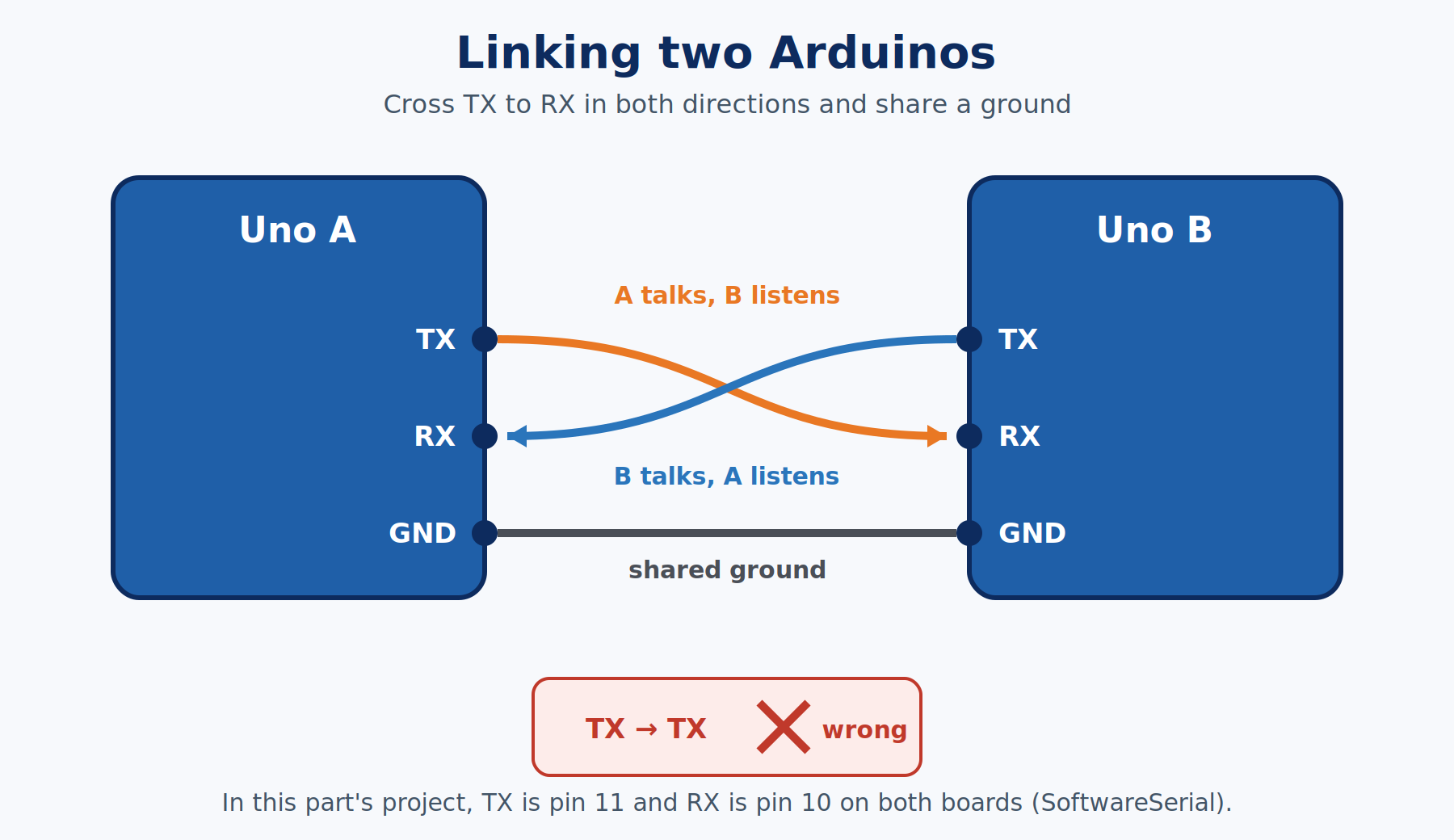
TX goes to RX. Not TX to TX. It's the number one UART wiring mistake. Think of a phone call: your mouthpiece has to reach the other person's earpiece, not their mouthpiece. And don't skip the ground wire because each board has its own USB cable. Without a shared ground, the receiving board has no reliable reference for deciding whether the other board's TX line is high or low.
CHECK THE VOLTAGE BEFORE YOU CONNECT ANYTHING THAT ISN'T ANOTHER 5 V ARDUINO. Two Unos are both 5 V boards, so they connect directly. A 3.3 V board such as an ESP32 or a Raspberry Pi can be damaged by a 5 V signal on its RX pin. That connection needs a logic level shifter or a resistor voltage divider on the Uno-TX-to-3.3V-RX wire.
Hardware serial vs software serial
The ATmega328P has exactly one hardware UART, and on an Uno R3 it's already busy talking to USB. So how do we add a second serial port for another device?
You do it in software. A software serial port uses ordinary digital pins and has the processor itself flip the TX pin high and low at exactly the right moments. Before reaching for the library that does this, it's worth seeing the hard way, so you know what the library is saving you from.
Here's what sending one byte by hand looks like at 9600 baud. Don't build this one. Read it:
const uint8_t TX_PIN = 11;               // any free digital pin can act as a software TX
const unsigned int BIT_TIME_US = 104;    // one bit at 9600 baud lasts about 104 microseconds

void sendByteTheHardWay(uint8_t value) {
  digitalWrite(TX_PIN, LOW);             // start bit: pull the idle-HIGH line LOW for one bit-time
  delayMicroseconds(BIT_TIME_US);
  for (uint8_t bit = 0; bit < 8; bit++) {          // eight data bits, least significant bit first
    digitalWrite(TX_PIN, (value >> bit) & 1);      // ">> bit" slides the bit we want to the right end; "& 1" keeps only that bit
    delayMicroseconds(BIT_TIME_US);                // hold it for one bit-time
  }
  digitalWrite(TX_PIN, HIGH);            // stop bit: back to HIGH, which is also the idle state
  delayMicroseconds(BIT_TIME_US);
}
That's a complete, working UART transmitter in a dozen lines, and it shows exactly what a frame is. It also has real problems. digitalWrite() itself takes a few microseconds, so every bit runs a few percent long. If the millis() timer interrupt from Part 4 fires in the middle of a byte, that bit stretches even more. And while it's sending, your sketch is stuck doing nothing else. Receiving the hard way is worse still: you'd have to catch the exact moment the start bit falls, then sample in the middle of every bit after it, without missing anything.
The SoftwareSerial library does all of this properly. It uses carefully tuned timing instead of digitalWrite(), and it uses a pin-change interrupt (the same "react when a pin changes" idea from Part 8) to catch incoming start bits. It ships with the Arduino AVR board package, so there's nothing to download or install. You add #include <SoftwareSerial.h> at the top of your sketch and create a port on two pins you choose:
#include <SoftwareSerial.h>                  // bundled with the Arduino AVR core, no install needed
SoftwareSerial link(10, 11);                 // a new serial port: pin 10 receives (RX), pin 11 transmits (TX)
From there, link works just like Serial: link.begin(), link.print(), link.available(), link.read().
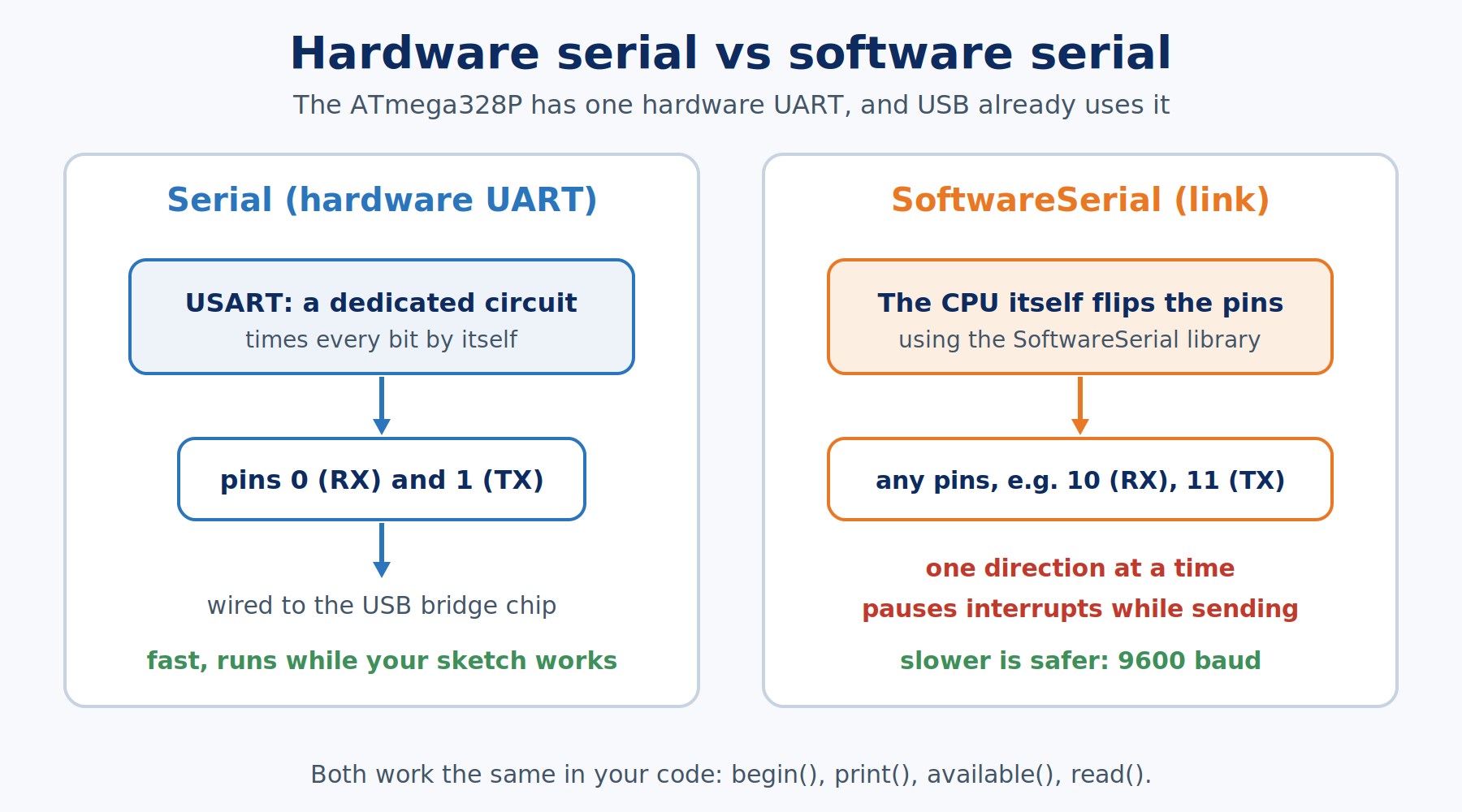
SoftwareSerial has limits you should know up front, straight from Arduino's own documentation:
- It can't send and receive at the same moment. While it's sending a byte, an incoming byte can be lost. Keep messages short and take turns, which is exactly what our project's command-and-reply design does.
- Only one SoftwareSerial port can listen at a time if you create several. One is all we need.
- Slower is safer. It works up to 115200 baud on paper, but 9600 is far more reliable, and it's the speed we'll use for the board-to-board link.
- It pauses interrupts while it sends each byte. At 9600 baud, that's about a millisecond per character. It's harmless for this project, but it's worth remembering if you ever combine it with timing-critical interrupt code.
One interface for every serial port
Here's a detail that makes the project much tidier. Serial and a SoftwareSerial port are built differently inside, but they both belong to the same family in the Arduino core, called Stream. Anything that's a Stream promises to have the same functions: available(), read(), print(), println(), and write(). That's why link.print() works exactly like Serial.print().
It also means you can write one function that works with either port. To do that, the function takes a reference parameter, written with an & after the type, like Stream &port. The & means "work on the original port the caller handed me, not a copy of it." That matters here because a serial port isn't something you can copy, it's a real piece of hardware (or a real chunk of software timing). That's all you need to know about references for this part.
Exercises
Exercise 1: Print Sends Characters, Write Sends Bytes
- You will: See
print()andwrite()send the same number in two completely different ways. - Parts: One Arduino Uno. Nothing on the breadboard.
- Wiring: None, only the USB cable.
- Sketch:
void setup() {
  Serial.begin(115200);                        // open the USB serial link; the Serial Monitor must match this number

  Serial.print(F("print(65) shows: "));
  Serial.print(65);                            // print() converts 65 into the two characters '6' and '5'
  Serial.println();

  Serial.print(F("write(65) shows: "));
  Serial.write(65);                            // write() sends the raw byte 65, which is ASCII for 'A'
  Serial.println();

  Serial.print(F("The ASCII code for 'A' is "));
  Serial.println((int)'A');                    // (int) turns the character into its number so print() shows the code

  size_t bytesSent = Serial.print(1234);       // print() returns how many bytes it actually sent
  Serial.println();
  Serial.print(F("print(1234) sent this many bytes: "));
  Serial.println(bytesSent);                   // four characters, so four bytes
}

void loop() {
  // nothing to repeat; everything in this exercise happens once in setup()
}
- What to notice:
print(65)shows "65" whilewrite(65)shows "A". Same number, different bytes on the wire. Andprint(1234)reports sending 4 bytes, one per digit, which is the cost of sending numbers as text. - If it fails: Garbage characters mean the Serial Monitor's baud dropdown (bottom right of the Serial Monitor panel in Arduino IDE 2) isn't set to 115200.
Exercise 2: Break the Baud Rate on Purpose
- You will: See what a baud mismatch looks like, then measure how long printing really takes at two speeds.
- Parts: Same as Exercise 1.
- Wiring: None.
- Sketch:
const unsigned long BAUD = 9600;               // run it at 9600 first, then change this to 115200 and upload again

void setup() {
  Serial.begin(BAUD);                           // the board now sends at whatever BAUD is set to
  Serial.println(F("Timing one 60-byte line..."));
  Serial.flush();                               // flush() waits until everything already printed has left the pin

  unsigned long startMicros = micros();         // the time right before we print, in microseconds
  Serial.println(F("0123456789012345678901234567890123456789012345678901234567")); // 58 characters + 2 line-ending bytes = 60 bytes
  Serial.flush();                               // wait until the very last stop bit of that line is sent
  unsigned long elapsed = micros() - startMicros; // how long the whole line took to leave the board

  Serial.print(F("That line took "));
  Serial.print(elapsed);
  Serial.println(F(" microseconds to send."));
}

void loop() {
  // nothing to repeat
}
- Step 1, the break: Upload with
BAUD = 9600, but leave the Serial Monitor set to 115200. You'll see garbage, or nothing at all. Now switch the Serial Monitor's dropdown to 9600 and press the board's reset button. The text comes through clean. That screen of nonsense is what every baud mismatch looks like, now and forever. - Step 2, the cost: Note the time at 9600. Change
BAUDto 115200, upload, set the Serial Monitor back to 115200, and compare. - What to notice: At 9600 the line takes about 62,000 microseconds (62 milliseconds). At 115200 it takes about 5,200. The numbers match the math from earlier: 60 bytes × 10 bits each ÷ the baud rate.
Serial.flush()is used here only to make the timing visible. In normal sketches you rarely need it, but any time you print more than 64 bytes in one go,print()itself ends up waiting the same way. - If it fails: Still garbage after switching the dropdown? Make sure you pressed reset, since the sketch only prints once, during
setup().
Exercise 3: See Exactly What Arrives
- You will: Type into the Serial Monitor and see every byte your board receives, including the invisible ones.
- Parts: Same as Exercise 1.
- Wiring: None.
- Sketch:
void setup() {
  Serial.begin(115200);
  Serial.println(F("Type something in the Serial Monitor and press Send."));
}

void loop() {
  if (Serial.available() > 0) {                 // available() counts received bytes waiting in the 64-byte buffer
    int b = Serial.read();                      // read() removes the oldest byte and returns it as a number from 0 to 255
    Serial.print(F("Got byte "));
    Serial.print(b);                            // show the raw number
    if (b >= 32 && b <= 126) {                  // 32 to 126 are the printable ASCII characters
      Serial.print(F("  which is '"));
      Serial.write(b);                          // show the character itself
      Serial.print(F("'"));
    } else if (b == 10) {                       // 10 is the newline character
      Serial.print(F("  which is newline (\\n)"));
    } else if (b == 13) {                       // 13 is the carriage return character
      Serial.print(F("  which is carriage return (\\r)"));
    }
    Serial.println();
  }
}
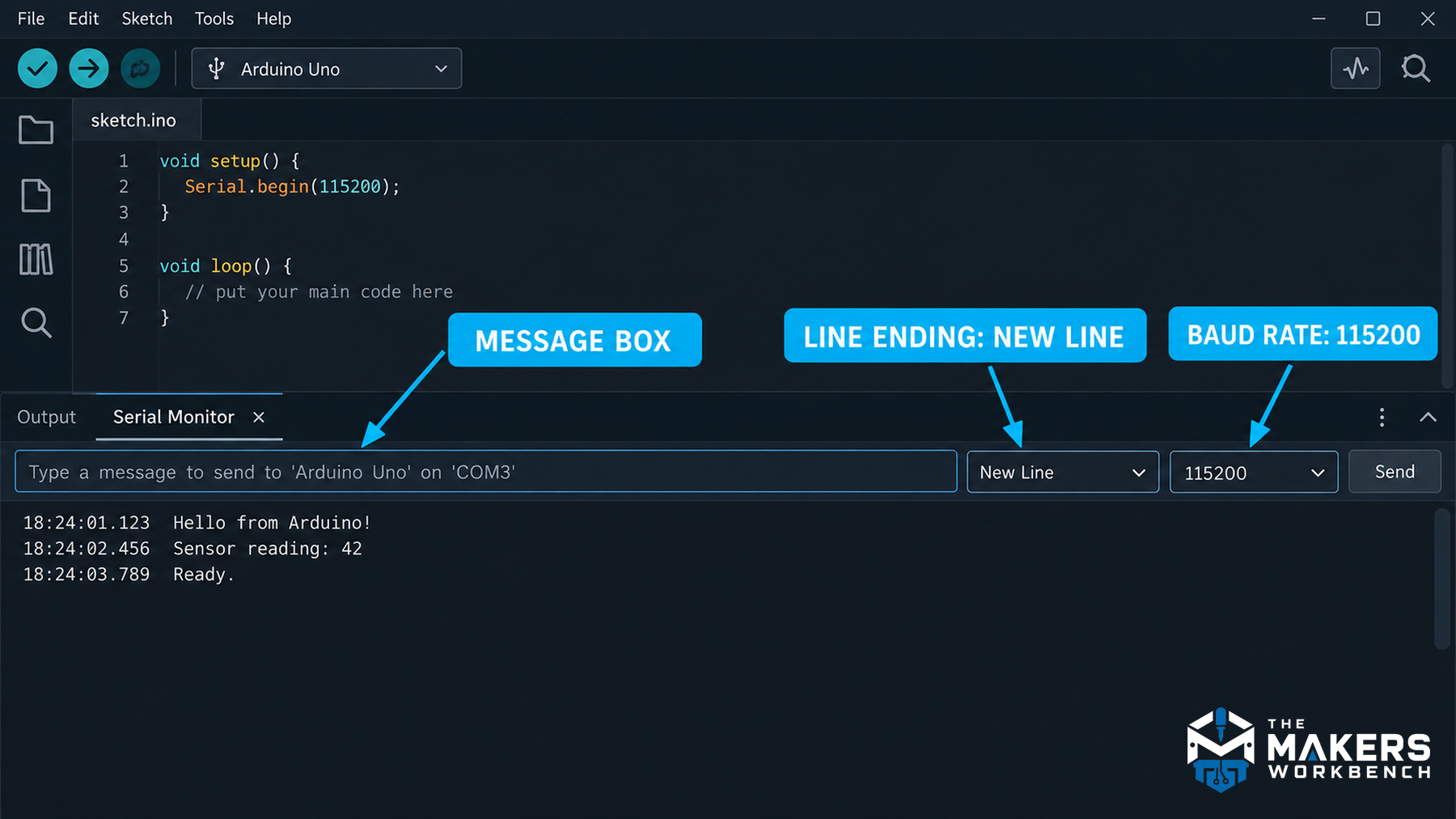
- What to notice: Type
Hiwith the line-ending dropdown (next to the baud dropdown) set to New Line and you'll see three bytes: 72 ("H"), 105 ("i"), and 10, the newline. Switch it to Both NL & CR and you get four: 72, 105, 13, 10. Switch it to No Line Ending and you get only 72 and 105. Your sketch has no way to know a line is finished unless something marks the end, and that newline byte is the marker we'll use from here on. - If it fails: Nothing appears when you press Send? Check that you typed into the message box at the top of the Serial Monitor, not into the sketch editor.
Exercise 4: Read Commands Without Blocking
- You will: Build a line reader that collects typed characters until it sees a newline, then acts on the whole command, without ever stopping
loop()to wait. - Parts: Same as Exercise 1. The Uno's built-in LED on pin 13 is the output.
- Wiring: None.
You might find Serial.readStringUntil('\n') in other tutorials. It works, but it's a trap for this series: it waits for the newline, for up to a full second by default, freezing your loop the whole time. That's delay() sneaking back in through a side door. Instead, we'll take bytes as they arrive and only act once a full line is ready, the same non-blocking spirit as Part 4. The text goes into a char array, the same as Part 5.
- Sketch:
const uint8_t LED_PIN = LED_BUILTIN;            // the Uno's onboard LED, pin 13
const uint8_t MAX_LINE = 32;                    // longest command we'll accept, in characters

char lineBuffer[MAX_LINE + 1];                  // room for the command plus the '\0' that ends a C string (Part 5)
uint8_t lineLength = 0;                         // how many characters are stored in lineBuffer so far

void setup() {
  Serial.begin(115200);
  pinMode(LED_PIN, OUTPUT);
  Serial.println(F("Type ON or OFF and press Send (line ending: New Line)."));
}

void handleCommand(const char *command) {
  if (strcmp(command, "ON") == 0) {             // strcmp() returns 0 when the two strings match exactly
    digitalWrite(LED_PIN, HIGH);
    Serial.println(F("LED is on"));
  } else if (strcmp(command, "OFF") == 0) {     // second command we understand
    digitalWrite(LED_PIN, LOW);
    Serial.println(F("LED is off"));
  } else {                                      // anything else is unknown, so say so instead of silently ignoring it
    Serial.print(F("Unknown command: "));
    Serial.println(command);
  }
}

void loop() {
  while (Serial.available() > 0) {              // handle every byte that's already waiting, then move on
    char c = Serial.read();                     // take the oldest byte out of the buffer
    if (c == '\r') {                            // ignore carriage returns, in case the Monitor sends them
      continue;
    }
    if (c == '\n') {                            // newline: the command is complete
      lineBuffer[lineLength] = '\0';            // end the string so strcmp() knows where it stops
      handleCommand(lineBuffer);
      lineLength = 0;                           // empty the buffer for the next command
    } else if (lineLength < MAX_LINE) {         // only store the character if there's room for it
      lineBuffer[lineLength] = c;
      lineLength++;
    }
  }
  // anything else your sketch does would go here, and it never waits on the Serial Monitor
}
- What to notice:
ONlights the LED andOFFturns it off.onin lowercase is "unknown," becausestrcmp()compares exactly, letter for letter. The loop never stops to wait for you to finish typing. - If it fails: Every command comes back unknown? Your line-ending dropdown is probably on No Line Ending, so the newline never arrives and nothing triggers
handleCommand(). Set it to New Line.
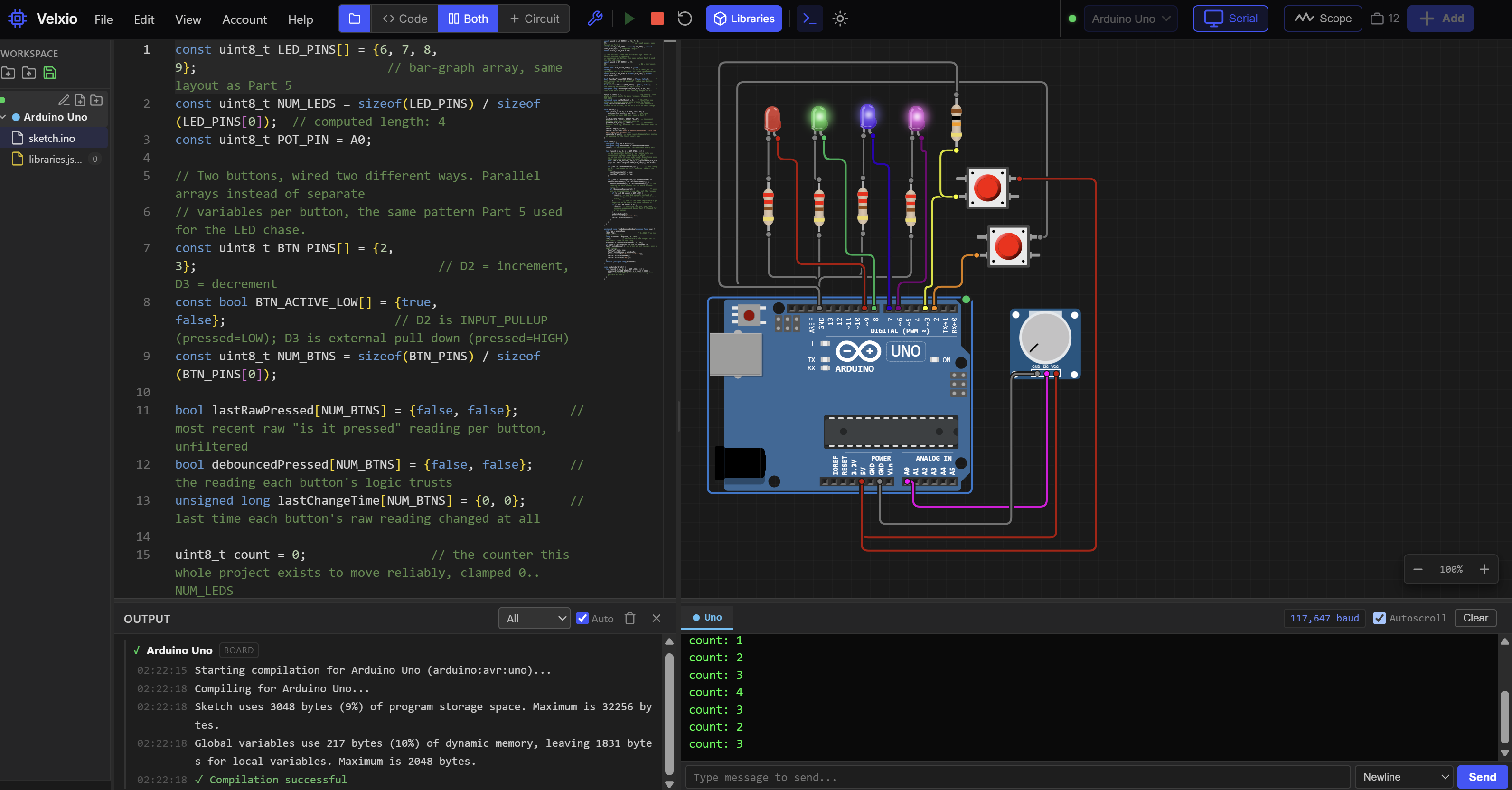
Try the Serial Exercises in the Lab
Every exercise so far needs nothing but one Uno, so they all run in the Lab. Paste any of the four sketches above into the Lab's code editor to try it.
The Lab circuit is wired like this:
| From | To | Why |
|---|---|---|
| Nothing | Nothing | These exercises use only the board itself and its built-in LED on pin 13 |
How to use it:
- Press Run. The sketch compiles and starts.
- Open the Serial Monitor panel. You should see the "Type ON or OFF" prompt.
- Click the box that says Type message to send..., type
ON, leave the menu next to it on Newline, and press Send. The Uno's onboard LED lights. - To try another exercise, stop the simulation, paste that exercise's sketch into the editor, and press Run again.
The Lab's Serial Monitor automatically listens at whatever rate the sketch uses (it shows 117,647 baud for Serial.begin(115200), which is the Uno's real rate, as the companion UART article explains). That means you can't recreate Exercise 2's baud mismatch in the Lab. That one step needs a real board.
Exercise 5: A Second Serial Port Between Two Boards
- You will: Give each of two Arduinos a second serial port with SoftwareSerial, connect them, and type messages from one board's Serial Monitor to the other's.
- Parts: Two Arduino Unos (or an Uno and a Nano), two USB cables, three jumper wires.
- Wiring:
| From | To | Why |
|---|---|---|
| Board A pin 11 (link TX) | Board B pin 10 (link RX) | A's messages travel to B |
| Board B pin 11 (link TX) | Board A pin 10 (link RX) | B's messages travel to A |
| Board A GND | Board B GND | Shared ground reference |
Cross the wires: pin 11 on one board goes to pin 10 on the other. Pins 0 and 1 stay empty on both boards.
- Sketch: Upload this same sketch to both boards.
#include <SoftwareSerial.h>                     // bundled with the Arduino AVR core; nothing to install

const uint8_t LINK_RX_PIN = 10;                 // receives from the other board's pin 11
const uint8_t LINK_TX_PIN = 11;                 // transmits to the other board's pin 10
const unsigned long LINK_BAUD = 9600;           // both boards must use the same link speed

SoftwareSerial link(LINK_RX_PIN, LINK_TX_PIN);  // the second serial port: (RX pin, TX pin)

void setup() {
  Serial.begin(115200);                         // USB link to your computer, same as always
  link.begin(LINK_BAUD);                        // start the board-to-board link
  Serial.println(F("Bridge ready. Anything you type here appears on the other board."));
}

void loop() {
  if (Serial.available() > 0) {                 // did you type something into this board's Serial Monitor?
    link.write(Serial.read());                  // pass that byte straight across to the other board
  }
  if (link.available() > 0) {                   // did a byte arrive from the other board?
    Serial.write(link.read());                  // show it in this board's Serial Monitor
  }
}
Two Serial Monitors at once: in Arduino IDE 2, each window can talk to a different board. Open a second window with File > New Sketch, then pick the second board's port in that window's board selector. Upload the sketch from each window to its own board, and open the Serial Monitor in both.
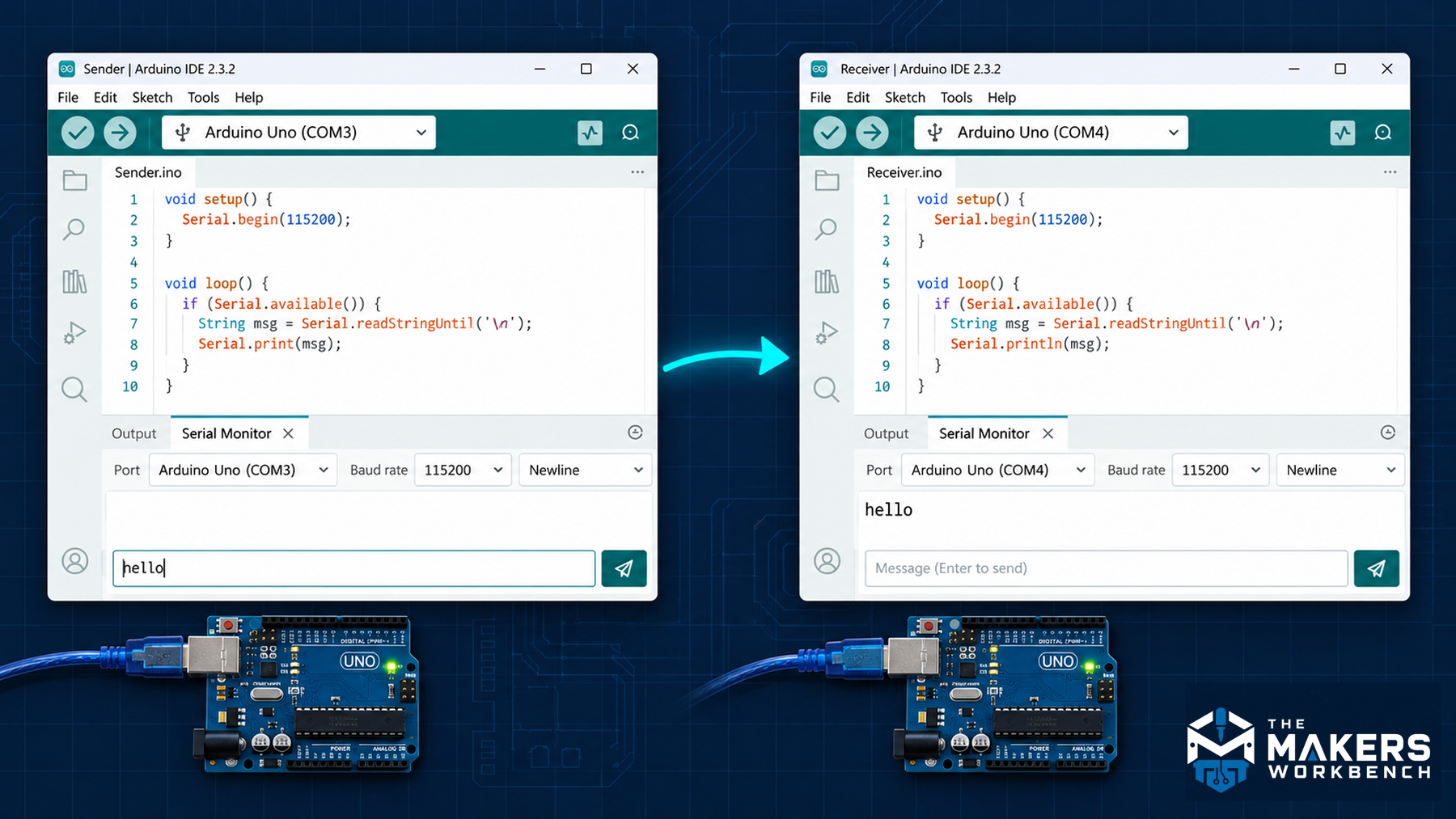
- What to notice: Type
hellointo board A's Serial Monitor and press Send. It appears in board B's Serial Monitor. Type back from B and it appears on A. You've built a two-way serial link that has nothing to do with USB. - If it fails: Nothing arrives? Check, in this order: pin 11 crosses to pin 10 in both directions, the GND wire is connected, and both boards are running the sketch (it's easy to upload twice to the same port). Garbled characters on the far side usually mean one board is running a different
LINK_BAUD.
Practical Project: The Two-Board Command Link
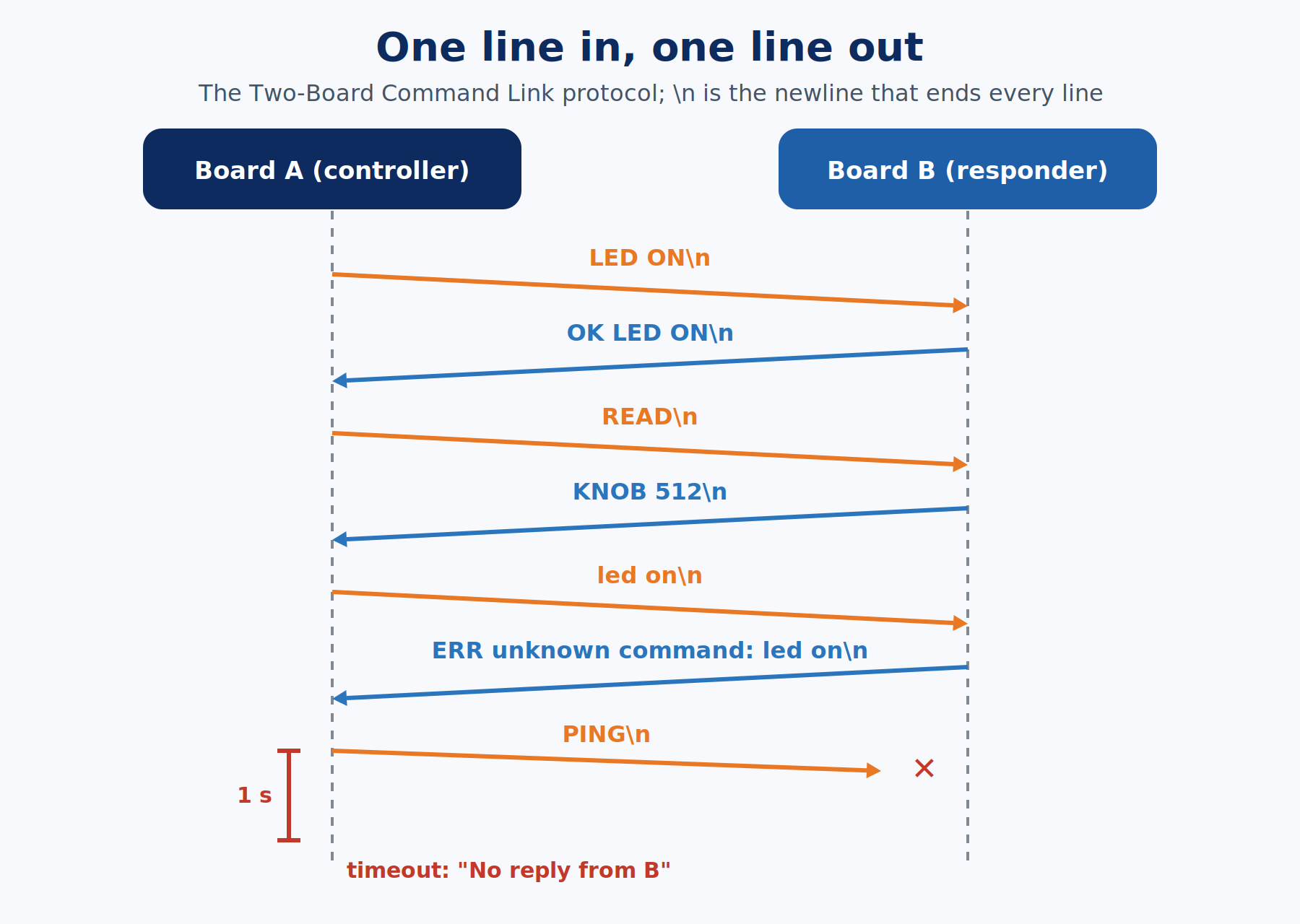
Done looks like: Type LED ON into board A's Serial Monitor and board B's LED lights, while A's Serial Monitor prints B says: OK LED ON within a fraction of a second. READ returns the knob position on board B as a number that changes when you turn the knob. A command B doesn't know returns an ERR reply instead of silence. Pull the link wire out and A reports No reply from B instead of hanging. And through all of it, board A's onboard LED keeps blinking a steady heartbeat that never stutters.
What you will build
- A controller (board A) that reads whole commands from your Serial Monitor without blocking, sends them across the UART link, and prints the replies.
- A responder (board B) that reads commands from the link, acts on them, and always sends exactly one reply line back.
- A simple protocol, meaning an agreed set of rules for the conversation: one command per line, one reply per line, every line ending in a newline character.
- A reply timeout on the controller, so a broken link gets reported instead of silently ignored.
- A
millis()heartbeat on board A that proves nothing in the sketch ever blocks.
Components needed
Everything is in the Bill of Materials above: two Unos, two USB cables, the breadboard and jumpers, one LED with a 220 Ω resistor from the assortment kit, and the 10 kΩ potentiometer.
Lab support for this project
This build needs real hardware for now. The Lab can run two Unos side by side, but it doesn't yet pass serial data from one board to the other, so the link wouldn't carry any commands. Exercises 1 through 4 all run in the Lab above.
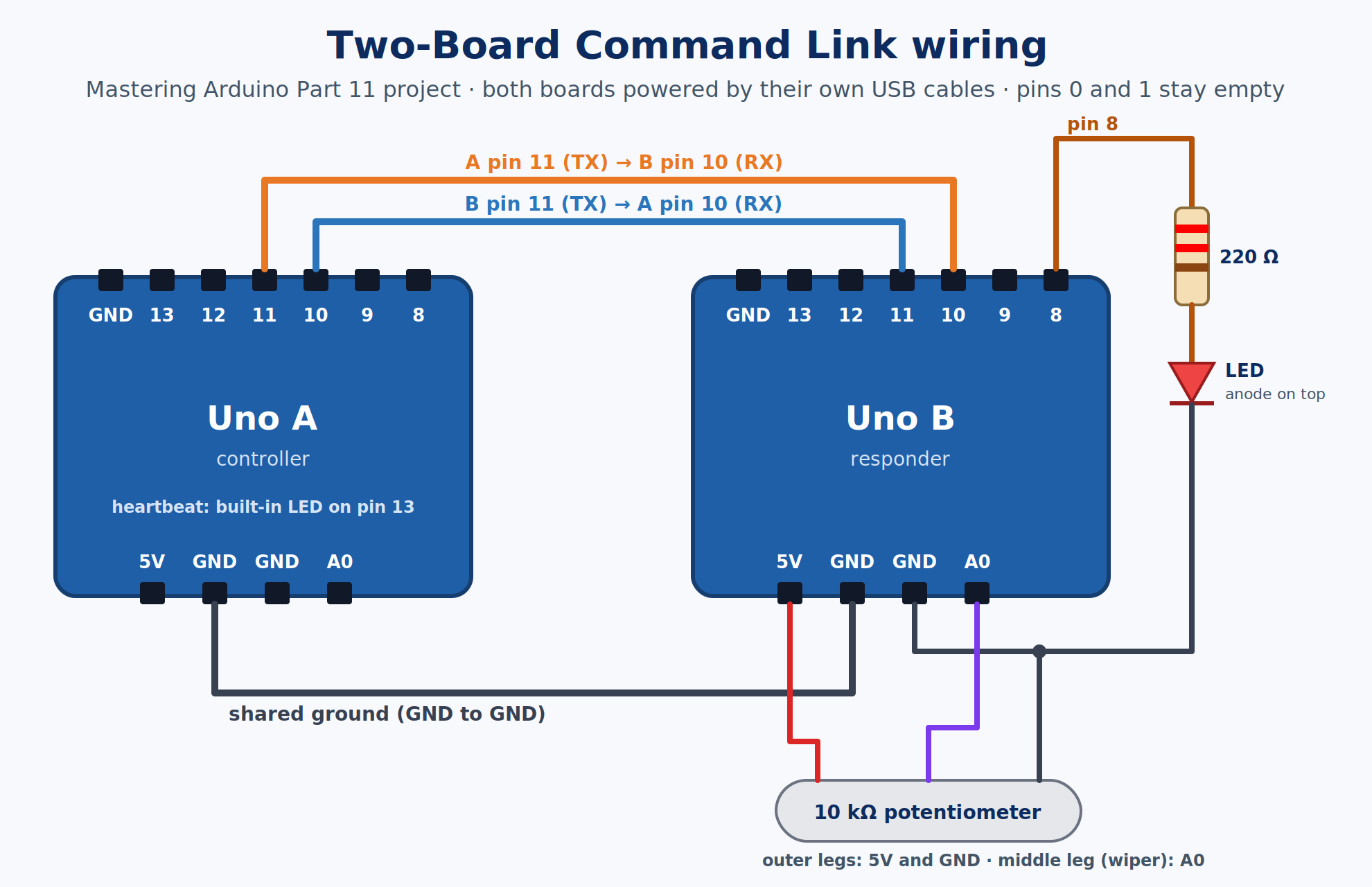
Wiring
| Part | Connects to |
|---|---|
| Board A pin 11 (link TX) | Board B pin 10 (link RX) |
| Board B pin 11 (link TX) | Board A pin 10 (link RX) |
| Board A GND | Board B GND |
| LED anode (longer leg), through 220 Ω resistor | Board B pin 8 |
| LED cathode (shorter leg, flat side) | Board B GND |
| Potentiometer outer pins | Board B 5V and Board B GND |
| Potentiometer wiper (center pin) | Board B A0 |
| Board A heartbeat | Built-in LED on pin 13, no wiring |
Each board is powered by its own USB cable. Leave pins 0 and 1 empty on both boards. They belong to the USB link.
The sketches
This project has two sketches, one for each board. Upload the controller to board A and the responder to board B, using two IDE windows as in Exercise 5.
Board A: the controller
#include <SoftwareSerial.h>                     // second serial port for the board-to-board link

// ---- pins ----
const uint8_t LINK_RX_PIN = 10;                 // receives replies from board B's pin 11
const uint8_t LINK_TX_PIN = 11;                 // sends commands to board B's pin 10
const uint8_t HEARTBEAT_PIN = LED_BUILTIN;      // onboard LED, pin 13

// ---- settings ----
const unsigned long LINK_BAUD = 9600;           // must match board B
const unsigned long HEARTBEAT_MS = 500;         // heartbeat LED toggles this often
const unsigned long REPLY_TIMEOUT_MS = 1000;    // how long to wait for B before reporting a problem
const uint8_t MAX_LINE = 32;                    // longest line either port will accept

SoftwareSerial link(LINK_RX_PIN, LINK_TX_PIN);  // (RX, TX)

// ---- line buffers, one per port ----
char commandBuffer[MAX_LINE + 1];               // what you're typing in the Serial Monitor
uint8_t commandLength = 0;
char replyBuffer[MAX_LINE + 1];                 // what board B is sending back
uint8_t replyLength = 0;

// ---- state ----
bool waitingForReply = false;                   // true between sending a command and getting its answer
unsigned long commandSentAt = 0;                // millis() when the last command went out
unsigned long lastHeartbeat = 0;                // millis() of the last heartbeat toggle
bool heartbeatOn = false;                       // current heartbeat LED state

// Collects bytes from any serial port into a buffer.
// Returns true once a complete line (ending in '\n') is ready.
// "Stream &port" means: use the real port we were handed (Serial or link), not a copy.
bool readLine(Stream &port, char *buffer, uint8_t &length) {
  while (port.available() > 0) {                // handle every byte that has already arrived
    char c = port.read();
    if (c == '\r') {                            // ignore carriage returns
      continue;
    }
    if (c == '\n') {                            // end of line: finish the string and report success
      buffer[length] = '\0';
      length = 0;                               // ready for the next line next time
      return true;
    }
    if (length < MAX_LINE) {                    // store the character if there's room
      buffer[length] = c;
      length++;
    }
  }
  return false;                                 // no complete line yet; try again next loop
}

void setup() {
  Serial.begin(115200);                         // USB link to your computer
  link.begin(LINK_BAUD);                        // UART link to board B
  pinMode(HEARTBEAT_PIN, OUTPUT);
  Serial.println(F("Two-Board Command Link: controller (board A)"));
  Serial.println(F("Commands: PING, LED ON, LED OFF, READ"));
}

void updateHeartbeat(unsigned long now) {
  if (now - lastHeartbeat >= HEARTBEAT_MS) {    // Part 4's non-blocking timing pattern
    lastHeartbeat = now;
    heartbeatOn = !heartbeatOn;                 // flip the LED state
    digitalWrite(HEARTBEAT_PIN, heartbeatOn ? HIGH : LOW);
  }
}

void checkForTypedCommand(unsigned long now) {
  if (readLine(Serial, commandBuffer, commandLength)) {   // a full command was typed
    if (waitingForReply) {                                // keep the protocol to one command at a time
      Serial.println(F("Still waiting on the last reply, try again in a moment."));
      return;
    }
    link.print(commandBuffer);                  // send the command text across the link
    link.print('\n');                           // and the newline that tells B the command is complete
    waitingForReply = true;
    commandSentAt = now;                        // start the reply timeout clock
    Serial.print(F("Sent to B: "));
    Serial.println(commandBuffer);
  }
}

void checkForReply(unsigned long now) {
  if (readLine(link, replyBuffer, replyLength)) {         // a full reply arrived from B
    Serial.print(F("B says: "));
    Serial.println(replyBuffer);
    waitingForReply = false;
  } else if (waitingForReply && now - commandSentAt >= REPLY_TIMEOUT_MS) {  // too long with no answer
    Serial.println(F("No reply from B. Check the link wires and ground."));
    waitingForReply = false;                    // give up on this command so new ones can be sent
  }
}

void loop() {
  unsigned long now = millis();
  updateHeartbeat(now);                         // proves the loop never blocks
  checkForTypedCommand(now);
  checkForReply(now);
}
Board B: the responder
#include <SoftwareSerial.h>                     // second serial port for the board-to-board link

// ---- pins ----
const uint8_t LINK_RX_PIN = 10;                 // receives commands from board A's pin 11
const uint8_t LINK_TX_PIN = 11;                 // sends replies to board A's pin 10
const uint8_t LED_PIN = 8;                      // the LED this board switches on command
const uint8_t KNOB_PIN = A0;                    // potentiometer wiper, reported by READ

// ---- settings ----
const unsigned long LINK_BAUD = 9600;           // must match board A
const uint8_t MAX_LINE = 32;                    // longest command we'll accept

SoftwareSerial link(LINK_RX_PIN, LINK_TX_PIN);  // (RX, TX)

char commandBuffer[MAX_LINE + 1];               // the command arriving from board A
uint8_t commandLength = 0;

// Same line reader as the controller. It works on any Stream: Serial or link.
bool readLine(Stream &port, char *buffer, uint8_t &length) {
  while (port.available() > 0) {
    char c = port.read();
    if (c == '\r') {                            // ignore carriage returns
      continue;
    }
    if (c == '\n') {                            // end of line: finish the string
      buffer[length] = '\0';
      length = 0;
      return true;
    }
    if (length < MAX_LINE) {                    // store the character if there's room
      buffer[length] = c;
      length++;
    }
  }
  return false;
}

void setup() {
  Serial.begin(115200);                         // USB link, used here only for a log you can watch
  link.begin(LINK_BAUD);                        // UART link to board A
  pinMode(LED_PIN, OUTPUT);
  Serial.println(F("Two-Board Command Link: responder (board B)"));
}

// Every command gets exactly one reply line, so board A always knows when we're done.
void handleCommand(const char *command) {
  Serial.print(F("Received: "));                // local log on board B's own Serial Monitor
  Serial.println(command);

  if (strcmp(command, "PING") == 0) {           // simple "are you there?" check
    link.println(F("PONG"));
  } else if (strcmp(command, "LED ON") == 0) {
    digitalWrite(LED_PIN, HIGH);
    link.println(F("OK LED ON"));
  } else if (strcmp(command, "LED OFF") == 0) {
    digitalWrite(LED_PIN, LOW);
    link.println(F("OK LED OFF"));
  } else if (strcmp(command, "READ") == 0) {    // report the knob as a raw ADC number (Part 10)
    int knob = analogRead(KNOB_PIN);
    link.print(F("KNOB "));
    link.println(knob);
  } else {                                      // never leave A waiting in silence
    link.print(F("ERR unknown command: "));
    link.println(command);
  }
}

void loop() {
  if (readLine(link, commandBuffer, commandLength)) {     // a complete command arrived from A
    handleCommand(commandBuffer);
  }
}
Before you run it, check the pin constants against the wiring table one signal at a time: LINK_RX_PIN 10 and LINK_TX_PIN 11 on both boards, crossed between them, LED_PIN 8 and KNOB_PIN A0 on board B, and the heartbeat on pin 13 of board A.
What's happening
Board A's loop() runs three small jobs, every pass, without ever waiting. updateHeartbeat() is Part 4's millis() pattern, and its steady blink is your proof that nothing else blocks. checkForTypedCommand() uses the line reader from Exercise 4, now wrapped in readLine(), to collect what you type in the Serial Monitor. When a full line is ready, it sends that text across the link with a newline on the end, exactly as the Serial Monitor sent it to the board. checkForReply() uses the very same readLine() function on the link port instead of on Serial. That's the Stream family at work: one function, two completely different serial ports.
Board B is even simpler. It waits for a complete line from the link and hands it to handleCommand(), which uses strcmp() exactly as Exercise 4 did. The important design rule is that every command gets exactly one reply line, even an unknown one. That rule is what lets board A know when a conversation is finished, and it's why the timeout on board A means something: no reply within a second can only mean the link itself is broken.
The one-command-at-a-time rule also protects you from SoftwareSerial's biggest limitation. Because A never sends while it's waiting for a reply, the two boards take turns, and neither one is ever trying to send and receive at the same moment.
If the project fails the "done" test
The usual culprit is the link wiring: TX wired to TX instead of crossing to RX, or the ground wire missing. Board A's timeout message is the giveaway, since it means commands are going out and nothing is coming back. The second most common cause is a command that's almost right. led on and LED ON (with a trailing space) both get an ERR reply because strcmp() matches exactly, which is the protocol working correctly, not a bug. If the heartbeat ever stutters, look for a delay() or a readStringUntil() that crept into your copy of the sketch.
Troubleshooting
| Symptom | Cause | Fix |
|---|---|---|
| Serial Monitor shows random symbols, boxes, or backwards question marks | Serial Monitor baud rate doesn't match Serial.begin() |
Set the Serial Monitor's baud dropdown to the same number as Serial.begin(), then reset the board |
| Upload fails with "not in sync" or "programmer is not responding" | Something is connected to pins 0 or 1 on an Uno R3 | Disconnect pins 0 and 1 during uploads, and use SoftwareSerial on other pins for extra devices |
| Typed commands are never recognized | Line ending set to No Line Ending, so the newline never arrives | Set the Serial Monitor's line-ending dropdown to New Line |
| Commands work in uppercase but not lowercase | strcmp() compares exactly, letter for letter |
Type commands exactly as written, or convert the buffer to uppercase before comparing |
| Board-to-board link sends but nothing arrives | TX wired to TX, or no shared ground | Cross pin 11 to pin 10 in both directions and connect GND to GND |
| Link characters arrive garbled | The two boards use different LINK_BAUD values |
Use the same link baud rate in both sketches |
| Occasional missing characters on the link | SoftwareSerial was sending and receiving at the same time, or the baud rate is too high | Keep one command and one reply at a time, and stay at 9600 for the link |
| A fast loop slows down whenever it prints a lot | Printing more than the 64-byte transmit buffer makes print() wait |
Print less, print less often, or raise the USB baud rate to 115200 |
| The loop freezes for about a second after each command | readStringUntil() or parseInt() waiting for its timeout |
Use the non-blocking readLine() pattern from this part |
| Uno R4: nothing comes out of pins 0 and 1 | On the R4, Serial is USB only, and pins 0/1 are Serial1 |
Use Serial1 for pins 0 and 1 on an Uno R4 |
Where This Fits in the Series
You can now explain what Serial.print() has been doing since Part 3: copying bytes into a buffer that a hardware UART sends out pin 1, one 10-bit frame at a time, at a baud rate both sides agreed on. You know why a mismatched baud rate produces garbage, why pins 0 and 1 are off limits on an Uno R3, how to add a second serial port with SoftwareSerial, and how to design a simple command-and-reply protocol that two boards can rely on.
- Part 4: Timing Without delay(), whose
millis()pattern runs the heartbeat and the reply timeout - Part 5: Arrays, Strings, and Data in C++, whose
chararrays andstrcmp()hold and compare every command - Part 8: Interrupts: Reacting Without Polling, the same idea SoftwareSerial uses to catch incoming start bits
- Part 10: Analog Measurement That Isn't a Lie, whose
analogRead()reading board B reports for READ (add Part 10's averaging and calibration to make it a real remote meter)
For the full story behind the frame, the history of UART, and how it compares with other buses, read the companion reference article How UART Communication Works. And when you're ready to connect an Arduino to a 3.3 V board like an ESP32, the Mastering ESP32 series starts with Getting Started with the ESP32: A Complete Beginner's Guide.
Wrap-Up and What's Next
Serial was never magic. It's UART: bytes sent as frames of one start bit, eight data bits, and a stop bit, timed by a baud rate that both ends must agree on, carried over a TX wire, an RX wire, and a shared ground. The Uno has one hardware UART already wired to USB, SoftwareSerial adds more on ordinary pins, and a clear protocol (one line in, one line out) turns those wires into a link two boards can trust.
Next up, Part 12: I²C: Addressing a Bus, where two wires stop being a private line between two devices and become a shared bus where many devices take turns, each with its own address.
Want to go deeper? Download the full eBook once the series is complete, and subscribe for the rest of the Arduino Mastery Series.
Hack The World and Make Awesome.