A classic Arduino Uno does not have an operating system in the laptop sense. You upload a sketch. The microcontroller runs that sketch until you overwrite it. There is no desktop, no Python package installer, no home folder.
A UNO Q is built differently. Next to the microcontroller there is a microprocessor that runs Linux. Arduino ships a Debian-based image on onboard eMMC (flash soldered to the board, not an SD card you pull out). That image is why App Lab, Python, packages, and a desktop can exist on the board at all. VENTUNO Q is the same idea with more headroom, and a different flash procedure. Arduino's UNO Q "Flash a Linux Image" tutorial says those steps apply to UNO Q only, and sends VENTUNO Q readers to a separate Ubuntu image guide. Do not follow a UNO Q Emergency Download Mode walkthrough on a VENTUNO Q.
This article is the Linux image and the tools that write it: what the image is, how it differs from MCU firmware, when to update with apt (Debian's built-in software installer and updater) instead of reflashing, how App Lab's built-in flasher compares to Arduino Flasher CLI, and how to recover a UNO Q that will not talk to App Lab. If you are still deciding whether you wanted this hardware, Part 2 of the Mastery Series is the board conversation. A UNO Q is not a slightly nicer Uno.
What is a Linux image on these boards?
An image here is a prebuilt operating system, packed as a file you write onto the board's storage. Arduino publishes images prepared for UNO Q (Debian, with Arduino's packages) and for VENTUNO Q (Ubuntu path in Arduino's docs). "Preconfigured" means drivers, App Lab, and the usual first-boot pieces are already there. You are not installing Debian from scratch on a blank disk unless you choose a much harder life.
On UNO Q, Linux lives on the Qualcomm Dragonwing side. The STM32 microcontroller still runs firmware, often a Zephyr-based Arduino core. Two storage stories:
-
Linux image: the OS, your
/home/arduinofiles, Python, Docker-based Bricks, App Lab on the board. -
MCU firmware / sketch: the real-time program on the STM32. App Lab Run deploys this as part of an App. IDE 2 can upload it by itself.
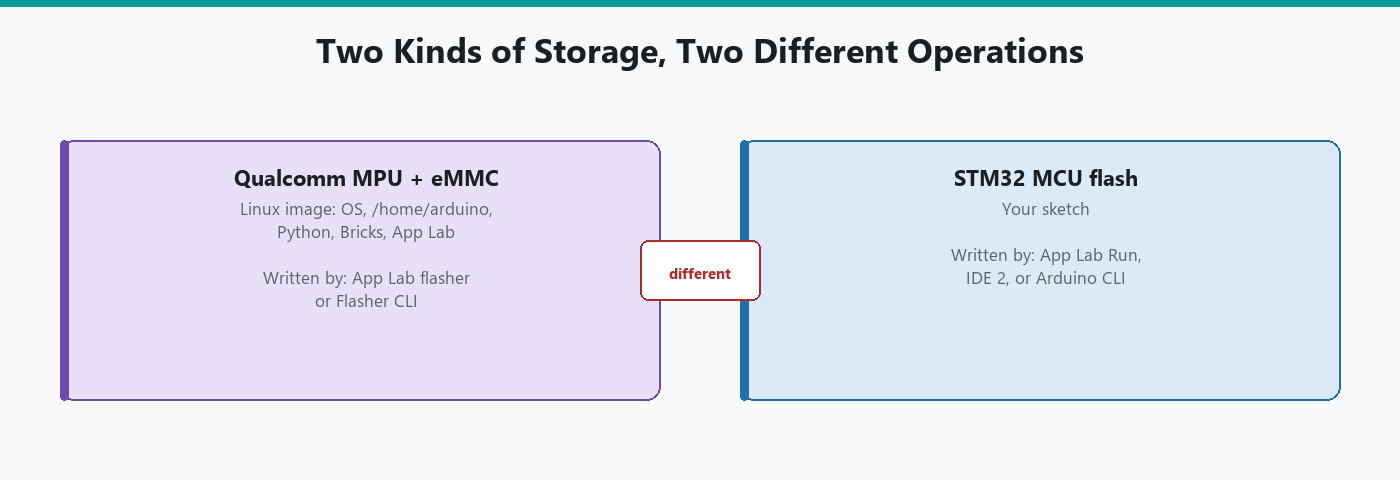
Flashing a Linux image is not the same as clicking Upload in IDE 2. Upload replaces microcontroller firmware. An image write replaces the operating system. Mix those up and you wipe a computer you meant to reprogram as if it were an Uno.
Scale is the easiest way to keep the two straight in your head. A sketch upload writes a compiled program that is typically a few kilobytes, sometimes tens of kilobytes on a larger microcontroller, and it finishes in a few seconds because there is so little data to move. A Linux image is an entire operating system: kernel, filesystem, drivers, App Lab, Python, the works, easily a gigabyte or more, and writing it takes minutes rather than seconds precisely because there is a gigabyte of data to push onto the board instead of a few kilobytes. If a "reflash" only took the same couple of seconds an Uno upload takes, that alone would be a sign you were not actually writing a Linux image at all.
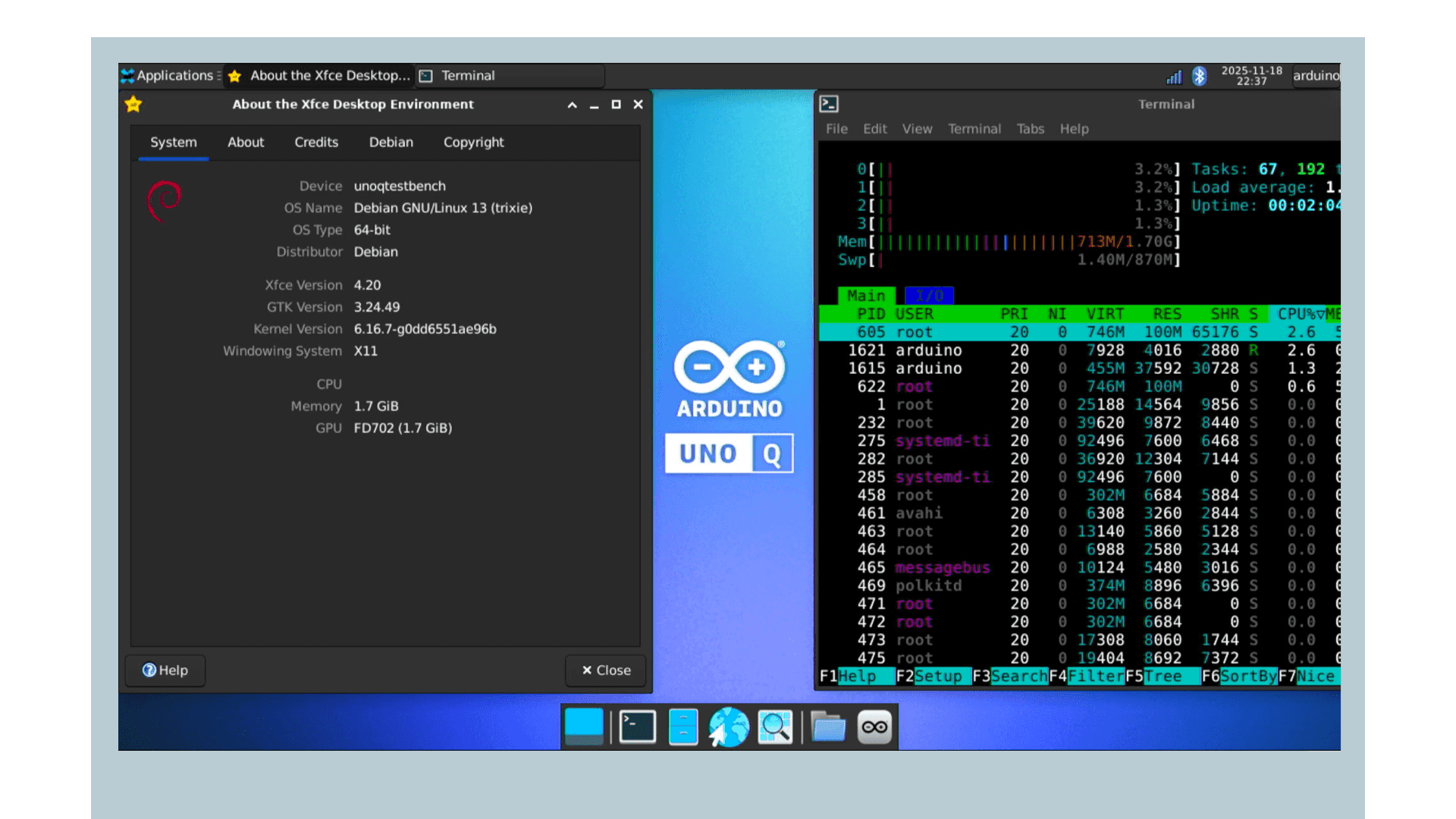
Arduino documents UNO Q running Debian (including Debian 13 Trixie in recent verification notes). You can check on the board with cat /etc/os-release from a shell. App Lab on the board can update components on boot. Regular package updates use Debian's apt plus Arduino's apt repository.
When should you reflash, and when should you not?
Do not reflash because an App failed to Run, because a sketch did not blink, or because you want the latest apt security fixes. For day-to-day updates Arduino documents:
# Refresh the list of available package versions (sudo = run as administrator)
sudo apt update
# Install every available update. Your files in /home/arduino are not touched.
sudo apt upgrade
or, for Arduino's bundled path, arduino-app-cli system update. That pulls OS and Arduino packages without wiping /home/arduino.
Reflash when:
-
Linux will not boot.
-
App Lab on the PC cannot discover the board and you have already ruled out cable, power, and (on a Linux PC) USB permissions.
-
You want a clean factory-style OS.
-
Arduino has published a new image you need (major OS jump, recovery).
If the board still appears in App Lab, use App Lab's built-in flasher. If the board is a brick as far as Linux is concerned, use Flasher CLI and Emergency Download Mode.
Two ways to write an image on UNO Q
1. App Lab's built-in flasher. The board must already be discovered. Arduino's flash tutorial puts this first. Use it when Linux is healthy enough to talk. You stay in a GUI. You still need to understand that this can wipe user files unless the UI offers a preserve option equivalent to the CLI flag below. Read the on-screen warning. Arduino's docs say flashing replaces the Linux OS and stored data.
2. Arduino Flasher CLI. A standalone command-line tool from Arduino's software page. Use it when App Lab cannot see the board, or when you want a low-level rewrite. The UNO Q path requires Emergency Download Mode (EDL).
EDL is a USB recovery mode on the Qualcomm chip. The computer can rewrite storage even if Linux is dead. Every USB device introduces itself with two numbers, a vendor ID (who made it) and a product ID (which product it is), and that is how your computer decides which driver to load. In normal use the board enumerates as Arduino USB (Arduino documents vendor ID 2341, product ID 0078). In EDL it enumerates as a Qualcomm download device (05c6 / 9008), which is why it suddenly looks like a completely different gadget to your PC. On a Linux host, both need udev rules or App Lab and the flasher fail, sometimes silently. Arduino's UNO Q user manual has those rules. Install them before you fight the CLI.
The exact button sequence to enter EDL is in Arduino's current Flash a Linux Image tutorial. I am not going to freeze a button combo here that Arduino can change. Follow that page for EDL, then come back here for what the commands mean.
Once the CLI is installed and the board is in EDL:
# macOS / Linux, from the folder that contains the binary ("./" means "this folder")
./arduino-flasher-cli flash latest

# Windows, from the folder that contains the .exe
arduino-flasher-cli.exe flash latest
flash latest downloads and writes the current official image. That is the recovery command Arduino documents.
Asking for "latest" rather than a version you pin yourself is a deliberate choice for a recovery tool, not a missing feature. The whole point of this command is getting a dead board back to a known-good state as fast as possible, and the surest known-good state Arduino can hand you is whatever their current, actively supported release is, the one their own support team is equipped to help you troubleshoot if something in the recovery itself goes wrong. If you specifically need an older image for compatibility reasons, that is a real but separate need, one the CLI's help output and Arduino's own image documentation cover, rather than the default this command reaches for.
The board's storage is divided into sections called partitions, a bit like separate drawers in one cabinet. Your files live in one called userdata, which Linux shows you as the /home/arduino folder. To keep that partition instead of wiping your files:
# Same command, but leave the userdata partition (/home/arduino) alone
arduino-flasher-cli.exe flash latest --preserve-user
Use --preserve-user when Linux is sick but you still want home-directory files. Do not use it if you wanted a clean slate, or if you suspect those files are the problem. Partitioning the disk this way, one section for the OS and Arduino's own software, a separate section for your files, is what makes preserving user data during a full OS rewrite possible at all: the flasher can overwrite one partition while leaving the other untouched, because they were never sharing the same physical space on the eMMC to begin with.
macOS: download the Flasher CLI build that matches Apple Silicon or Intel. The wrong architecture will not run.
VENTUNO Q
Stop. Arduino's UNO Q flash article is explicit: VENTUNO Q has its own Ubuntu image instructions. EDL, image format, and commands may not match. Open Arduino's VENTUNO Q flash / Ubuntu image documentation for that board and ignore UNO Q EDL steps until you have confirmed they apply.
The ideas still apply: OS image versus MCU sketch, prefer the GUI flasher when the board is alive, use a dedicated recovery tool when it is not, expect a wipe unless a preserve option says otherwise.
What lives on Linux after a good image
You get a Debian-style system with a user (Arduino documents a default arduino password on a board that has not been through first-run App Lab setup; change that). You can:
-
Run App Lab on the board as a single-board computer (monitor, keyboard, USB-C dongle with power delivery; Arduino recommends the 4 GB RAM UNO Q; Apple's USB-C dongle is documented as incompatible).
-
SSH in over the network (
ssh arduino@<boardname>.local) once first-run has set a name and password. -
Use ADB over USB (
adb shell) as another way into the same Linux. ADB is Android Debug Bridge, a USB shell tool. Arduino documentswinget install Google.PlatformToolson Windows,apt-get install android-sdk-platform-toolson Debian/Ubuntu hosts. Default password before App Lab setup:arduino. -
Install packages with
apt. -
Start Apps from the board with
arduino-app-cli.
None of that replaces flashing when the OS will not boot. It is why you avoid flashing for a missing Python package. sudo apt install is cheaper than flash latest in every sense that matters: seconds instead of minutes, kilobytes instead of a gigabyte, and zero risk to the rest of your files.
MCU firmware versus Linux, one more time
| Action | What you change | Typical tool |
|---|---|---|
| Upload a sketch / Run an App's MCU part | STM32 firmware | App Lab Run, or IDE 2 / Arduino CLI |
apt upgrade / arduino-app-cli system update |
Packages on a living OS | Shell on the board |
| App Lab built-in flasher | Whole Linux image (data warning) | App Lab, board must be discovered |
arduino-flasher-cli flash latest |
Whole Linux image from EDL | Flasher CLI, board in EDL |
--preserve-user |
Same, keep /home/arduino |
Flasher CLI |
If Python cannot import a module, install the package. If an LED does not blink, debug the App or the sketch. If the board never enumerates as Linux and App Lab is blind, then you are in this article.
Copy off anything you care about before you flash
flash latest without --preserve-user rebuilds the disk. Apps you only stored on the board, Wi-Fi connections in userdata, files in /home/arduino, notes in a text file on the desktop: gone.
If the board still boots far enough for SSH, ADB, or App Lab file access, copy projects to your PC first. Arduino's own agent-on-the-host advice is the same idea: keep source on the computer so a reflash is not a data-loss event.
--preserve-user keeps /home/arduino. It does not keep a corrupted OS healthy. If home is where the breakage is, a full wipe is the point, and preserving the exact files that caused the problem just brings the same problem back the moment the fresh OS boots and finds them again.
Checking what is actually on the board before you reflash
flash latest is a fine default when the board is broken and you just want a working Linux back. It is a worse default when the board still boots and you are only reflashing because you assume the image is old or suspect. Before reaching for it, it is worth actually checking what is there.
On a board that still boots, SSH or App Lab's shell access can tell you the current image directly. Arduino's flasher CLI documents version-checking commands alongside the flash commands themselves, so arduino-flasher-cli is not only a one-way write tool; it can report what a connected board is currently running before you decide to overwrite it. If the board is already on the current stable image, a flash latest accomplishes nothing except the wipe itself, minutes spent and files at risk for a version you already had.
The reverse case matters just as much: pinning a specific image version instead of always grabbing latest. If a project depends on a particular Debian release or a specific App Lab version's exact behavior, always flashing latest is how a board that worked perfectly last month quietly stops matching a tutorial, a script, or a teammate's identical board, because "latest" moved out from under you between flashes. Arduino's flasher CLI accepts a specific version or image identifier in place of the latest keyword for exactly this reason. Note the exact version string documented for your board the first time a flash works well, and use that same string on the next board you set up, rather than trusting that "latest" means the same thing both times.
Recovering a UNO Q that will not boot
Work this list in order. Jumping to flash latest first wipes things you might have saved.
- Power and cable. USB-C data cable. Known-good jack. If you use a dongle, it must support power delivery. Try another cable before EDL.
- Windows / macOS / Linux host permissions. On Linux, udev rules for both normal and EDL USB IDs. Without them, flashing fails in a way that looks like a dead board.
- App Lab discovery. USB first, then same Wi-Fi for network mode. Wait. A UNO Q can take a while to appear after plug-in (Arduino notes up to a minute for ADB).
- App Lab flasher if the board is discovered.
- EDL + Flasher CLI if it is not. Follow Arduino's EDL steps, then
flash latest. Add--preserve-useronly if you want home files kept. - First-run App Lab after a successful flash, so name, password, and network get set again if you wiped them.
If Flasher CLI cannot see an EDL device, you are not in EDL, or the host has no permission to that USB ID. Device Manager on Windows should change when EDL starts. If it does not, the button sequence did not take, or the cable is charge-only.
Keeping a copy of what you flashed
Once a board is running an image and a set of packages you know works well for a specific project, it is worth treating that state as something to note down, not just something you happened to end up with. The version string Flasher CLI prints when a flash finishes, and the list of apt packages you added afterward, are the two facts that let you rebuild the exact same working state on a second board, or recover the first one to the same point after a wipe, rather than discovering months later that "latest" now means something different from what you originally tested against.
A short text file kept alongside a project's source, noting the image version flashed, the date, and any packages installed beyond the default image, costs almost nothing to maintain and saves real time the next time a board needs to be reimaged or a second one needs to match the first.
Troubleshooting
| Symptom | Likely cause | Fix |
|---|---|---|
| App Lab never sees the board | Cable, power, Linux udev, board not booted | Data cable, PD if using a dongle, udev rules, then EDL if still dead |
flash latest fails immediately |
Not in EDL, wrong CLI build, USB permission | Confirm EDL in Device Manager / lsusb (Linux's list-USB-devices command). Match macOS architecture |
| Flash succeeded, no App Lab on a monitor | No PD dongle, 2 GB RAM struggling, no display | PD dongle, 4 GB variant if you want a desktop |
| You flashed a VENTUNO Q with UNO Q steps | Wrong document | Stop. Use Arduino's VENTUNO Q Ubuntu flash guide |
| Home files gone | Image write without --preserve-user |
Expected on a full flash. Restore from a PC copy if you had one |
| Board loops or will not shut down | Image / firmware out of date, or power | App Lab updates or a fresh image. Arduino documents disconnecting power if a halt auto-restarts |
Wrap-up
UNO Q and VENTUNO Q run a real Linux OS next to a microcontroller. Arduino's Linux images are that OS, preconfigured. Updating packages is not the same as flashing. Uploading a sketch is not the same as flashing. When Linux is alive, flash from App Lab if you must. When Linux is dead, Flasher CLI and EDL are the recovery path on UNO Q. VENTUNO Q has its own Ubuntu instructions.
Keep copies of anything you care about off the board. Remember that flash latest rebuilds the whole disk, so anything that only lives on the board is at risk every time you run it.
Official UNO Q flash tutorial: docs.arduino.cc, Flash a Linux Image. Trust that page for the EDL button sequence on the day you recover a board.
Hack The World and Make Awesome.