Reinstall Linux when the UNO Q still boots far enough for App Lab to see it, and you want a clean operating system: leftover packages, a broken desktop, or a major image Arduino published that apt will not reach.
If App Lab cannot discover the board at all, that is the recover / reimage article in this folder (Emergency Download Mode and Flasher CLI). This page is the "still talking" path.
Download the current UNO Q image instructions the same day you flash. Arduino's menu labels in App Lab 0.10.x can move. The idea does not: Settings (or the documented flash entry), confirm the wipe warning, wait, reboot, Blink.
Part 2 of the Mastery Series is whether you own a UNO Q. These steps are UNO Q only. Arduino's flash tutorial sends VENTUNO Q readers to a separate Ubuntu image guide. Do not use this on a VENTUNO Q.
This is not Upload
Uploading a sketch (IDE 2 or App Lab's MCU side) replaces microcontroller firmware. Reinstalling Linux replaces the Debian image on eMMC. Arduino's docs warn that flashing replaces the OS and stored data. Copy anything you care about off the board first (SSH, ADB, or files you already keep on the PC).
Day-to-day updates are not a reinstall:
# Refresh the list of available updates (sudo = run as administrator)
sudo apt update
# Install them. Your files stay put.
sudo apt upgrade
or arduino-app-cli system update. Use those when the board is healthy and you want patches.
Before you flash
- Data USB-C cable. PC jack, not a mystery hub.
- App Lab open, board listed.
- Copy
/home/arduinoprojects to the PC if you need them. The App Lab flasher's on-screen warning is the truth. If it offers a preserve-user style option, read it. The CLI equivalent is--preserve-user; the GUI may or may not expose the same choice in your version. Assume wipe unless the dialog says otherwise. Screenshot the warning if you need to explain to someone else why files vanished. - Power: do not unplug mid-write. Plug the laptop in too. Battery sleep is enough to interrupt USB.
A note if the board is a classroom unit: reinstall between terms, not between periods. Nothing stored only on the board is safe, because the board is where the code runs, not where it should be kept. Keep students' Apps in Git (or at least on the teacher PC), and have them copy their work back from there after a reinstall. If a student's only copy lived on the board, it is gone after a wipe, so say that out loud before you click through the warning.
What a "reinstall" actually replaces
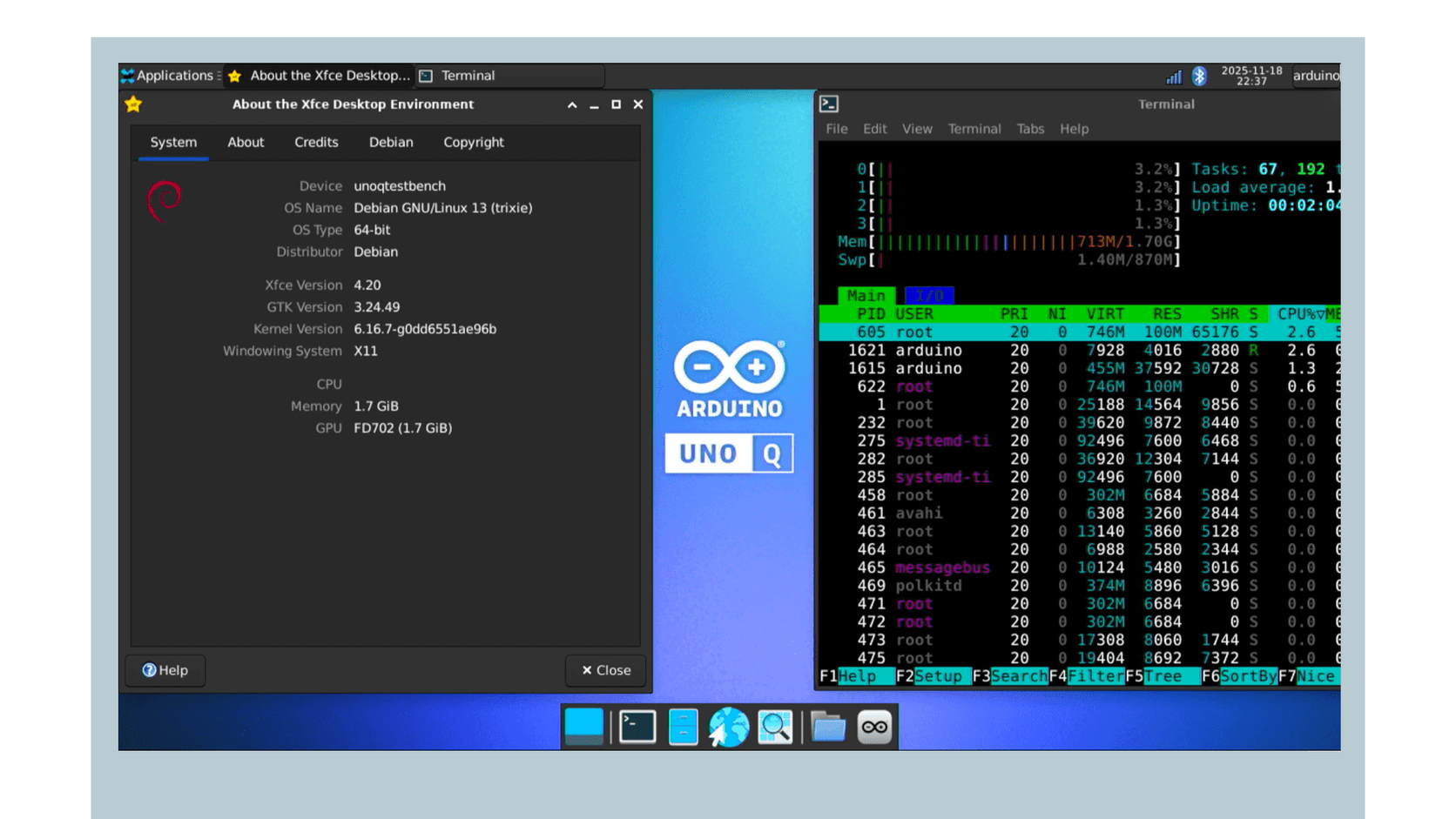
The UNO Q is really two computers sharing one board. A small microcontroller (the STM32 chip that runs your sketch and talks to pins) sits next to a much bigger processor that runs Debian Linux. The Linux side keeps its operating system, your files, and every package you install on eMMC, which is a flash storage chip soldered to the board. If you have ever swapped the SSD in a laptop, eMMC is the same idea, just permanently attached.
A disk image is a complete snapshot of that storage: the operating system, its settings, and the default folders, packed into one file. Flashing the image copies the snapshot over whatever is there now. That is why the process fixes a broken desktop so reliably (nothing from the old install survives to cause trouble) and also why it deletes things. I find it helps to think of it as a factory reset on a phone. The device comes back clean, and everything you added is your responsibility to restore.
Back up before you click anything
The one habit that saves people is a backup made before the warning dialog appears. If you can reach the board over SSH (Secure Shell, an encrypted way to log into another computer from your terminal), these commands run on your PC and pull the important stuff across. Replace unoq.local with your board's hostname or IP address.
# Look first. Apps live somewhere under your home folder, and I would rather
# see the real folder names than assume them.
ssh arduino@unoq.local "ls ~"

# scp copies files over SSH. -r means "include sub-folders".
# Copy the folder that holds your App Lab projects to a backup on the PC.
scp -r arduino@unoq.local:~/ArduinoApps ./uno-q-backup

# Save the names of packages you installed by hand, so rebuilding later is a
# checklist instead of a memory test. apt-mark showmanual skips the thousands
# of packages that came with the image.
ssh arduino@unoq.local "apt-mark showmanual" > manual-packages.txt
If ArduinoApps is not in your listing, use whatever folder name ls ~ shows. The point is a second copy that lives on a different machine. A backup sitting on the board you are about to wipe is not a backup.
App Lab built-in flasher
Arduino's Flash a Linux Image tutorial puts this first when the board is discovered. In App Lab, use Settings (that is where Arduino's current guide puts it) to start the flash. Follow the on-screen steps for the current 0.10.x UI. I am not freezing a menu tree that Arduino can move.
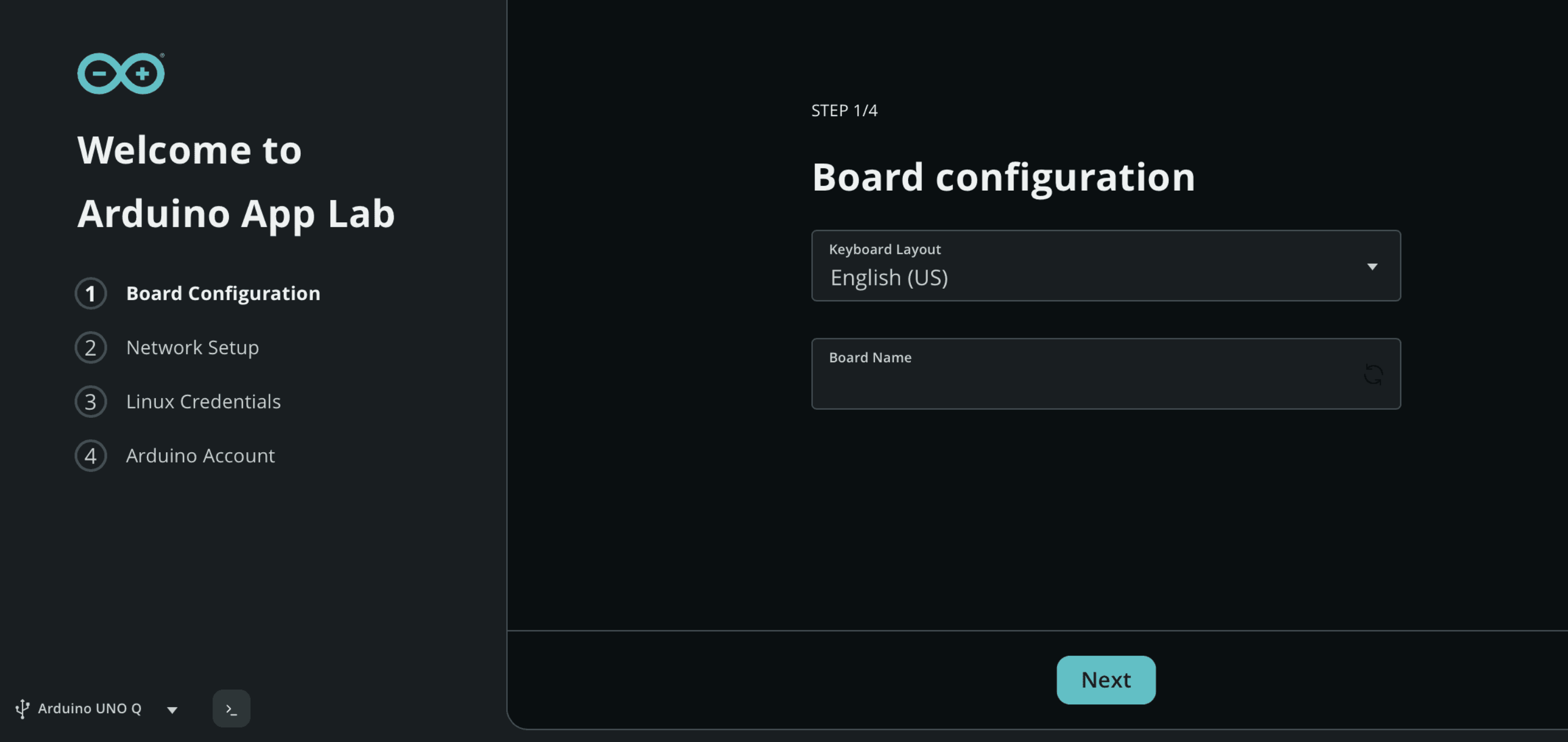
Wait until App Lab says the write finished. Let the board reboot. Do first-run again if the image is a clean one (name, password, Wi-Fi).
Then run an official Blink example. If Blink works, Linux and the MCU path are both back.
Tell anyone else who uses the board that the password and hostname may have changed. A stale SSH config on your PC will fail in a way that looks like "the flash did not work." Edit known_hosts if SSH complains about a new key.
Time: a full image write is not a 10-second upload. Plan on several minutes, and stay near the bench while it runs. If your laptop goes to sleep partway through, you will probably end up needing the recover article.
Confirm the new install is what you expect
After first-run setup, I like to prove the flash worked before trusting the board with real projects. Open a terminal on the board (or SSH in) and check three things:
# Prints the operating system name and version. After a clean flash this
# should match the image Arduino currently publishes, not your old install.
cat /etc/os-release

# Shows how full the main storage is. A fresh image uses only a small slice,
# so a nearly empty result tells you the old data really is gone.
df -h /

# Lists the kernel version, which is handy to paste into a forum post later.
uname -a
Writing down the os-release output takes ten seconds and answers the first question anyone will ask when you need help later.
Why SSH suddenly distrusts your board
Here is a gotcha that fools almost everyone. When you first connect to a computer over SSH, your PC remembers its cryptographic fingerprint in a file called known_hosts. A fresh install generates a brand new fingerprint, so the next connection warns that the remote host identification has changed. That warning is SSH doing its job, because it cannot tell a reflashed board from an impostor. You know it is your own board, so remove the old entry:
# Deletes the saved fingerprint for this hostname so SSH will ask again.
# Only do this when YOU just reflashed the board, never to silence a warning
# you cannot explain.
ssh-keygen -R unoq.local
Connect again, accept the new fingerprint, and you are back in. If you also changed the hostname during first-run, run the command with the new name as well.
If App Lab loses the board mid-flash
Stop. Do not repeat GUI flash blindly. Go to the recover article: Emergency Download Mode and arduino-flasher-cli flash latest.
After a clean image
- Change the default password if first-run still mentioned
arduino. - Reinstall
aptpackages you had added. They are not in/homeif you only preserved userdata, and they are gone if you wiped. - Apps you only stored on the board are gone unless you preserved home and they lived there. Keep source on the PC.
Troubleshooting
| Symptom | Likely cause | Fix |
|---|---|---|
| Flash option missing | Board not discovered | Cable. Then recover article / EDL |
| Files gone | Full image wipe | Expected unless preserve was explicit |
| Blink fails after new OS | MCU image not deployed | Run official Blink from App Lab |
Wrap-up
Reinstall Linux from App Lab when the UNO Q is still discovered and you want a new OS image. Copy files off first. This is not a sketch upload. If discovery is dead, use EDL and Flasher CLI instead.
Hack The World and Make Awesome.