The last major update in an operating-system cycle rarely brings one dramatic feature. It usually does something more useful: fixes the everyday rough edges, updates the foundation, and prepares the code for the next release.
That was the role of Raspberry Pi OS's May 7, 2025 update. Raspberry Pi described it as probably the final major release based on Debian 12, known as Bookworm, before the move to Debian 13 Trixie. It added a friendlier screen lock, separated desktop and console auto-login controls, replaced the printer interface, improved touchscreen choices, moved to Linux 6.12, and shortened desktop startup time.
The update could be installed through the normal package system. Users who had kept Bookworm fully updated already had most of the changes, while the refreshed downloadable image gave new installations a much shorter update queue.
Why do Bookworm and Trixie matter?
Raspberry Pi OS is built on Debian, a long-running Linux distribution. Debian names its major versions after characters from the Toy Story films. Bookworm is Debian 12, and Trixie is Debian 13.
A major Debian version establishes the base libraries, system tools, compiler versions, and package collection used by the operating system. Raspberry Pi adds its own kernel work, hardware support, desktop, utilities, and configuration around that base.
Moving between major versions can change dependencies and behavior. A dependency is another software component an application needs. The final Bookworm update let Raspberry Pi improve the current release while reorganizing desktop internals for the later Trixie transition.
What changed with screen locking?
The release installed a modified version of swaylock. swaylock is a screen-locking program for Wayland desktops. Wayland is the modern display protocol that Raspberry Pi OS uses to connect applications, input devices, and the screen.
The original swaylock interface could present a plain white screen with little explanation. Raspberry Pi added a front end with visible feedback and a password entry field. Users could press Ctrl-Alt-L or select Lock Screen from the shutdown dialog.
A visible lock screen sounds cosmetic, but it removes ambiguity. A user should be able to tell whether the computer is locked, sleeping, frozen, or showing an empty application.
The new lock also exposed an auto-login problem. Raspberry Pi OS could automatically log in both the graphical desktop and the text console available through Ctrl-Alt-F1. A text console, often called a TTY, provides a full-screen command-line login outside the desktop.
Locking the desktop did not secure an already logged-in console. Someone at the keyboard could switch to the TTY and bypass the desktop password. Raspberry Pi separated desktop auto-login from console auto-login and added controls in Raspberry Pi Configuration and raspi-config.
The gotcha was that both remained enabled on a new image. Anyone relying on the lock screen for physical access control needed to disable console auto-login explicitly.
What happened to printer setup?
Raspberry Pi OS had used system-config-printer, a Python application for managing printers. The May release replaced it with a standalone application derived from the printer panel in the GNOME desktop control center.
The new Printers application appeared under Preferences in the main menu. It provided a cleaner path for adding and managing printers without asking users to understand the Common Unix Printing System underneath.
That printing system is known as CUPS. It handles queues, printer discovery, drivers, and network printing. A queue stores print jobs until the printer is ready. The new interface did not replace CUPS, it made the underlying service easier to control.
Printers can still be awkward because support depends on the model, network discovery, driverless standards, and vendor software. The interface improves setup, while compatibility should still be checked before choosing a printer for a kiosk or classroom fleet.
How did touchscreen behavior improve?
Raspberry Pi OS had enabled mouse emulation for touchscreens. In that mode, a tap becomes a mouse click and two taps can become a double-click. The workaround helped traditional desktop applications but disabled touch-native gestures such as swipe scrolling.
The update added a choice between mouse emulation and native touchscreen behavior in Screen Configuration. Native touch allows gestures, while the file manager may no longer recognize a double tap as a double-click.
Raspberry Pi suggested enabling single-click file opening or using tap-and-hold to open the context menu. A context menu is the list of commands associated with the item being pressed.
The Squeekboard on-screen keyboard also gained a setting for multi-monitor systems. Users could select which display should show the keyboard. That helps control panels where the touch display is not the primary monitor.
What changed underneath the desktop?
The release used labwc 0.8.1 as its Wayland window manager. A window manager controls placement, focus, borders, and interaction for application windows. Raspberry Pi chose a tested version rather than the newest available one.
The Linux kernel moved to version 6.12. The kernel is the core of the operating system. It manages memory, processes, hardware drivers, filesystems, and communication between applications and devices.
Raspberry Pi optimized wf-panel-pi, the taskbar used by its Wayland desktop, so the desktop appeared sooner after boot. It also replaced the zenity dialog tool with a smaller in-house tool called zenoty, avoiding packages that had been slowing startup.
Chromium could no longer ship with the original uBlock Origin extension because of browser changes, so Raspberry Pi OS switched to uBlock Origin Lite. Users who depended on specific filtering behavior needed to review the difference rather than assume the two extensions were identical.
How could users install the update?
Existing Bookworm installations could use Debian's Advanced Package Tool, known as APT. The usual process refreshes the package list and performs a full upgrade. A full upgrade can add or remove packages when dependencies require it.
Back up important files before a large system update. Read prompts about changed configuration files carefully. If a device runs a service that cannot be interrupted, schedule downtime and test the update on an equivalent spare system first.
Users could also write a fresh image with Raspberry Pi Imager. A clean installation avoids years of accumulated configuration and package changes, but application data and settings have to be restored deliberately.
This May update was still Bookworm. It did not upgrade the system to Trixie.
Why this update matters
This release improves features people touch every day: locking the screen, setting up a printer, using a touchscreen, and waiting for the desktop. It also closes a security gap created by the interaction between auto-login and virtual consoles.
For embedded deployments, the transition work counts just as much. A maintained desktop is not only a collection of visible applications. Its packages and internal structure need to be ready for the next Debian base without forcing users to relearn the entire interface.
Bookworm should stay useful for stable systems that are not ready to move the moment Trixie arrives. This release gives those installations a mature, near-final baseline to hold on. It also marks the moment Raspberry Pi OS turns its main development attention toward the next generation.
If you rely on the lock screen to keep people out, remember to turn off console auto-login too. It's an easy setting to miss, and it undoes the whole point.
Sources and image credits
- Raspberry Pi announcement: A new Raspberry Pi OS release
- Raspberry Pi OS documentation
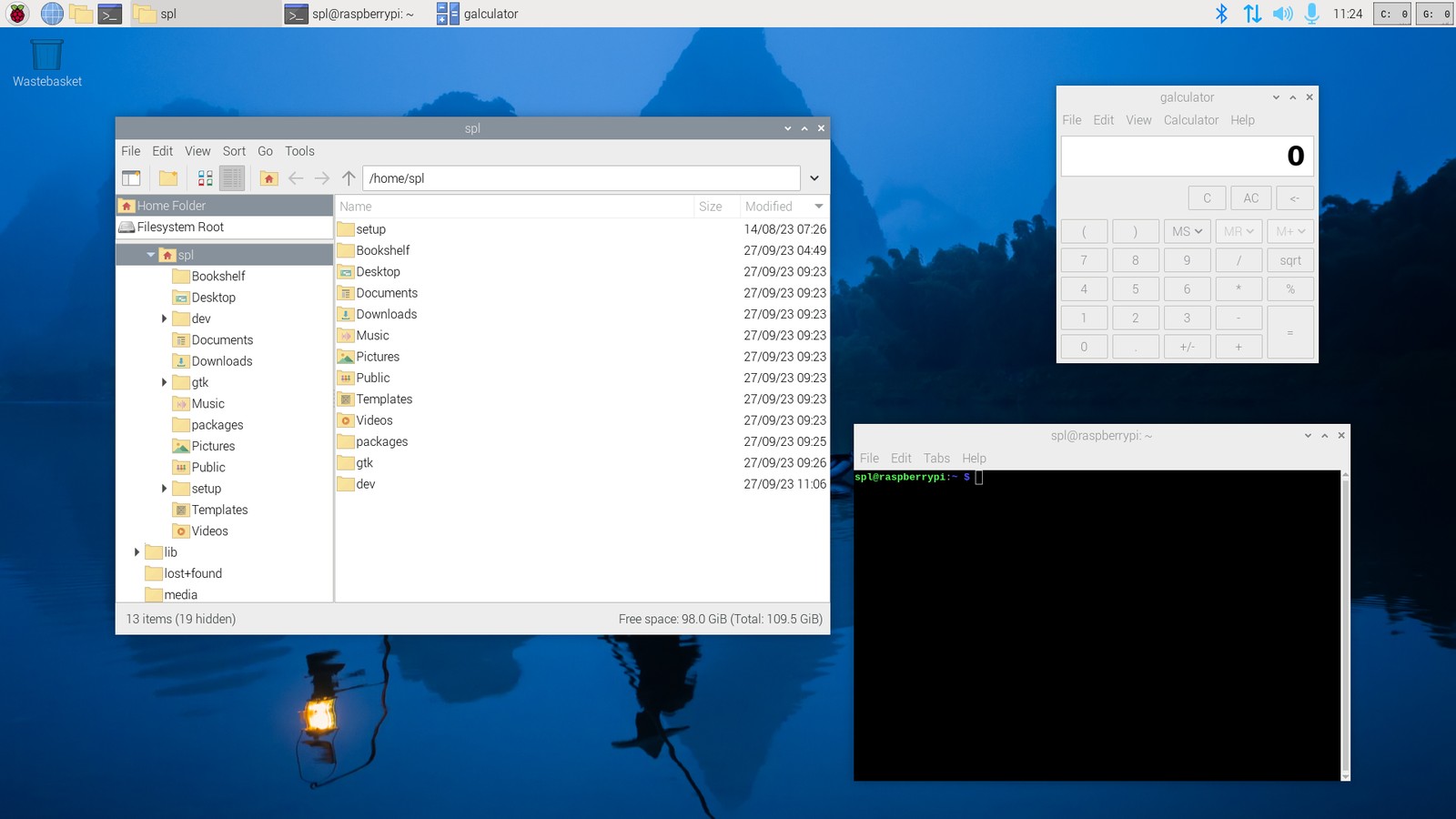
- Official Bookworm desktop image from Raspberry Pi's news article, credited to Raspberry Pi Ltd.
- Square and vertical crops are edited from the same source image.