Mastering ESP32 Part 2: Installing and Configuring ESP32 Support in Arduino IDE
A new ESP32 board can be plugged into a computer, with its power LED lit, and still not appear in Arduino IDE. Three separate pieces have to be in place for the board to work: the IDE needs support for the ESP32 processor family, the operating system needs to recognize the board’s USB-to-serial hardware, and the cable must carry data instead of power alone.
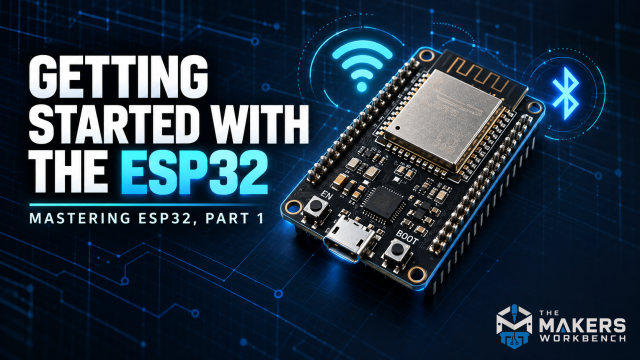
In Part 1, Getting Started with the ESP32: A Complete Beginner’s Guide, we separated the ESP32 chip, the metal-shielded module, and the development board. This lesson adds the software support for our series baseline: a classic ESP32-WROOM-32 module on a 30-pin DevKit-style board, programmed with Arduino IDE 2.
By the end, you will install Espressif’s stable Arduino core, choose a sensible board entry, upload one tiny serial sketch, and read its message at 115200 baud. (Baud is the speed of a serial link, counted in signal changes per second. On this link it works out to bits per second, so 115200 baud is a little over a hundred thousand bits each second.) The first LED lab belongs to Part 3. If the board does not show up at any point, check the USB cable first, since a charge-only cable is the most common cause and the cheapest to replace.
Bill of Materials
| Component | Description | Buy on Amazon | Buy on Temu | Buy on SparkFun | Buy on Seeed Studio | Datasheet |
|---|---|---|---|---|---|---|
| ESP32 development board | A classic ESP32-WROOM-32 on a 30-pin DevKit-style board. | Amazon Link | Temu Link | N/A | N/A | ESP32 datasheet |
| USB data cable | A cable that fits the board and carries data, not just power. | Amazon Link | Temu Link | SparkFun Link | N/A | N/A |
The products linked above may contain affiliate links. The Makers Workbench earns from qualifying purchases when these links are used.
Before You Start
This lesson refers to the small USB-UART bridge chip near the USB connector, so it helps to know what that chip does before looking for a driver. UART, or universal asynchronous receiver-transmitter, is the serial link used to upload code to this original ESP32. The bridge converts USB traffic from the computer into that serial connection, and which bridge chip your board uses decides which driver, if any, you need.
If Arduino IDE itself is not installed yet, start with Arduino IDE Board Manager Explained. How to Add ESP32 and ESP8266 Boards to Arduino IDE 2 gives a broader installation guide for both chip families. This series lesson focuses on the original ESP32 board, the board-menu choices, and one verified upload. If no port appears at all, Arduino IDE Can’t Find Your COM Port: Complete Troubleshooting Guide takes the port diagnosis further.
The Core, Driver, and Cable
Arduino sketches do not run directly as the text you type. The IDE needs a package that knows how to compile that text for a particular processor, link the required libraries, and upload the result. For ESP32 boards, that package is the Arduino-ESP32 core from Espressif Systems.
The core is not a USB driver. A driver lets the operating system communicate with the USB-UART bridge. The core is also not a cable. A charge-only cable can power the board while leaving no data path at all.
There is one more distinction that helps later. The core includes compiler settings, board definitions, upload tools, and Arduino-style functions for the ESP32. A board definition is a named bundle of choices that tells those tools what hardware to expect. Installing the core gives you many definitions. Selecting one tells the IDE which definition to use for the next build.
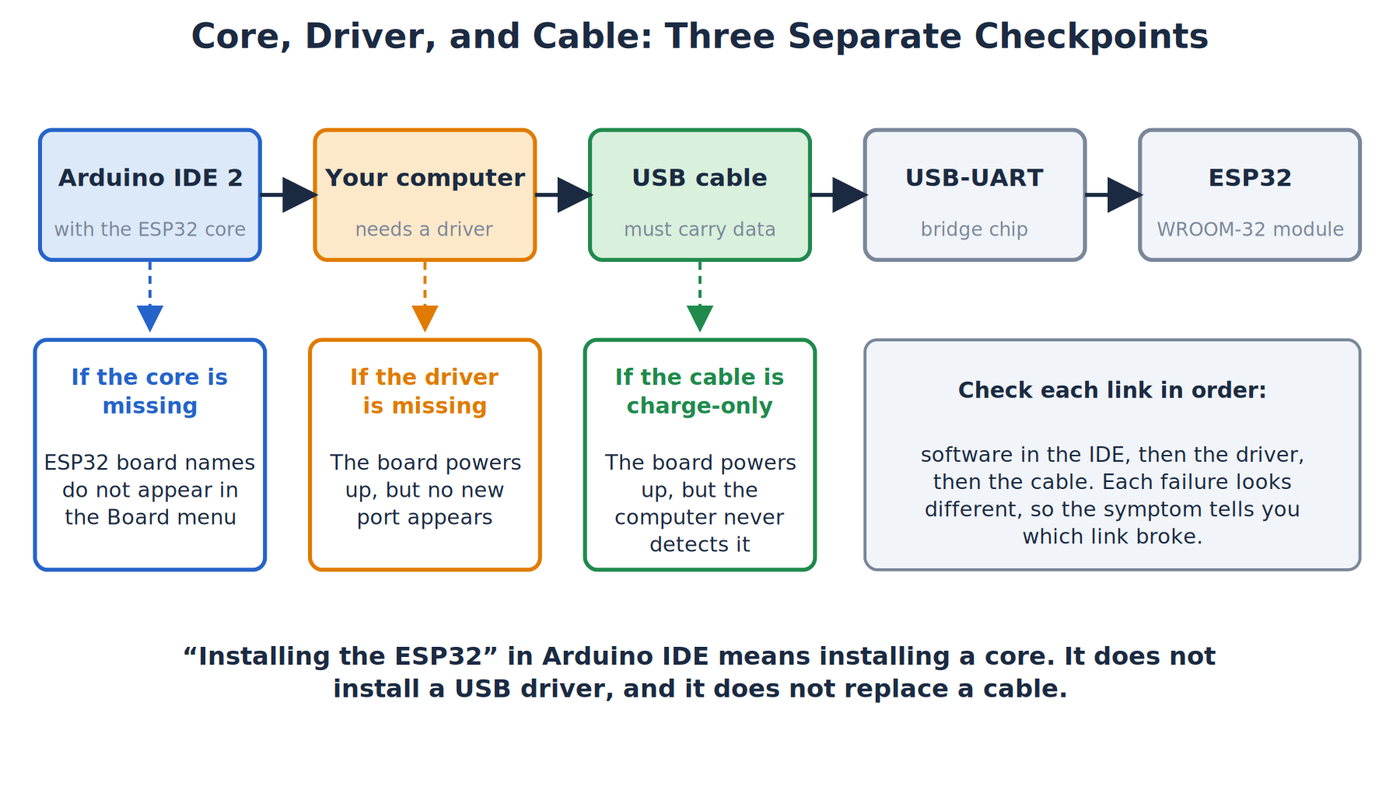
This explains a common first-day puzzle. Boards Manager may say the ESP32 package is installed, yet an upload can still fail because the wrong board or port is selected. Installation, selection, and connection are separate checkpoints.
Keep this three-part checklist in mind:
| Part | Job | Typical symptom when missing |
|---|---|---|
| Arduino-ESP32 core | Compiles and uploads sketches for ESP32 chips | ESP32 board names do not appear |
| USB-UART driver | Lets the operating system expose the board as a serial port | Board powers up, but no new port appears |
| Data-capable cable | Carries USB power and data | Board powers up, but the computer never detects it |
Arduino IDE 2 can offer an Arduino package for the Nano ESP32. That package is for Arduino’s Nano ESP32 board. It is not the Espressif package used for a generic WROOM-32 DevKit.
Add Espressif’s Stable Board Index
A board index is a small online catalog that tells Arduino IDE which platform packages and versions are available. Espressif’s current stable index URL, checked October 22, 2026, is:
https://espressif.github.io/arduino-esp32/package_esp32_index.json
Use the stable URL, not the development index. The development channel can contain prerelease changes that are a poor foundation for a beginner series.
- Open Arduino IDE 2.
- Choose File > Preferences on Windows or Linux. On macOS, choose Arduino IDE > Settings or the Preferences item presented by your installed IDE version.
- Find Additional boards manager URLs.
- Paste the stable Espressif URL. If another URL is already present, use the field’s list button and give each URL its own entry.
- Select OK.
- Open Tools > Board > Boards Manager, or open Boards Manager from the left sidebar.
- Search for
esp32. - Install esp32 by Espressif Systems.
- Restart Arduino IDE after installation.
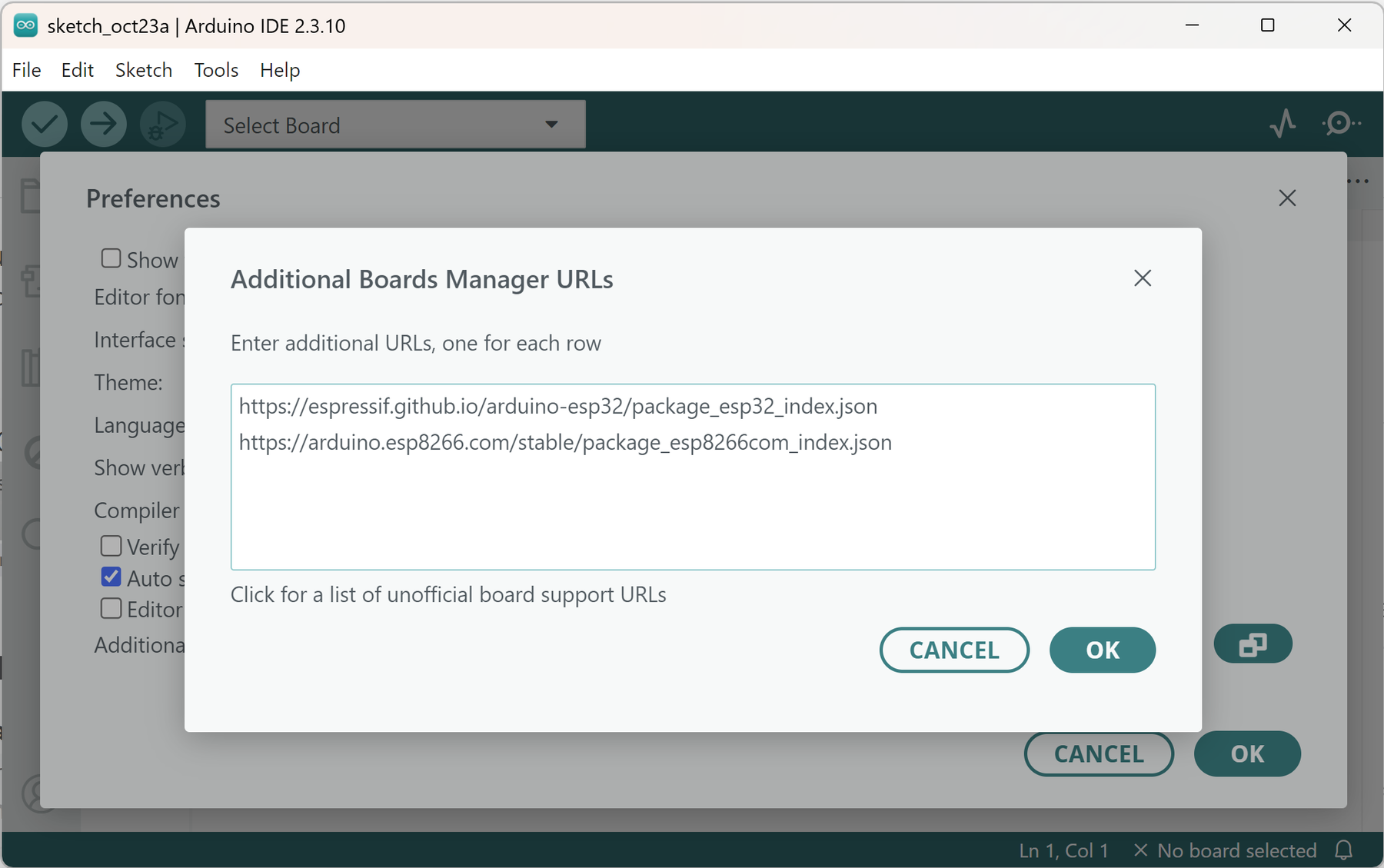
The same steps work in Arduino IDE 1.8.x. The Preferences dialog and the Boards Manager are in the same menus, and only the layout of the window differs. Arduino IDE 2 is used in this series, and the screenshots and menu paths follow it.
Boards Manager downloads more than a few text files. It installs a compiler, ESP32 libraries, board definitions, and flashing tools, so the package can take time and disk space. Let the operation finish before closing the IDE. If a download is interrupted, reopen Boards Manager and retry on a stable connection.
Search results can show similarly named packages. Check both parts of the label: the package must be named esp32 and published by Espressif Systems. The Arduino Nano ESP32 package is maintained for Arduino’s own board family and is not the package selected in this series.
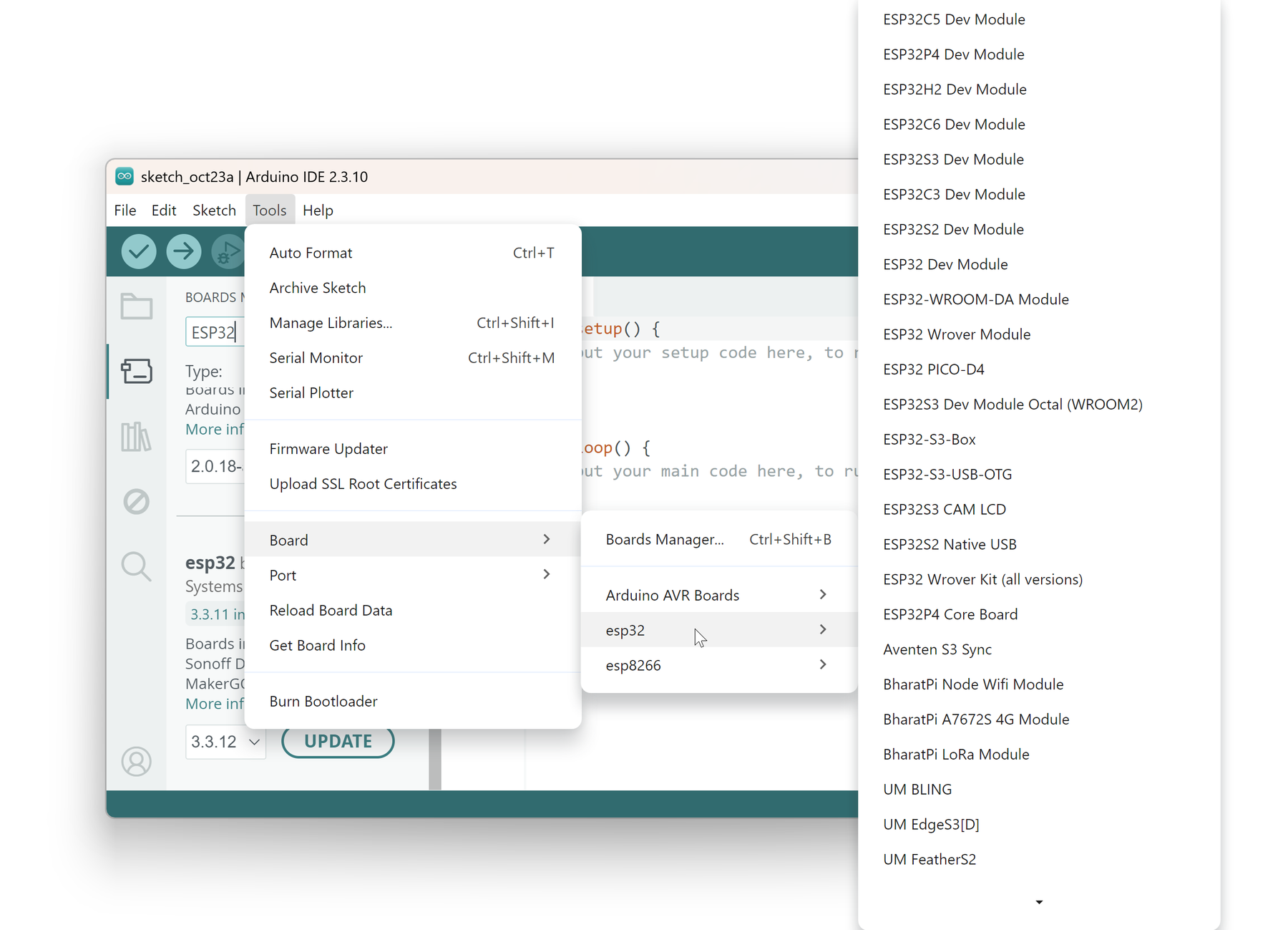
After the restart, open the Board menu before connecting hardware. If ESP32 Arduino and its long board list appear, the core installation succeeded. That check isolates the software package from any cable or driver issue. If the menu is missing, return to the index and Boards Manager rather than replacing USB cables.
When Boards Manager cannot install the package
An index error and a package-download error are different. If Arduino IDE cannot load the index, recheck the URL character for character. It ends in package_esp32_index.json and contains no spaces. Open Preferences again and make sure punctuation was not copied with the URL.
If the package appears in search but installation fails partway through, the index worked. The failure occurred while downloading or unpacking the core and its tools. Retry on a stable connection, verify that the computer has free disk space, and let the current operation finish before starting another. Security software or a managed network can also block tool archives even when the small index file downloads.
Do not solve a failed stable install by switching to the development index. That changes the software being installed without correcting the connection or storage problem. Keep one known stable source while troubleshooting.
On October 22, 2026, the latest stable Arduino-ESP32 release is 3.3.12, based on ESP-IDF 5.5.5. A newer stable release may exist when you read this, so choose the current stable version shown by Espressif rather than a release candidate. If you are following older sample code, remember that APIs from core 2.x are not always compatible with 3.x.
Boards Manager shows the installed version and lets you change it. Open Boards Manager, search for esp32, and select esp32 by Espressif Systems. A version drop-down appears on the entry. To move to a newer release, choose it and select Install (or Update when the button says so). To go back to an older release, for example to run a tutorial written for core 2.x, choose that version from the same drop-down and select Install. The change replaces the installed core, so a sketch that compiled before may need small changes after a major-version switch. Write down the version in the baseline notes at the end of this lesson, so a later problem can be traced to a version change.
Choose the Board Entry
Open Tools > Board > ESP32 Arduino. A long list appears because one core supports many chips and development boards. ESP32-S2, S3, C3, C6, H2, and P4 are different targets. This series uses the original ESP32.
Two menu choices commonly fit a classic 30-pin WROOM-32 board:
- ESP32 Dev Module is the generic choice. It exposes more configuration menus and is the safest starting point when the exact board brand is uncertain.
- DOIT ESP32 DEVKIT V1 matches many boards sold under that name and has fewer menu options.
Choose ESP32 Dev Module for this series unless the board is clearly marked DOIT ESP32 DEVKIT V1 and you want that matching definition. Both definitions in core 3.3.12 target 4MB flash with the default partition arrangement. The generic entry displays Flash Size and Partition Scheme menus. Leave Flash Size at 4MB (32Mb) and Partition Scheme at the default for the first upload.
Flash is the nonvolatile memory that stores the program and other persistent data when power is removed. “4MB (32Mb)” uses two different units: uppercase B means bytes and lowercase b means bits. Eight bits make one byte, so 4 megabytes equals 32 megabits.
A partition scheme divides flash into regions for the application and optional storage systems. A first serial sketch does not need a custom layout. Changing partitions early adds another variable and can make the allowed program size look unexpectedly small or large. Keep the default until a later project has a specific storage or over-the-air-update requirement.
Other Tools-menu options can look important because there are so many of them. Leave CPU frequency, flash mode, flash frequency, erase behavior, and debug level at the board definition’s defaults for this test. A successful minimal upload gives you a known-good baseline. Change one setting at a time only when a project gives you a reason.
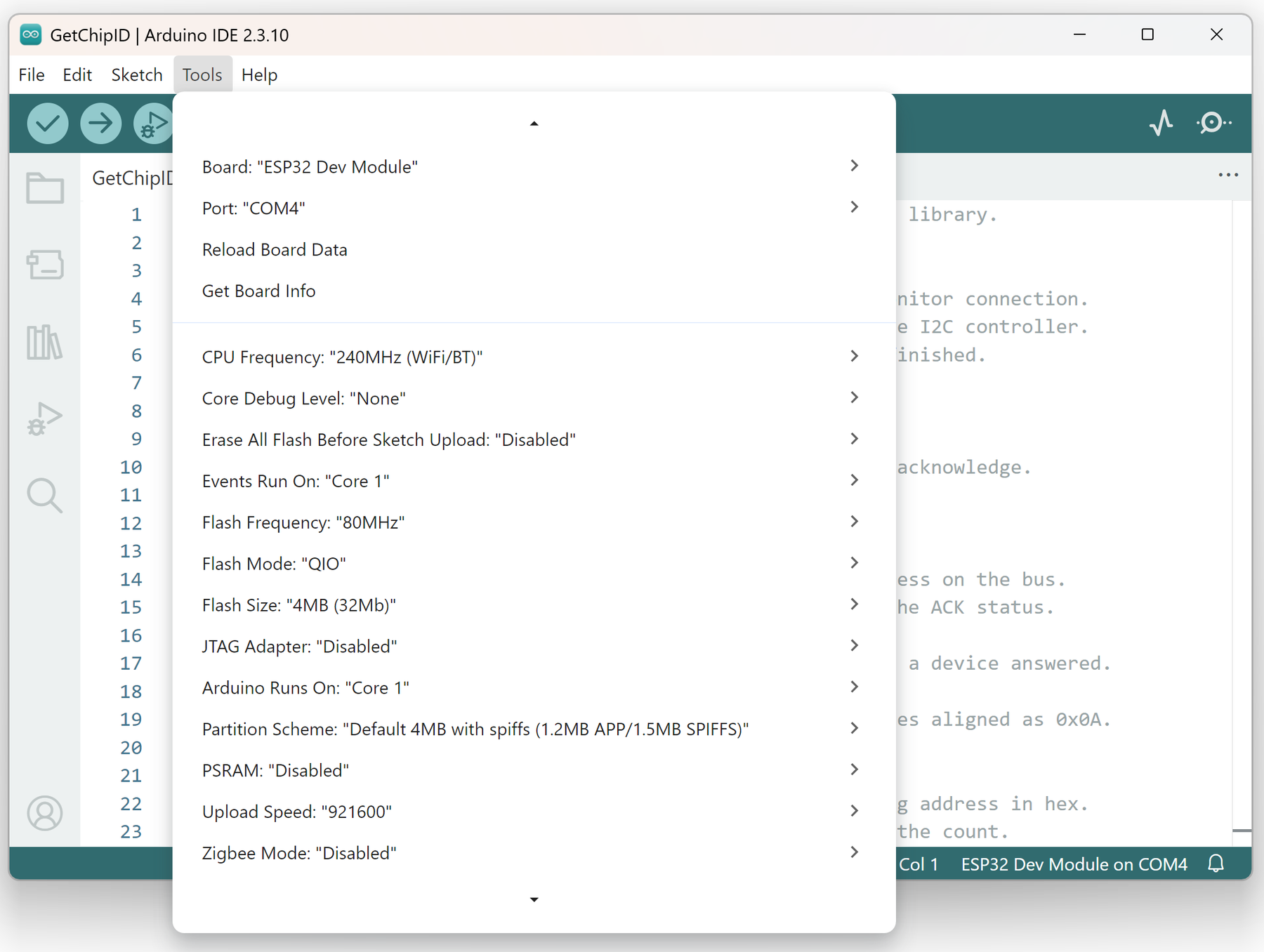
If USB CDC On Boot appears, double-check the selected target. USB CDC, or USB communications device class, provides native USB serial on newer ESP32 variants. The original ESP32-WROOM-32 uses its external USB-UART bridge and does not use native USB CDC.
Match the chip family before the brand name
Board sellers reuse words such as DevKit, NodeMCU, and ESP32 across products. Start with the metal module marking. An ESP32-WROOM-32 or WROOM-32E belongs to the original ESP32 family used here. A marking containing S3, C3, or C6 identifies a different processor target even when the board shape looks familiar.
Next, count and label the headers. The 30-pin clone-style DevKit used by this series is not the same physical board as Espressif’s current 38-pin ESP32-DevKitC V4. Both can carry an original ESP32 module, but their pin layouts and USB bridge implementations differ.
Finally, choose the board definition. The menu name does not have to reproduce every word printed by a reseller. ESP32 Dev Module is deliberately generic. It supplies a safe baseline for original-ESP32 boards when a more exact supported definition is not known.
Upload Speed and Serial Speed
Two speed settings appear in this lesson, and they do different jobs.
Upload Speed controls how quickly the computer sends a compiled program through the bootloader, the small built-in program that receives new code. The board definitions list 921600 and 115200 among the choices. Start with the selected default. If uploads are unreliable, reduce Upload Speed to 115200.
The Serial Monitor baud rate controls how quickly your running sketch sends characters back to the computer. It must match the number passed to Serial.begin(). Our sketch and monitor both use 115200.
Changing Upload Speed does not change Serial.begin(). Changing the monitor menu does not change the upload speed. The matching numbers matter only within their own link.
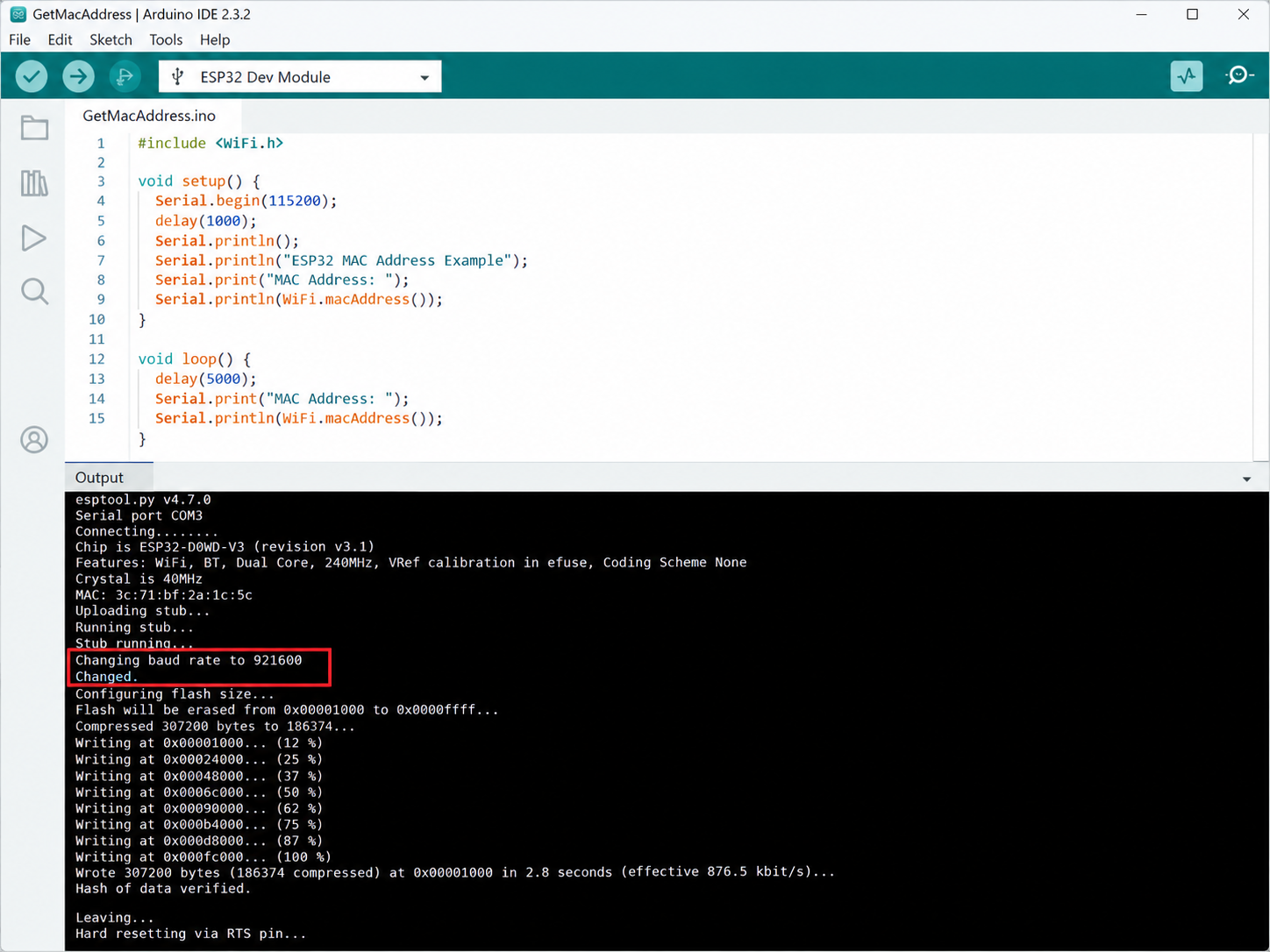
The upload process also contains two different programs. A small bootloader built into the ESP32’s read-only memory receives a new binary while the chip is in download mode. After reset, your uploaded application runs from flash. The BOOT button helps select the first behavior; the proof message comes from the second.
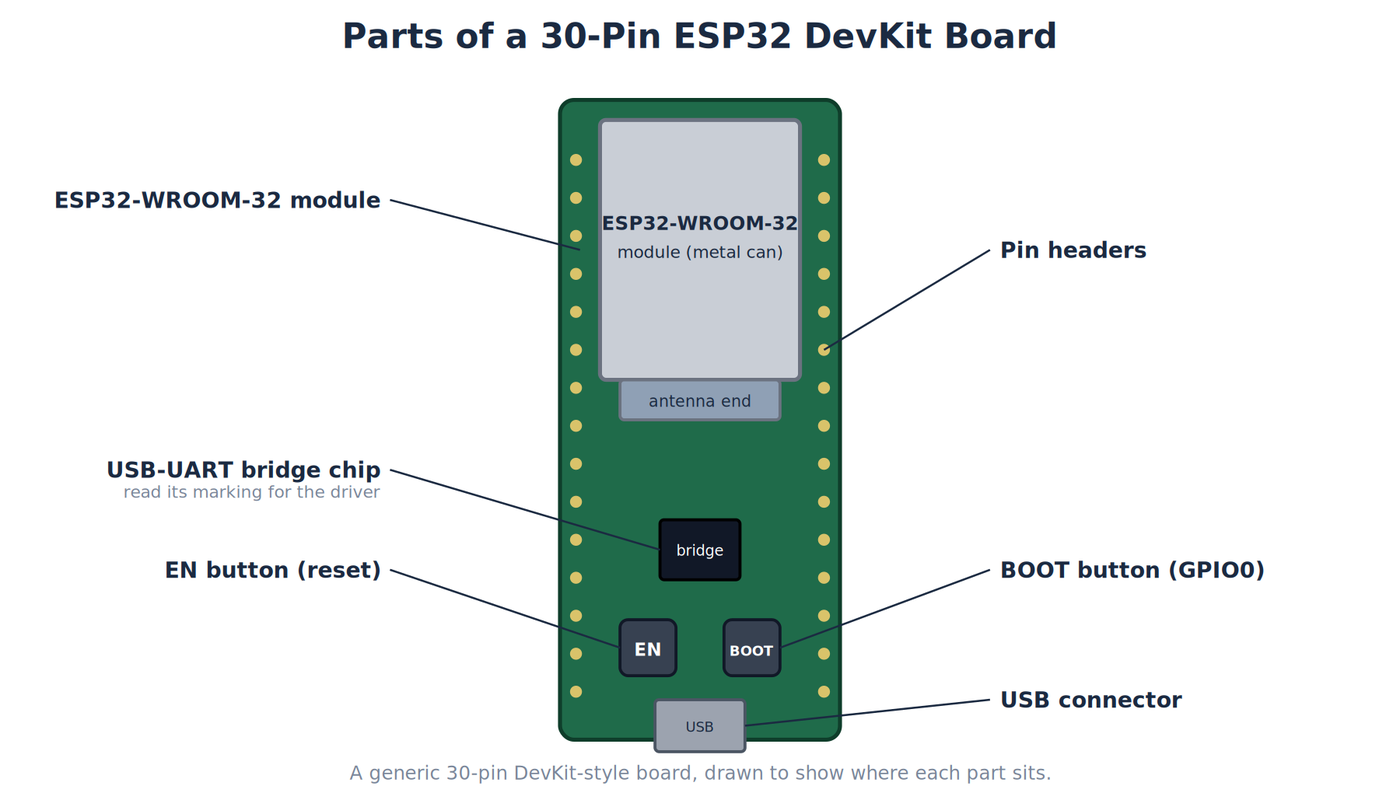
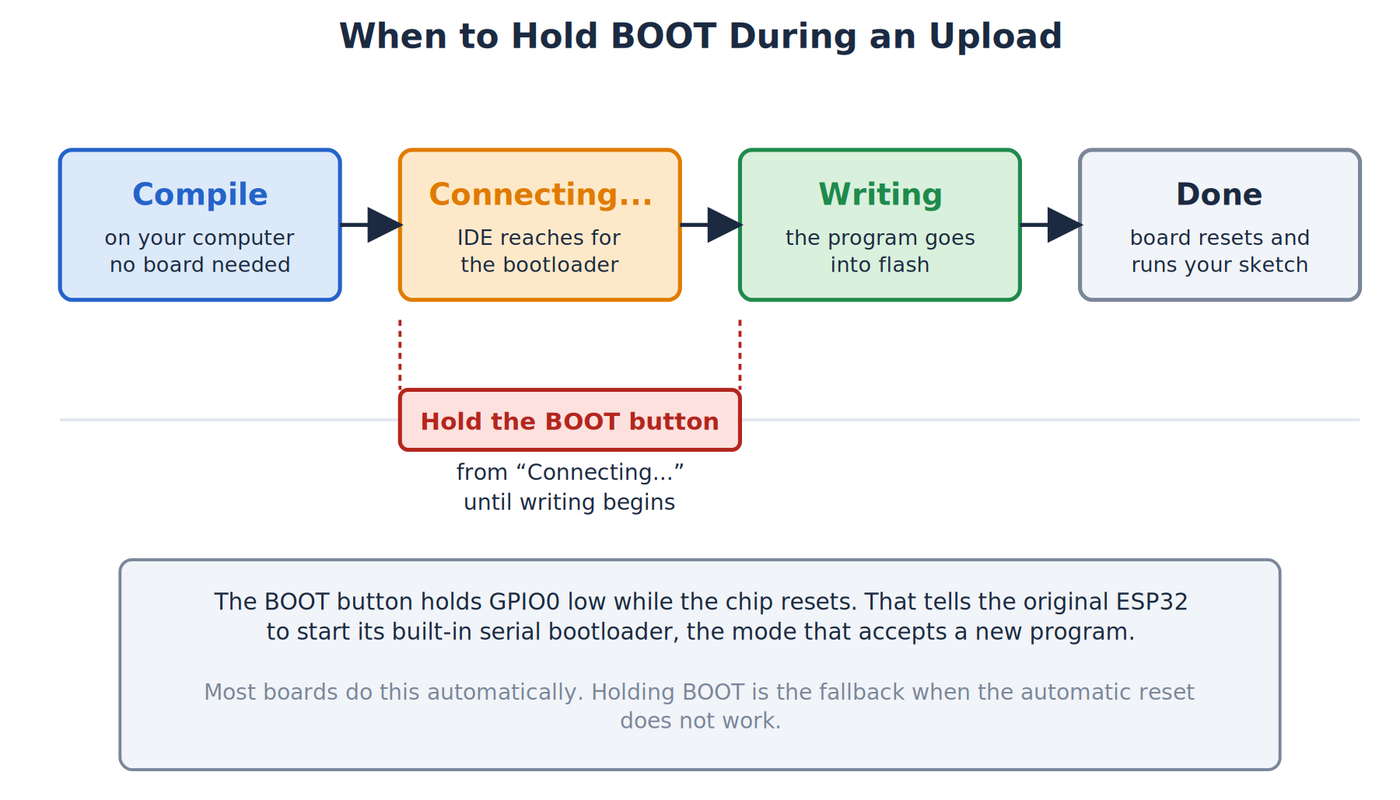
The EN button resets the chip. EN is short for enable, and pulling it low resets the ESP32. The BOOT button on these boards normally controls GPIO0 (general-purpose input/output pin number 0). Holding GPIO0 low during reset selects the serial download bootloader. Pressing EN alone after a successful upload restarts the application stored in flash.
Automatic-reset circuitry usually controls those signals from the USB-UART bridge, which is why most uploads need no button press. Manual BOOT timing is a fallback when that automatic sequence does not put the chip into download mode reliably.
During compilation, the output panel may print many lines before it ever opens a serial port. That stage can succeed even with no board connected because compilation happens on the computer. Upload begins when the tool tries to open the selected port and communicate with the bootloader. Knowing which stage failed keeps “the ESP32 won’t compile” separate from “the ESP32 won’t connect.”
Find the Port and Identify the Bridge
Connect the board with the known data cable, then open Tools > Port. On Windows, a serial port usually appears as COM followed by a number. Unplug the board, note which entry disappears, reconnect it, and choose the entry that returns.
If no port appears, inspect the small chip near the USB connector. Read its marking under bright light or with phone-camera magnification. Common clone boards may use CP2102 or CP2102N, CH340, CH9102, or another bridge. The exact marking determines the driver.
Do not confuse the bridge with the ESP32 module. The module is the larger metal-shielded rectangle, usually marked ESP32-WROOM-32 or a related WROOM variant. The USB-UART bridge is a much smaller black integrated circuit close to the USB connector. A board listing can use “ESP32” prominently without saying which bridge the manufacturer fitted.
- CP2102 or CP2102N uses Silicon Labs CP210x VCP support.
- CH340 uses WCH CH341SER support.
- CH9102 uses WCH’s driver package that explicitly lists CH9101 and CH9102.
Install a manufacturer driver only when the operating system does not recognize the marked chip. Windows Update and current operating systems often provide support automatically. Do not install a random “ESP32 driver” bundle from an unverified download site.
Installing a USB-UART driver
If the operating system lists the board with a warning or does not list a new port at all, install the driver for the chip you identified, and download it only from the chip maker's own site. Silicon Labs publishes the CP210x driver, and WCH (the maker of the CH340, CH341, CH9102, and related chips) publishes the CH34x and CH343 drivers. Search for the chip name and the maker's name, and download the package for your operating system.
On Windows, run the installer, then unplug the board and plug it back in. A new COM entry should appear under Ports (COM & LPT) in Device Manager. If the installer does not run, open Device Manager, right-click the device marked with a warning symbol, choose Update driver, and point it to the folder where you extracted the download.
On macOS, many current versions already include support for common bridge chips, so check Tools > Port before installing anything. If a driver is needed, follow the maker's instructions for your macOS version. Some installs ask you to approve a system extension under System Settings > Privacy & Security and then restart.
On Linux the kernel normally includes these drivers. If the port still does not appear, see the next subsection.
Before chasing drivers, swap in another cable that you know transferred data for another device, connect directly instead of through a hub, and try another USB port. A board LED proves that 5V reached the board. It does not prove that USB data works.
On Windows, Device Manager can help separate recognition from IDE selection. Watch the Ports (COM & LPT) and Other devices sections while reconnecting the board. A bridge listed with a warning symbol points toward a missing or broken driver. A healthy COM port that Arduino IDE does not currently show points toward an IDE refresh or selection issue. Record the port number, then reopen the Port menu.
On macOS and Linux, serial devices use names rather than COM numbers. The same unplug-and-reconnect method still works: select the entry that appears with the board. Linux users may also need permission to access the serial device. That permission is separate from the USB-UART driver and from the ESP32 core.
Port names and permissions on macOS and Linux
On macOS, the board usually appears under a name that begins with /dev/cu., such as /dev/cu.usbserial-0001 or /dev/cu.SLAB_USBtoUART. Choose the cu entry and not the matching tty entry. On Linux, the port is usually /dev/ttyUSB0 for CP210x and CH34x bridges, or /dev/ttyACM0 for boards with native USB.
Linux restricts access to serial devices to members of a group, usually dialout (the group is uucp on Arch-based distributions). If the port appears but the IDE reports a permission error, add your user to the group with the first command below, then log out and back in. A group change takes effect only at the next login.
sudo usermod -a -G dialout $USER
Ubuntu and some other distributions also include a braille-display service called brltty that can claim a CH340 bridge as soon as it is plugged in, so the port appears and then disappears. If the port vanishes a moment after you connect the board, removing that package fixes it:
sudo apt remove brltty
Only remove it if you do not use a braille display.
Upload the First Serial Sketch
The hard way would be to prepare an ESP32 binary, locate the serial port, control the boot pins, and call the flashing tool by hand. The Arduino core and IDE handle those details. Our job is to provide a sketch and select the right target.
Open a new sketch and enter:
void setup() {
  Serial.begin(115200);                // Start the USB-UART serial link at 115200 baud.
  delay(1000);                         // Give the Serial Monitor time to reconnect after reset.
  Serial.println("ESP32 upload works"); // Print one proof line after startup.
}

void loop() {
  // Leave loop empty because this test only needs one startup message.
}
Select ESP32 Dev Module and the correct port. Choose Upload. Compilation can take longer the first time because the core builds and caches supporting files.
After the upload completes, open Tools > Serial Monitor and set the monitor to 115200 baud. Press the board’s EN or reset button once if the line was printed before the monitor opened. You should see:
ESP32 upload works
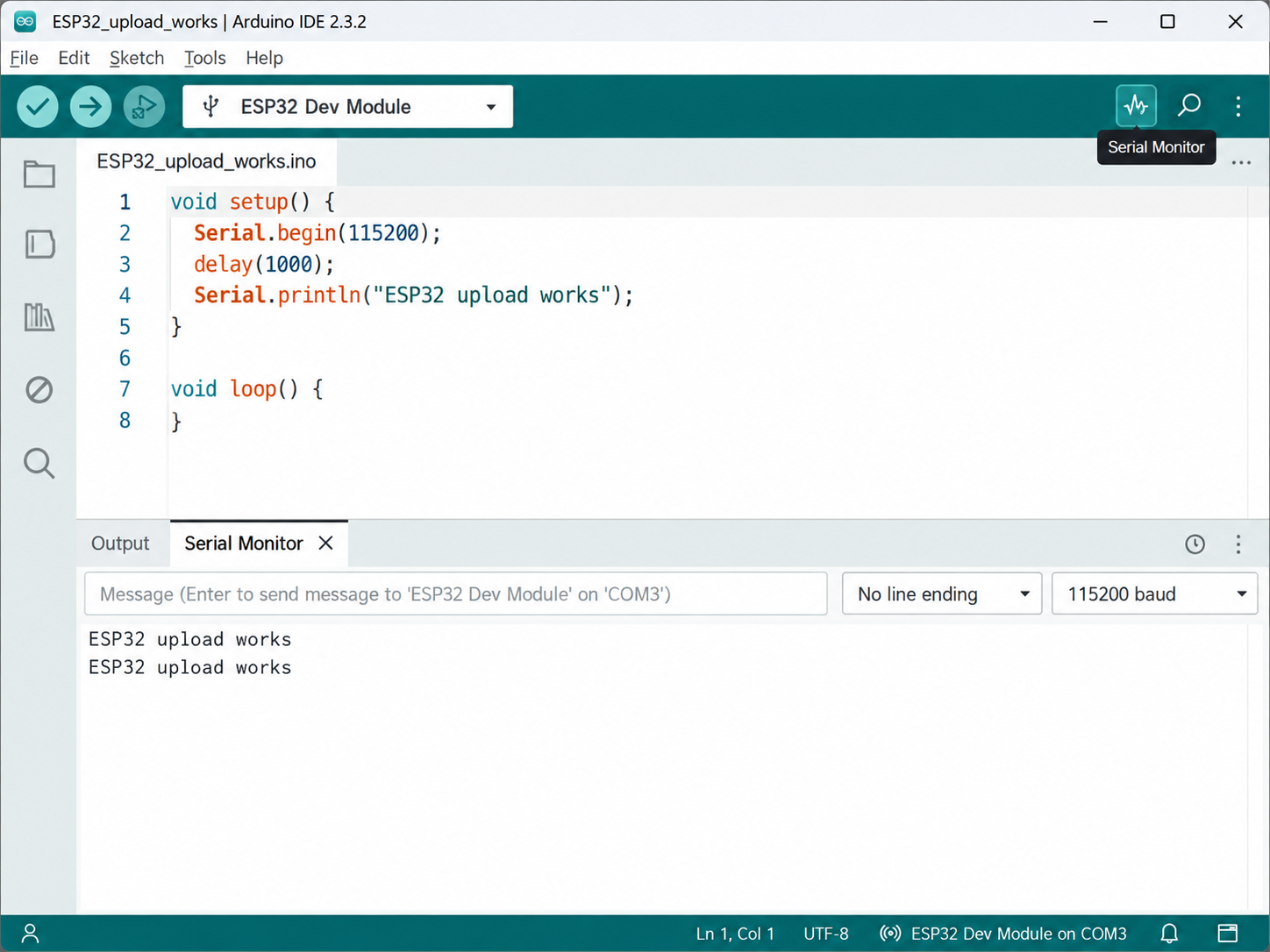
That one line proves the core compiled the sketch, the IDE uploaded it to the selected board, the ESP32 booted it, and the serial speed matches.
It does not yet prove that Wi-Fi, Bluetooth, every GPIO, or the onboard LED works. A good test proves one layer at a time. This one validates the programming path while avoiding board-specific LED wiring. Part 3 adds a controlled GPIO test.
You may also see boot text before the proof line. The original ESP32 emits boot information on its serial connection during reset. For this lesson, do not diagnose every boot field. Find the exact ESP32 upload works line. If that line is readable, the sketch baud and monitor baud match.
If the proof line appears twice, the board probably reset twice. That is not a problem for this sketch. If it repeats continuously, the board is rebooting, which belongs to the later debugging lesson. Return to the minimal sketch, disconnect attached hardware, and confirm that the supply and USB connection are stable.
Close Serial Monitor before the next upload if the port reports that it is busy. IDE 2 often manages its own monitor connection correctly, but another terminal program can keep exclusive control of the port.
Test the Wi-Fi Radio (Optional)
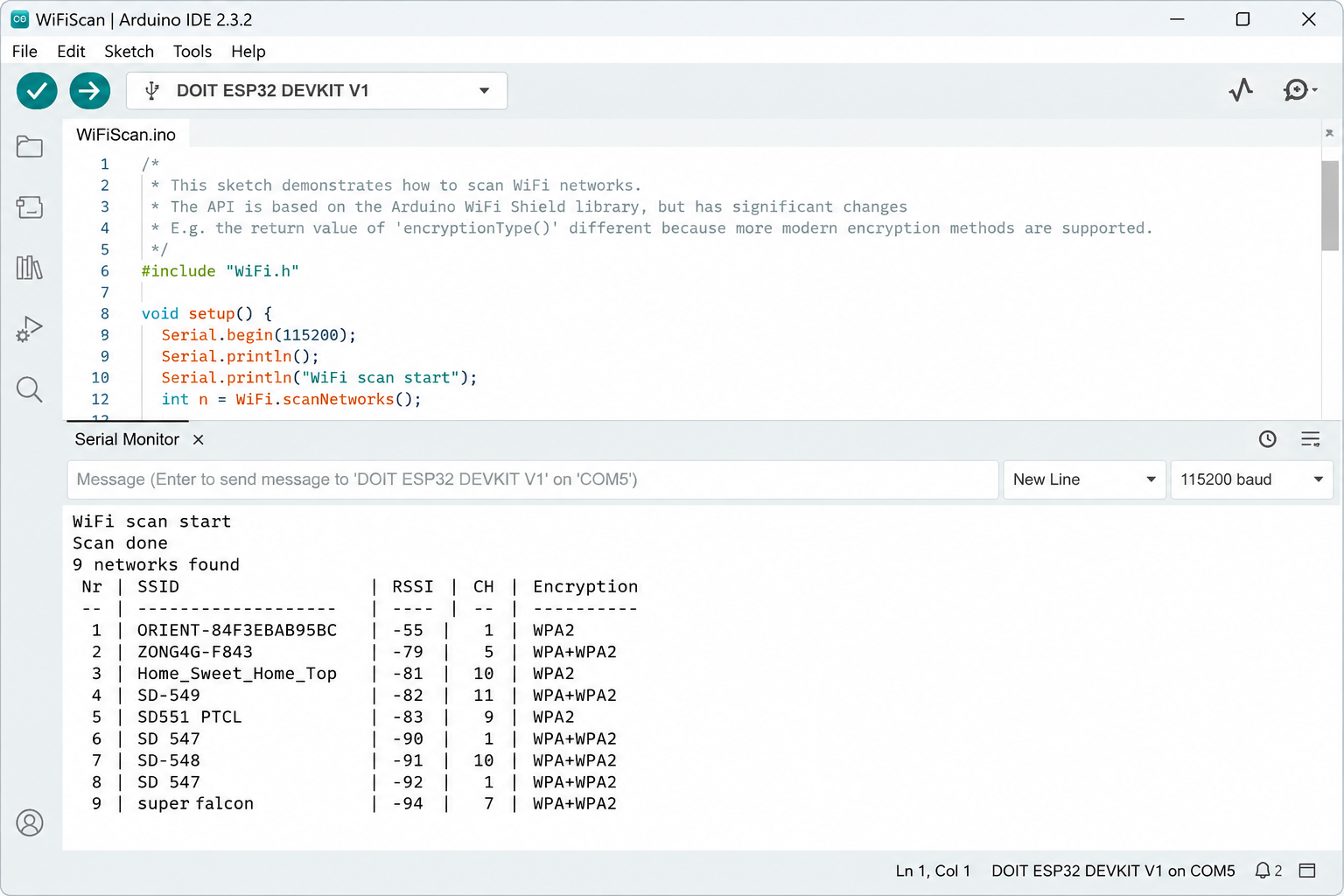
The serial sketch proves that the toolchain and the upload path work. A second, equally small test shows that the ESP32's Wi-Fi radio works. The Arduino-ESP32 core includes an example sketch for it, so no code needs to be typed.
- Open File > Examples > WiFi > WiFiScan.
- Confirm that ESP32 Dev Module and the correct port are still selected, and choose Upload.
- Open the Serial Monitor at 115200 baud and press EN once if nothing appears.
The sketch lists the Wi-Fi networks it can see, with each network's name, signal strength, and encryption type, and it repeats the scan every few seconds. A list of nearby networks means the radio and antenna are working. The original ESP32 supports only 2.4GHz Wi-Fi, so a network that broadcasts only on 5GHz will not appear. An empty list with a "no networks found" message in a place where you know networks exist suggests a problem with the module, and a board that fails to upload at all is a connection problem and not a radio problem.
Fix a Connect Timeout
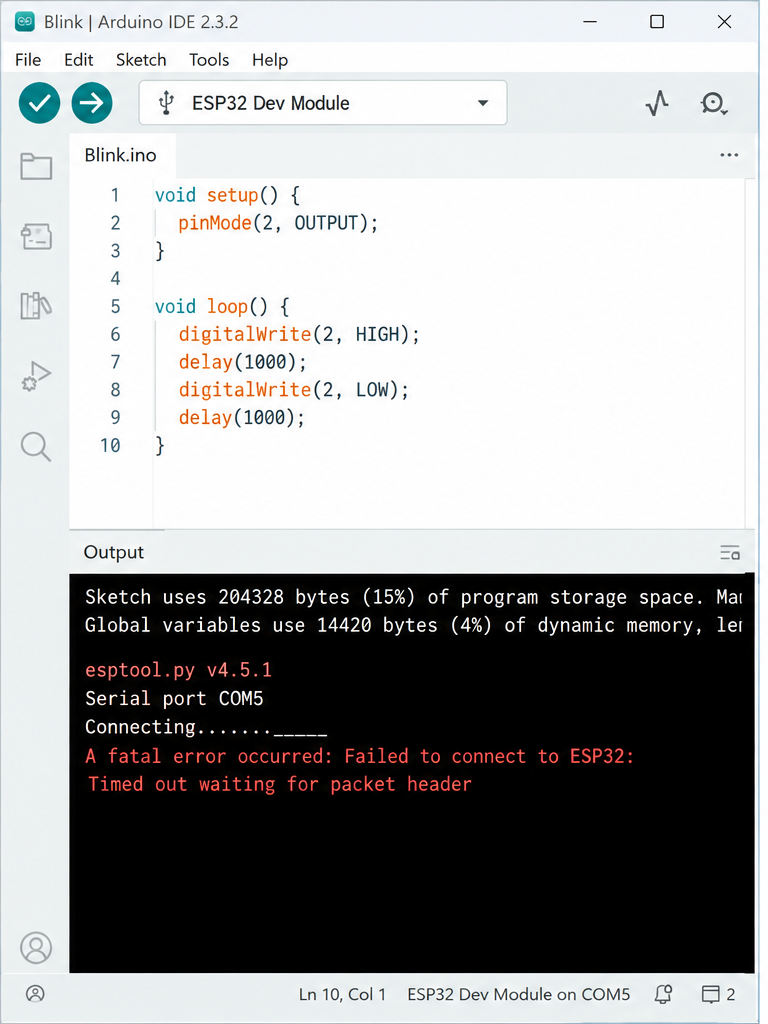
If the IDE reports A fatal error occurred: Failed to connect to ESP32: Timed out waiting for packet header, the chip probably did not enter its serial bootloader.
Work through these checks in order:
- Confirm that the selected port disappears and returns when the board is unplugged and reconnected.
- Replace the cable with a known data cable.
- Connect directly to the computer and avoid a USB hub.
- Remove anything connected to the board’s TX and RX pins.
- Close other serial-terminal programs that may have the port open.
- Start another upload. When the IDE shows
Connecting..., press and hold BOOT. Release BOOT after writing begins. - If needed, reduce Upload Speed to 115200 and try again.
BOOT holds GPIO0 low during reset, which tells the original ESP32 to enter its ROM serial bootloader. Many boards perform that sequence automatically, but some board-and-computer combinations need manual help.
Do not begin by soldering a capacitor between EN and ground. Espressif documents that as a later hardware remedy, but it is outside this first setup lesson. Port, cable, bridge driver, direct USB connection, and BOOT cover the usual beginner failures without modifying the board.
Some failures happen after the bootloader connection succeeds. If writing starts and then stops, the board did enter download mode. Focus on cable quality, direct USB connection, power stability, and a lower Upload Speed. Repeating the BOOT-button step is less useful once the tool is already writing data.
An error about a missing or busy port points somewhere else again. Unplugging and reconnecting can change the port name, especially after a driver installation. Re-select the current port. Close Serial Monitor windows, vendor terminal tools, and any second Arduino IDE instance that may have opened it.
If compilation fails before the upload begins, read the first useful error rather than the final summary line. A missing header or an obsolete API in an old sketch is a code or core-version issue, not evidence that the board driver is broken. The minimal serial sketch intentionally uses only stable basics, which makes it a useful control test.
A Clean Re-Test Sequence
When several settings have been changed, return to a controlled starting point:
- Disconnect every jumper wire from the ESP32.
- Connect the board directly with the known data cable.
- Select ESP32 Dev Module.
- Restore 4MB flash and the default partition scheme when those menus appear.
- Select the port that follows the board.
- Use the minimal serial sketch exactly as shown.
- Upload at the currently selected speed, then retry at 115200 if writing is unreliable.
- Open Serial Monitor at 115200 and press EN once.
This sequence removes Wi-Fi code, GPIO wiring, libraries, and older examples from the diagnosis. Once it works, save the sketch as a known-good upload test.
Read the Output Panel by Stage
Arduino IDE’s final red line often says only that compilation or upload failed. Scroll upward to the first specific message.
During compilation, useful errors name a file, line, missing symbol, or missing library. The USB cable and COM port are not involved yet. If the minimal sketch fails here, confirm the selected core and board, then copy the first compiler error into your notes.
During upload, the output mentions the serial port, connection attempts, flash addresses, or writing progress. A timeout before writing points toward the selected port or bootloader entry. A failure after writing begins points more strongly toward link quality, power, or upload speed.
During run time, upload has already succeeded. Missing or unreadable Serial Monitor text is now a monitor baud, reset timing, or application issue. Keeping these stages separate prevents reinstalling the core to fix a charge-only cable, or installing a driver to fix a typo in code.
Preserve a Known-Good Baseline
Save the serial sketch under a clear name such as ESP32_First_Upload_Test. Record the board entry, core version, selected flash size, partition scheme, and the USB-UART marking. If a future project stops uploading, return to this sketch before changing the installation.
If the known-good sketch still works, the toolchain and basic connection remain healthy. The new project introduced the failure. If it no longer works, compare the recorded settings and simplify the hardware. With a saved baseline, a failure can be compared against a configuration that is known to have worked.
Troubleshooting
| Symptom | Most likely area | First action |
|---|---|---|
| No ESP32 boards in the Board menu | Core not installed | Confirm the stable index and install esp32 by Espressif Systems |
| Board powers up, but no port appears | Cable or USB-UART driver | Try a known data cable, then read the bridge marking |
| Upload says it cannot open the port | Wrong port or port already in use | Re-select the reconnecting port and close serial programs |
| Upload times out while connecting | Bootloader entry failed | Hold BOOT during Connecting... |
| Upload begins but fails partway | Cable, hub, or upload speed | Connect directly and lower Upload Speed to 115200 |
| Serial Monitor shows no proof line | Monitor opened after startup | Set 115200 and press EN once |
Where This Fits in the Series
Part 1, Getting Started with the ESP32: A Complete Beginner’s Guide, identifies the board and its electrical boundaries. This part installs the programming support and proves one upload. Part 3, Blinking an LED, adds the first GPIO output and owns the LED wiring and code.
Wrap-Up and What’s Next
Installing “the ESP32” in Arduino IDE means installing a core, not a cable or USB driver. Add Espressif’s stable board index, install esp32 by Espressif Systems, choose ESP32 Dev Module for a generic classic WROOM-32 DevKit, keep the first 4MB and partition settings at their defaults, and select the port that follows the board. Upload speed and Serial Monitor baud are separate. The proof is the ESP32 upload works line at 115200. If connection fails, check port, cable, bridge driver, and BOOT before changing hardware.
In Part 3, we’ll use that working toolchain to blink an LED and learn the first output pin.
Hack The World and Make Awesome.