Board Manager is the pane people open when Tools → Board does not list the thing on the bench. It is not a list of every Arduino-compatible product on Earth. It is a shop window over indexes: catalogs of cores, written as JSON files (JSON is a plain-text format for structured data, so each index is basically a machine-readable price list of what can be downloaded and from where). Until a core is installed, the IDE has no compiler, no upload recipe, and no pin names for that chip family.
A core is the board-support package for a family: AVR (Uno, classic Nano, Mega), SAMD (many 32-bit official boards), esp32 (Espressif's package), and so on. Part 2 of the Mastery Series is which board to buy. This article is how IDE 2 learns to talk to it. Part 3 is the sketch you write after the core is there.
Why an Uno works on day one and an ESP32 does not
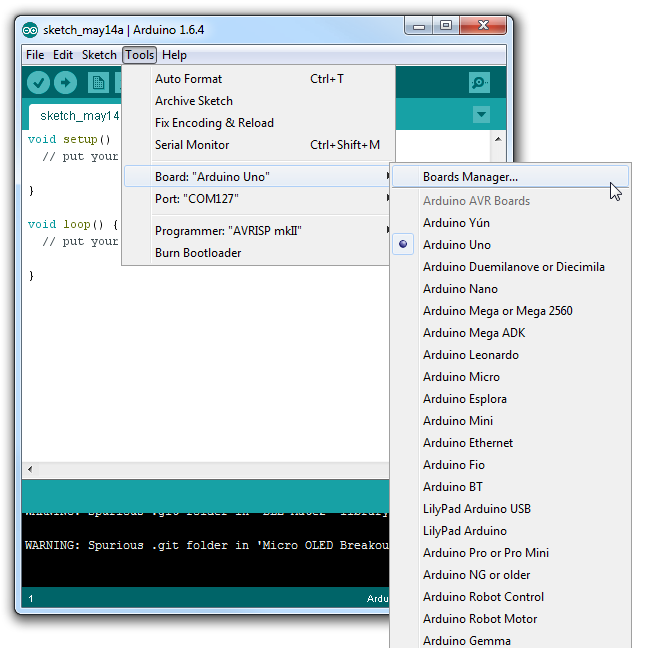
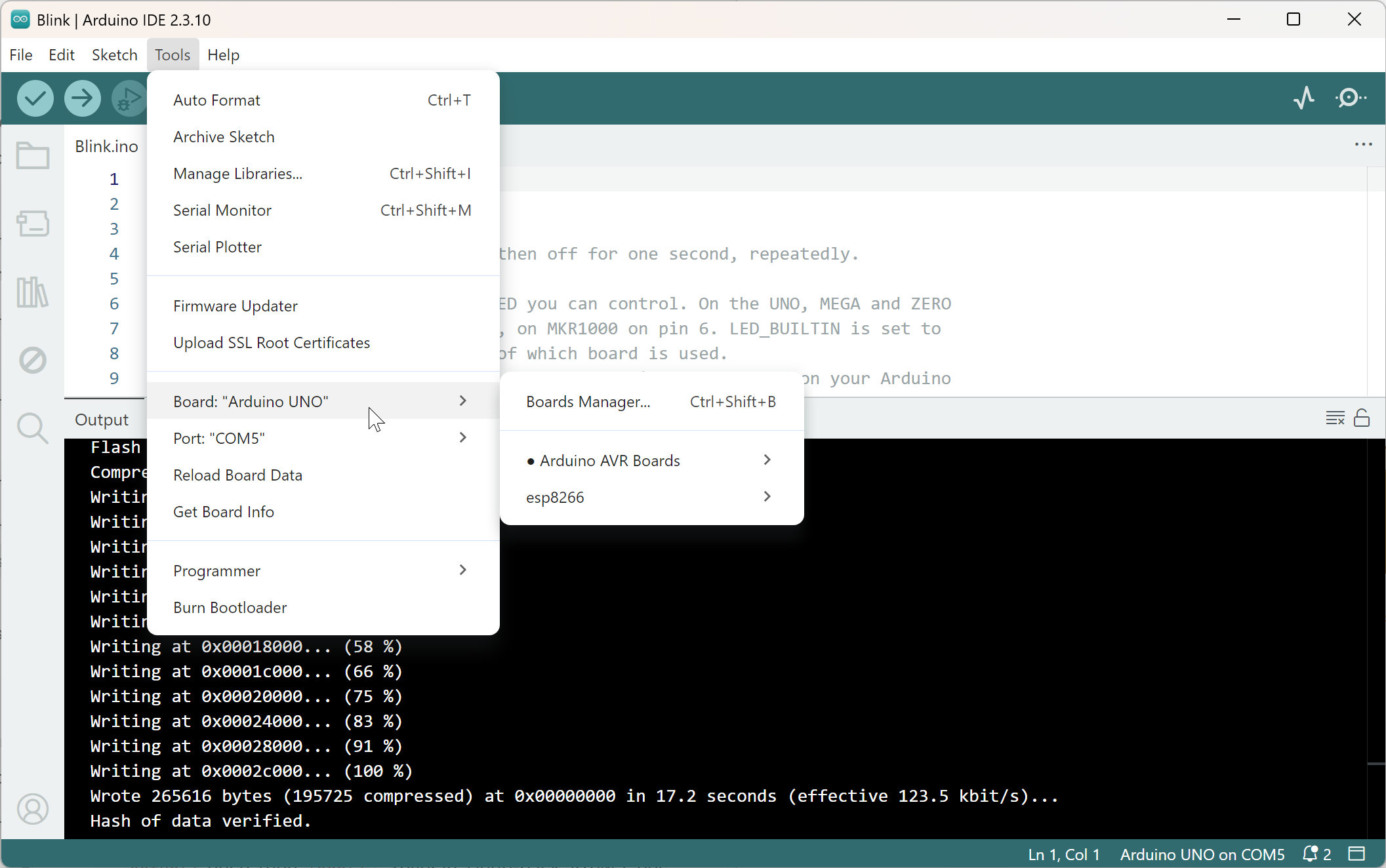
A normal Arduino IDE 2 install already includes the Arduino AVR core. That is why Tools → Board shows Arduino Uno without a shopping trip. ESP32, ESP8266, many SAMD packages, RP2040 packs, and vendor boards live in other catalogs. Arduino's default index does not ship Espressif's compiler. Searching Board Manager for esp32 before you add Espressif's URL often returns nothing, or only an official Arduino product like Nano ESP32, which is not a generic DevKit.
That is not the IDE hiding boards. It is Board Manager only searching indexes it knows.
What is inside a core
When you click Install on esp32 by Espressif Systems or Arduino AVR Boards, you are not installing a sketch. You are installing:
- A toolchain: the compiler and its helper programs. Each chip family speaks its own machine language, so AVR chips need AVR-GCC, ESP32s need an Xtensa or RISC-V compiler, and most newer 32-bit boards need ARM GCC.
- boards.txt (and related files): how to compile and upload each named product in that family.
- Pin maps so
digitalWrite(13, HIGH)hits the right pad on that board. - Upload tools (
avrdude,esptool, and friends). - Sometimes extra menus: flash size, partition scheme, upload speed, USB mode.
Until that lands, picking "ESP32 Dev Module" from a blog screenshot does nothing. There is no compiler to run.
The name you pick in Tools → Board is one row in that package. Arduino Uno and Arduino Mega 2560 share the AVR core and different rows. ESP32 Dev Module and ESP32-S3 Dev Module are different chips in Espressif's package. Wrong row: compiles for the wrong silicon, then fails to upload or runs nonsense.
Where the files live
On Windows, cores live under:
C:\Users\<you>\AppData\Local\Arduino15\packages\<vendor>\
Examples: packages\arduino\hardware\avr\..., packages\esp32\hardware\esp32\....
Arduino15 also holds downloaded indexes (package_index.json and extra JSON files from Additional URLs) and a staging folder for in-progress downloads.
You rarely edit these folders. You need the path so you:
- Do not delete AppData "to free space" and lose every core.
- Can delete
packages\esp32andstagingif an install corrupted, then install again from Board Manager. - Understand that IDE 2 and Arduino CLI often share this directory. Install a core once, both tools can use it.
macOS: ~/Library/Arduino15. Linux: ~/.arduino15.
How to open Board Manager in IDE 2
Left sidebar: the icon that looks like a board / chip (hover for "Board Manager"). Or Tools → Board → Boards Manager.
Wait until the bottom-right index download finishes before you search. Searching too early returns a stale empty list.
Search by vendor or architecture: avr, samd, esp32, esp8266, rp2040. Click Install on the package whose maintainer you trust. For ESP32 that is esp32 by Espressif Systems. For ESP8266, esp8266 by ESP8266 Community. Let it finish. Close Serial Monitor first if the install hangs. IDE 2.3.x has a known habit of stalling package installs while Monitor is open.
When it says INSTALLED, open Tools → Board. The new family should appear. Then pick the exact board name, then the COM port.
Additional boards manager URLs
File → Preferences → Additional boards manager URLs. A URL here points at a JSON index, not at a GitHub repo of source code. The IDE fetches that index, then Board Manager can see the packages inside it.
Click the icon at the right of the field for a one-URL-per-line editor. Comma-separated on one line also works. Typos fail silently as "search returned nothing."
Current official-style indexes (September 2026):
https://espressif.github.io/arduino-esp32/package_esp32_index.json
https://arduino.esp8266.com/stable/package_esp8266com_index.json
Paste only what you need. A dedicated ESP32/ESP8266 article in this cluster walks those two in more detail. Other vendors (SparkFun, Adafruit, RP2040 packs) publish their own JSON. Use the vendor's current docs, not a 2017 screenshot.
After OK, wait for "Downloading index." Then search Board Manager again.
If your network blocks github.io, the index never arrives. Corporate firewalls do this. The IDE is not broken. The JSON never downloaded.
Install, update, remove
Install. Search, Install, wait. First ESP32 install is large (hundreds of megabytes of toolchain).
Update. Board Manager shows a version dropdown. Newer cores can break old sketches (Espressif 3.x vs 2.x APIs). Read the core's release notes if a sketch that compiled last year fails today. You can stay on an older version from the dropdown if you must.
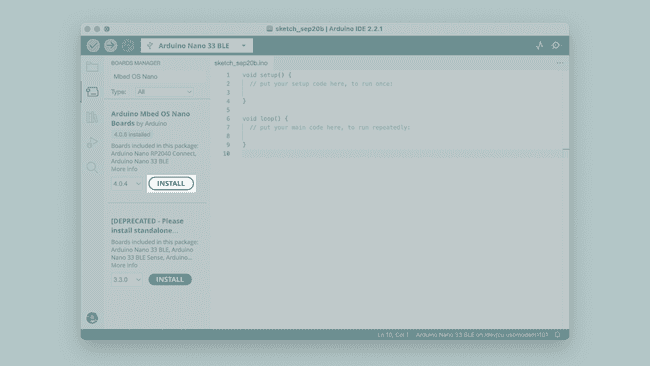
Image: Arduino
Remove. Board Manager → Remove, or delete that vendor folder under Arduino15\packages. Restart the IDE. Removing a core does not delete your sketches. It deletes the compiler for that family. The next Verify will say it cannot find the board.
Some tutorials for core developers tell you to download a core's source code straight from GitHub and drop it into a folder by hand (a "git checkout"). Do not mix that with Board Manager's copy of the same vendor unless you really are working on the core itself. Two esp32 folders on one machine will fight, and the error messages will not tell you that is what happened.
Platform vs board vs port
People mix these three:
- Core / platform:
arduino:avr,esp32:esp32. Installed in Board Manager. - Board: Tools → Board row. Internally the IDE names it with an FQBN (Fully Qualified Board Name, written
vendor:architecture:board), likearduino:avr:uno. - Port: the COM /
/dev/cu.*device Windows created when you plugged in USB.
Board Manager never installs a COM driver. CH340 and CP210x are Windows driver problems. Empty Port after a perfect core install is a cable or driver, not Board Manager.
Troubleshooting
| Symptom | Likely cause | Fix |
|---|---|---|
Search for esp32 is empty |
URL missing, or index still downloading | Paste Espressif JSON in Preferences. Wait. Search again |
| Install stuck | Serial Monitor open, slow network | Close Monitor. Wait. Check Arduino15\staging |
| Board menu missing the family after INSTALLED | IDE not restarted, wrong package | Restart. Confirm maintainer name |
Compile error about missing avr-g++ |
Core removed or install incomplete | Reinstall Arduino AVR in Board Manager |
| Two versions fighting | Manual folder plus Board Manager | Remove one. Use Board Manager only unless you are developing the core |
Wrap-up
Board Manager installs cores: compilers and recipes, not sketches. AVR is there on day one. Most other families need an index URL, then Install, then a board name that matches the silkscreen. Packages live in Arduino15. Drivers and cables are a different layer.
When a tutorial says "select ESP32 Dev Module" and you do not have that menu, you are not bad at Arduino. You have not installed the core yet.
Hack The World and Make Awesome.