Mastering ESP32 Part 1: Getting Started with the ESP32: A Complete Beginner's Guide
In the summer of 2014, a strange little board started showing up in hobbyist forums. It was about the size of a postage stamp, it cost around five dollars, and it could connect to Wi-Fi. At the time, adding Wi-Fi to an Arduino project usually meant a shield that cost more than the Arduino itself. This tiny thing was called the ESP8266, from a Shanghai chip company most Western makers had never heard of, Espressif Systems. Its documentation was thin and mostly in Chinese, but makers were so excited they translated it themselves, wrote their own tools, and eventually got it running Arduino code.
Espressif noticed. Two years later, in 2016, it released the follow-up: the ESP32. It kept the low price and the Wi-Fi, then added a second processor core, Bluetooth, far more memory, and a long list of built-in hardware features. Today the ESP32 is one of the most popular microcontrollers for hobby projects, and it's inside plenty of commercial smart plugs, light bulbs, and sensors too.
This is Part 1 of the Mastering ESP32 series, and it's a guided tour before we write any code of our own. By the end, you'll know what an ESP32 actually is, what's packed inside it, how the different ESP32 versions compare, which development board to buy, how to read its pinout without damaging anything, and how it stacks up against the Arduino Uno you may already own. Part 2 installs the software, and Part 3 is your first real project.
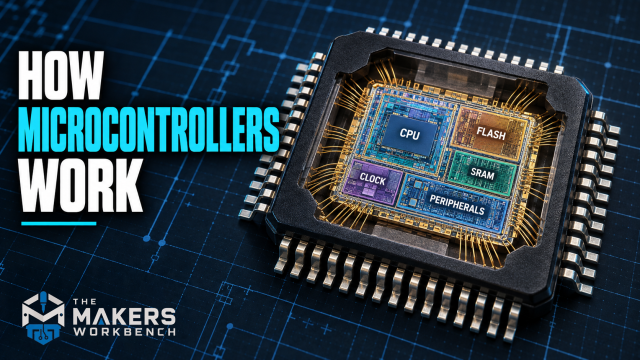
You don't need to know anything about microcontrollers to start here. If you'd like a deeper look at what a microcontroller is in general, our companion reference article How Microcontrollers Work covers that from the ground up. One more note: near the end, you'll get to run a ready-made sketch on a simulated ESP32 in your browser, without installing anything. You don't need to understand that code yet. Every line has a comment, and the series teaches each piece properly as we go.
What the ESP32 Is
The ESP32 is a microcontroller: a small, complete computer on a single chip, with a processor, memory, and pins that connect to the outside world. It's designed to run one program, forever, from the moment it gets power. You write that program on your computer, send it to the chip over a USB cable, and the chip runs it on its own.
What makes the ESP32 special is that it's a SoC, short for system on a chip. On top of the usual microcontroller parts, it has complete Wi-Fi and Bluetooth radios built into the same piece of silicon. Most microcontrollers need a separate chip, and often a separate board, to get online. The ESP32 just needs an antenna.
Chip, module, and development board
When people say "an ESP32," they might mean any of three different things, and this trips up a lot of beginners when they start shopping.
- The ESP32 chip. The square black chip itself, about 5 mm on a side. On its own it can't do much. It needs a crystal to keep time, flash memory to hold your program, and an antenna.
- The ESP32 module. A small board with the chip, the flash memory, the crystal, and an antenna all soldered together under a metal shield, with the antenna's squiggly copper trace sticking out of one end. The most common module is the ESP32-WROOM-32 (and its newer revision, the ESP32-WROOM-32E). Modules come pre-certified for radio use, which is why almost every product uses one rather than a bare chip.
- The development board. A larger board with a module on top plus everything you need to use it on a workbench: a USB connector, a chip that turns USB into a serial connection, a voltage regulator, two small buttons, and pins spaced to plug into a breadboard. This is what you'll actually buy, and it's what "ESP32 board" means for the rest of this series.
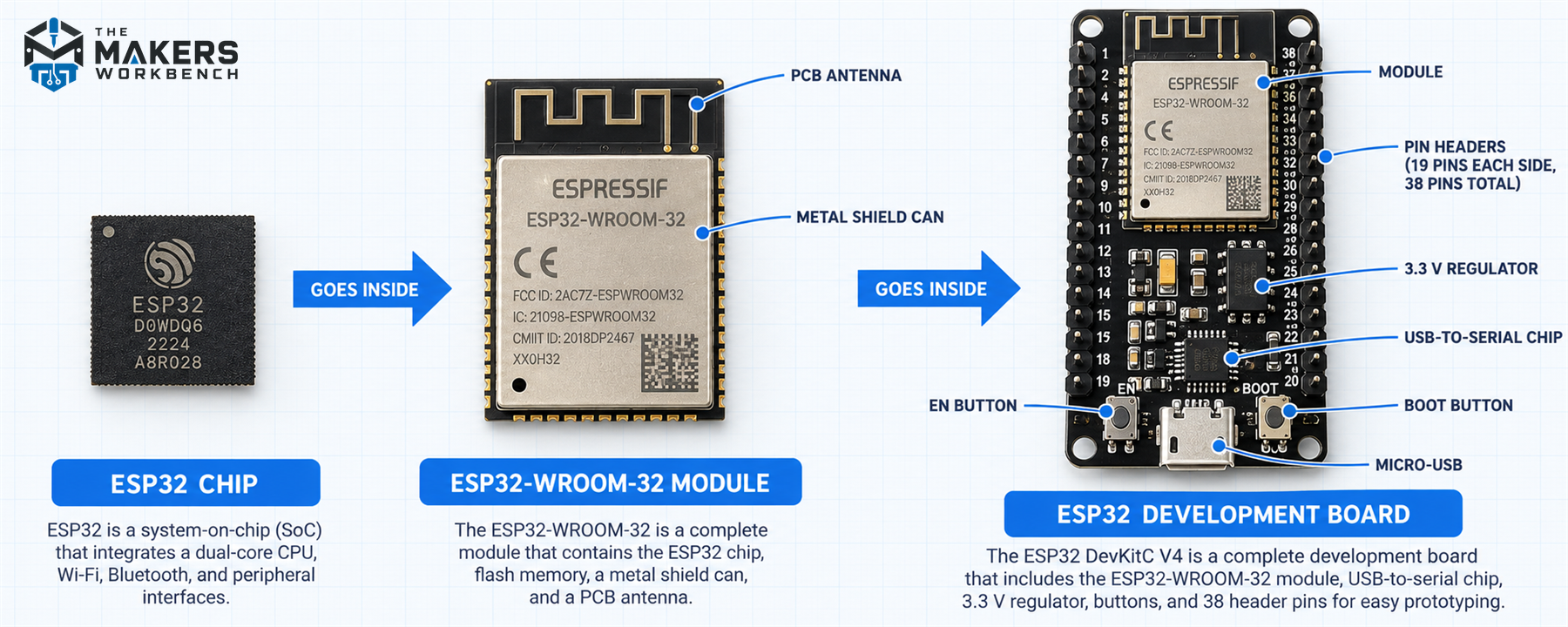
If you've used an Arduino Uno, it's the same idea. The Uno is a development board built around the ATmega328P microcontroller.
What's Inside the ESP32
This is what the original ESP32 brings to the table, according to Espressif's datasheet, with each feature explained in plain English. Don't worry about memorizing this. It's here so you know what's possible, and we'll use most of these features one at a time later in the series.
| Feature | ESP32 (original) | What it means |
|---|---|---|
| Processor | Two Xtensa LX6 cores, 32-bit | Two separate processors on one chip that can work at the same time |
| Clock speed | Up to 240 MHz | Up to 240 million processor steps per second |
| SRAM | 520 KB | Working memory for your variables while the program runs |
| Flash | External, usually 4 MB on the module | Where your program is stored; it survives power-off |
| Wi-Fi | 802.11 b/g/n, 2.4 GHz | Connects to ordinary home Wi-Fi networks, or creates its own |
| Bluetooth | v4.2 Classic and Bluetooth Low Energy (BLE) | Talks to phones and other Bluetooth devices |
| GPIO | 34 programmable pins on the chip | Pins you can read from and write to (fewer are available on a dev board) |
| ADC | 12-bit, up to 18 channels | Measures voltages on pins, as numbers from 0 to 4095 |
| DAC | Two 8-bit channels | Outputs a real in-between voltage on two pins |
| Touch sensing | 10 pins | Detects a fingertip touching a wire or a pad, no button needed |
| PWM | Up to 16 channels (called LEDC) | Dims LEDs and controls motors by switching pins very fast |
| Communication | 3 UART, 2 I²C, 4 SPI, 2 I²S | Hardware for talking to sensors, displays, other boards, and audio chips |
| Low power | Deep sleep around 10 µA | Can sleep on a battery for a very long time between jobs |
| Logic voltage | 3.3 V | Pins work at 3.3 V, not 5 V (more on this below, it matters) |
A few of those terms deserve a closer look.
A core is one complete processor. Having two means the ESP32 can, for example, keep the Wi-Fi connection running on one core while your program runs on the other. When you program it with the Arduino tools, a lot of that juggling happens automatically.
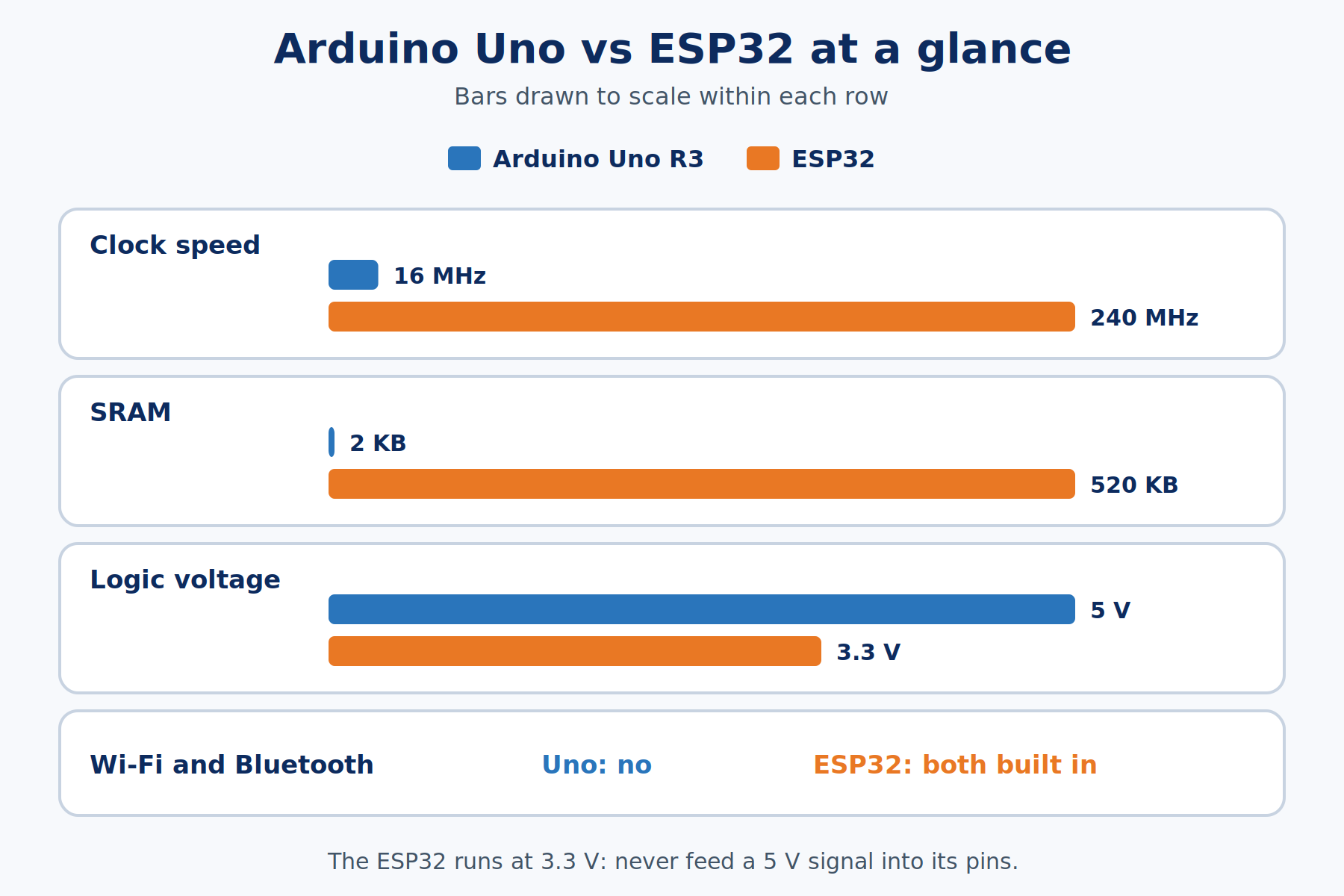
MHz (megahertz) measures how fast the processor's internal clock ticks, in millions of ticks per second. Each tick is one small step of work. 240 MHz is 15 times faster than an Arduino Uno's 16 MHz, and because the ESP32 is a 32-bit chip, many of its steps also do more work than the Uno's 8-bit steps.
SRAM is the fast working memory that empties when the power goes off. 520 KB sounds small next to a phone, but it's more than 250 times what an Arduino Uno has (2 KB). That's the difference between "careful, you'll run out of memory storing one sentence" and "go ahead and store a whole web page."
Deep sleep around 10 µA means that in its deepest useful sleep mode, the chip draws about 10 microamps. That's 10 millionths of an amp. The development board's other parts (especially the USB chip and the power LED) usually draw far more than that, which is why battery projects often use a bare module instead of a dev board. We'll get there in a later part.
The ESP32 Family
Since 2016, Espressif has released a whole family of chips with "ESP32" in the name. They aren't just faster or slower versions of each other. Each one is aimed at a different kind of project, and code written for one usually runs on the others with small changes.
| Chip | Processor | Wireless | Good to know |
|---|---|---|---|
| ESP32 (original) | 2 × Xtensa LX6, up to 240 MHz | Wi-Fi 4, Bluetooth Classic + BLE | The most common and best documented; what this series uses |
| ESP32-S2 | 1 × Xtensa LX7, up to 240 MHz | Wi-Fi only, no Bluetooth | Native USB; good for USB gadgets |
| ESP32-S3 | 2 × Xtensa LX7, up to 240 MHz | Wi-Fi 4, BLE 5 | Native USB and extra instructions for AI and audio; popular for cameras |
| ESP32-C3 | 1 × RISC-V, up to 160 MHz | Wi-Fi 4, BLE 5 | Very low cost, small boards |
| ESP32-C6 | RISC-V | Wi-Fi 6, BLE 5, Thread/Zigbee | Smart-home focus (Matter) |
| ESP32-H2 | RISC-V | BLE 5, Thread/Zigbee, no Wi-Fi | Low-power smart-home sensors |
| ESP32-C5 | RISC-V | Dual-band Wi-Fi 6 (2.4 and 5 GHz), BLE 5, Thread/Zigbee | One of the first hobby-friendly chips with 5 GHz Wi-Fi |
| ESP32-P4 | 2 × RISC-V, up to 400 MHz | None built in | High-performance chip for displays and cameras; pairs with a wireless chip |
RISC-V and Xtensa are two different processor designs, the same way Intel and ARM are different designs for computer processors. For the projects in this series, the difference doesn't matter much, because the Arduino tools hide it from you.
This series uses the original ESP32, on a board with an ESP32-WROOM-32 module. It's the cheapest to find, it has the most tutorials and libraries behind it, it has both Wi-Fi and Bluetooth Classic, and it's what our in-browser Lab simulates. If you already own an S3 or C3 board, you can still follow along, and I'll point out the places where pin numbers or features differ.
ESP32 Development Boards
You'll see dozens of ESP32 development boards for sale. Most of them are close copies of two designs, and knowing which one you have saves a lot of confusion when you follow a wiring diagram.
- ESP32-DevKitC (V4) is Espressif's own official board. It has 38 pins, an ESP32-WROOM-32 or WROOM-32E module, and two buttons.
- "ESP32 DevKit V1" boards (often sold as "DOIT ESP32 DevKit V1") are a widely copied third-party design with 30 pins. Most of them have a small blue LED connected to GPIO 2, which is handy for your first blink test.
Both work for this series. The pin names (GPIO numbers) are the same on both. What's different is where each pin sits on the board, so always wire by the printed label, never by counting pin positions from a diagram of a different board.
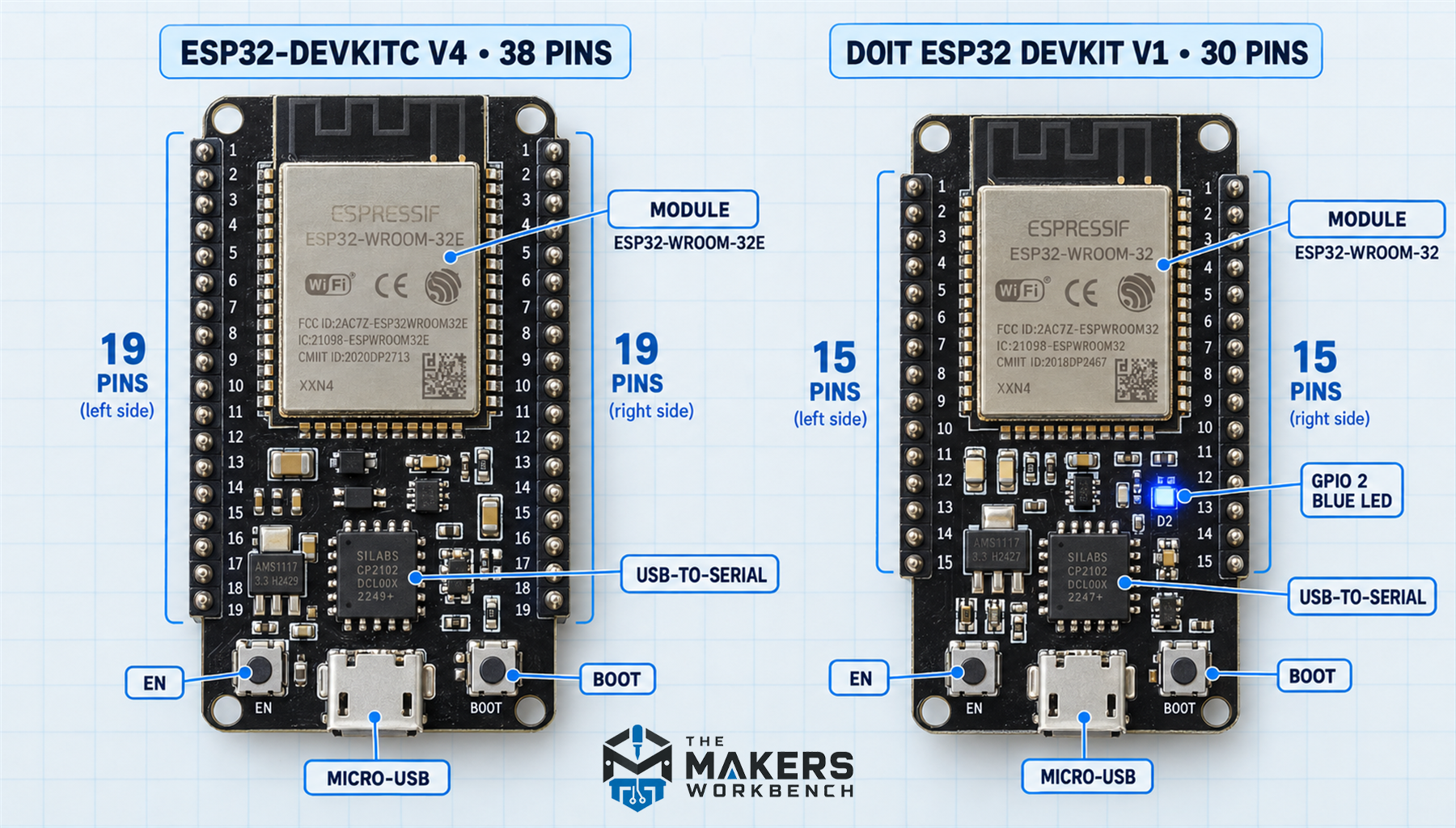
Every ESP32 dev board has the same few parts around the module:
- A USB connector (micro-USB on older boards, USB-C on newer ones) for power and programming.
- A USB-to-serial chip, usually a CP2102 or a CH340. The ESP32 itself doesn't speak USB, so this chip translates. Which one your board has decides which driver your computer may need, and Part 2 walks through that.
- A 3.3 V regulator that turns the 5 V from USB into the 3.3 V the ESP32 runs on.
- Two buttons. EN (enable) restarts the ESP32, like the reset button on an Arduino. BOOT holds GPIO 0 low while the board restarts, which puts the chip into its "ready to receive new code" mode. Most of the time the upload software does that automatically, but on some boards you'll need to hold BOOT during an upload. Part 2 covers when and how.
Two shopping gotchas to know about now, before they cost you an afternoon:
- Not every USB cable carries data. Many cables that came with phones, headphones, or battery packs only carry power. Plug the board in with one of those and it lights up, but your computer never sees it. If a board seems dead to your computer, try a different cable first. Keep one known-good data cable for your workbench.
- ESP32 boards are wide. On a standard breadboard, a DevKitC or DevKit V1 covers almost every hole, leaving only one free row on one side. Many people put two breadboards side by side with the board straddling the gap, or buy a wider breadboard.
Reading the ESP32 Pinout
A pinout is a map of what each pin on a board does. The ESP32's pinout looks intimidating at first, because most pins have several jobs printed next to them. This section shows you how to read it without getting lost.
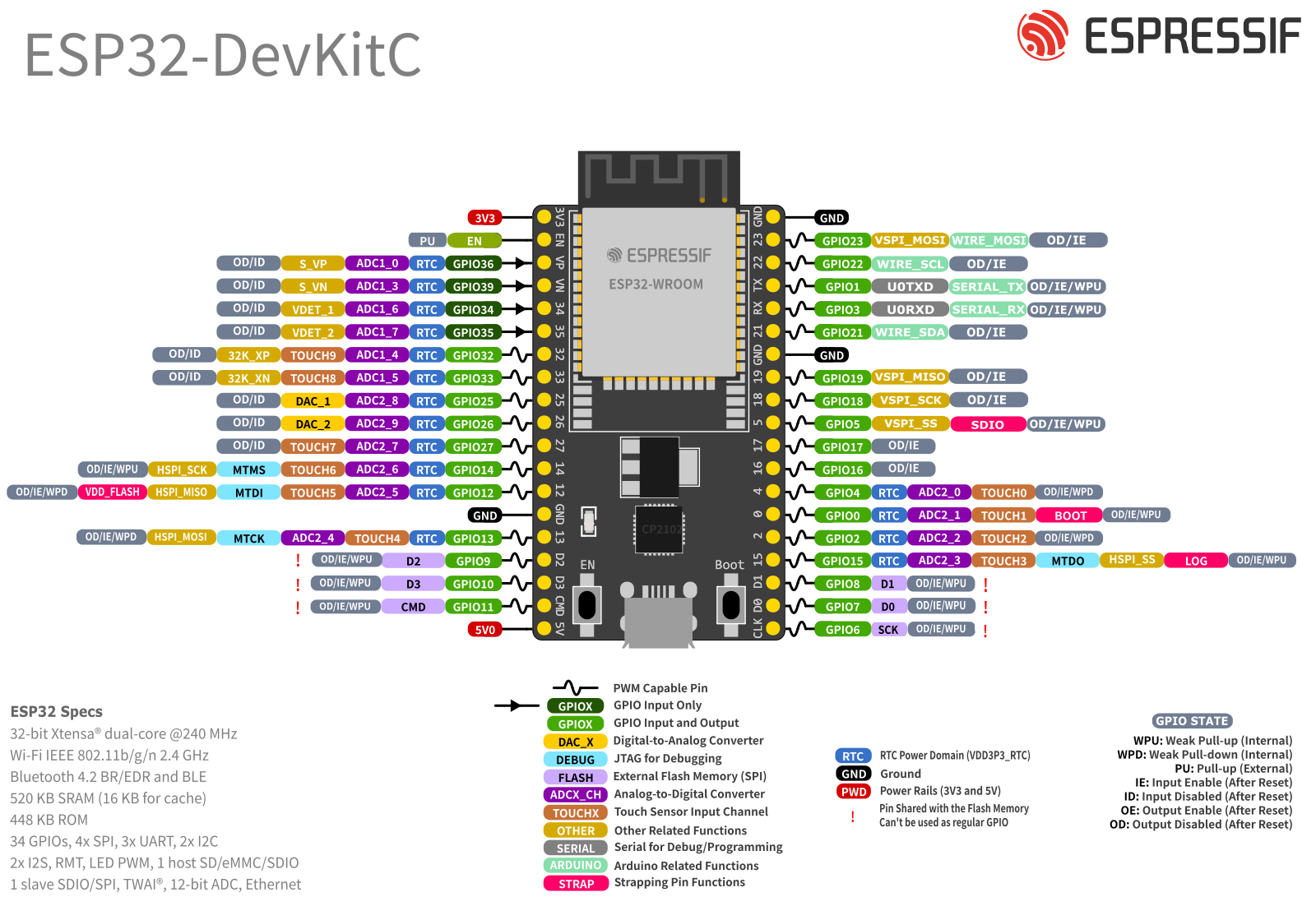
GPIO numbers are the names that matter
Every usable pin has a GPIO number (general-purpose input/output), like GPIO 4 or GPIO 23. That number is what goes in your code: digitalWrite(23, HIGH) means GPIO 23. Boards print it as "23," "G23," "IO23," or "D23," but they all mean the same pin. The GPIO numbers aren't in order along the board, and some numbers are skipped entirely. That's normal.
Power pins
- 3V3 is the 3.3 V output from the board's regulator. Use it to power 3.3 V sensors.
- 5V (labeled VIN on many DevKit V1 boards) connects to the 5 V from USB. You can power 5 V modules from it, or feed 5 V into it to power the board without USB.
- GND pins are ground. There are several, and they're all connected together.
The 3.3 V rule
THE ESP32 IS A 3.3 V CHIP. NEVER CONNECT A 5 V SIGNAL DIRECTLY TO A GPIO PIN. Espressif's datasheet lists 3.6 V as the absolute maximum on its supply and I/O. A 5 V signal from an Arduino Uno, a 5 V sensor's output, or a 5 V module can permanently damage the pin or the whole chip. When a 5 V device needs to send a signal to the ESP32, use a logic level shifter or a simple resistor voltage divider. Going the other way, an ESP32's 3.3 V output is usually (not always) enough for a 5 V device to read as HIGH.
That's the single biggest adjustment for anyone coming from a 5 V Arduino, so it's worth reading twice.
Pins to avoid or handle carefully
Not every GPIO is a free choice. Here are the ones that cause trouble, so you can skip them until you have a reason not to:
| Pins | Why to be careful |
|---|---|
| GPIO 6, 7, 8, 9, 10, 11 | Wired inside the module to its flash memory. Using them crashes the board. The 30-pin boards don't even expose them. |
| GPIO 0, 2, 5, 12, 15 | Strapping pins. The ESP32 reads them at the instant it starts up to decide how to boot. Something connected to them that pulls the wrong way can stop the board from booting or uploading. GPIO 12 is the classic culprit: pulled HIGH at startup, it can stop the board from booting at all. |
| GPIO 1 and 3 | The ESP32's main serial port (TX and RX), wired to the USB-to-serial chip. Using them interferes with uploads and the Serial Monitor. |
| GPIO 34, 35, 36, 39 | Input-only. They can read but never output, and they have no internal pull-up or pull-down resistors. Great for sensors and analog readings, useless for driving an LED. |
| ADC2 pins (GPIO 0, 2, 4, 12 to 15, 25 to 27) | Their analog readings stop working while Wi-Fi is on. For analog sensors in Wi-Fi projects, use the ADC1 pins (GPIO 32 to 39) instead. |
And the pins that are a comfortable first choice for LEDs, buttons, and most digital jobs: GPIO 4, 13, 16, 17, 18, 19, 21, 22, 23, 25, 26, 27, 32, and 33. (One note: on boards built with an ESP32-WROVER module instead of a WROOM, GPIO 16 and 17 are used internally, so skip those two there.)
Current per pin
A GPIO pin is a signal, not a power supply. The datasheet allows up to 40 mA when a pin drives current out and 28 mA when it pulls current in, at maximum drive strength. Treat a single LED with a resistor as about the biggest thing a pin should drive directly. Motors, relays, and LED strips need a transistor or a driver module between them and the pin, and later parts of this series show how.
The ESP32 Compared with the Arduino Uno
If you've followed our Mastering Arduino series, you already know the Uno well. The two line up like this:
| Arduino Uno R3 | ESP32 dev board | |
|---|---|---|
| Microcontroller | ATmega328P | ESP32 (on an ESP32-WROOM-32 module) |
| Processor | 1 core, 8-bit, 16 MHz | 2 cores, 32-bit, up to 240 MHz |
| SRAM | 2 KB | 520 KB |
| Program storage | 32 KB | Usually 4 MB |
| Logic voltage | 5 V | 3.3 V |
| Wi-Fi / Bluetooth | No | Yes / Yes |
| Analog inputs | 6, 10-bit (0 to 1023) | Up to 18, 12-bit (0 to 4095) |
| True analog output (DAC) | No | 2 pins |
| Hardware serial ports | 1 | 3 |
| Typical price | Around $25 for an official board | Often under $10 |
| Best at | Simple, sturdy, 5 V projects; learning the basics | Connected projects; anything that needs speed, memory, or wireless |
The good news if you're coming from Arduino: you can program the ESP32 with the same Arduino IDE, in the same Arduino-style C++, with the same setup() and loop(). Espressif maintains an add-on for the Arduino software, called a board package or core, that teaches the IDE how to build code for the ESP32. Most familiar functions, like pinMode(), digitalWrite(), digitalRead(), analogRead(), millis(), and Serial.print(), work the way you'd expect.
So when should you still reach for an Uno? When a project lives in a 5 V world (lots of older modules and shields), when you want the simplest possible board with the fewest surprises, or when you're following a tutorial written for it. When a project needs to get online, talk to your phone, crunch numbers, or hold a lot of data, the ESP32 is the better tool, often at a lower price.
Bill of Materials
This is what you need to follow the first several parts of this series. Part 1 itself needs no hardware at all, since the Lab section below runs in your browser, but this is the kit worth having on your bench by Part 3.
| Component | Description | Buy on Amazon | Buy on Temu | Buy on SparkFun | Buy on Seeed Studio | Datasheet |
|---|---|---|---|---|---|---|
| ESP32 development board | An ESP32-WROOM-32 based board (DevKitC V4 or DevKit V1 style), the board used throughout this series | Amazon Link | Temu Link | Not yet available | Not yet available | ESP32 datasheet |
| USB data cable | A cable that carries data, not just power; check whether your board needs micro-USB or USB-C | Amazon Link | Temu Link | SparkFun Link | Not yet available | N/A |
| Breadboard & Jumper Wires | For the wiring in the coming parts; two breadboards side by side fit a wide ESP32 board best | Amazon Link | Temu Link | SparkFun Link | Seeed Link | N/A |
The products linked above may contain affiliate links. The Makers Workbench earns from qualifying purchases when these links are used.
Buying tip: an ESP32 dev board often comes in packs of two or three for not much more than the price of one. A spare is nice to have when you're learning, since you'll eventually wire something wrong. Everyone does.
Running Your First ESP32 Sketch
Try an ESP32 in the Lab
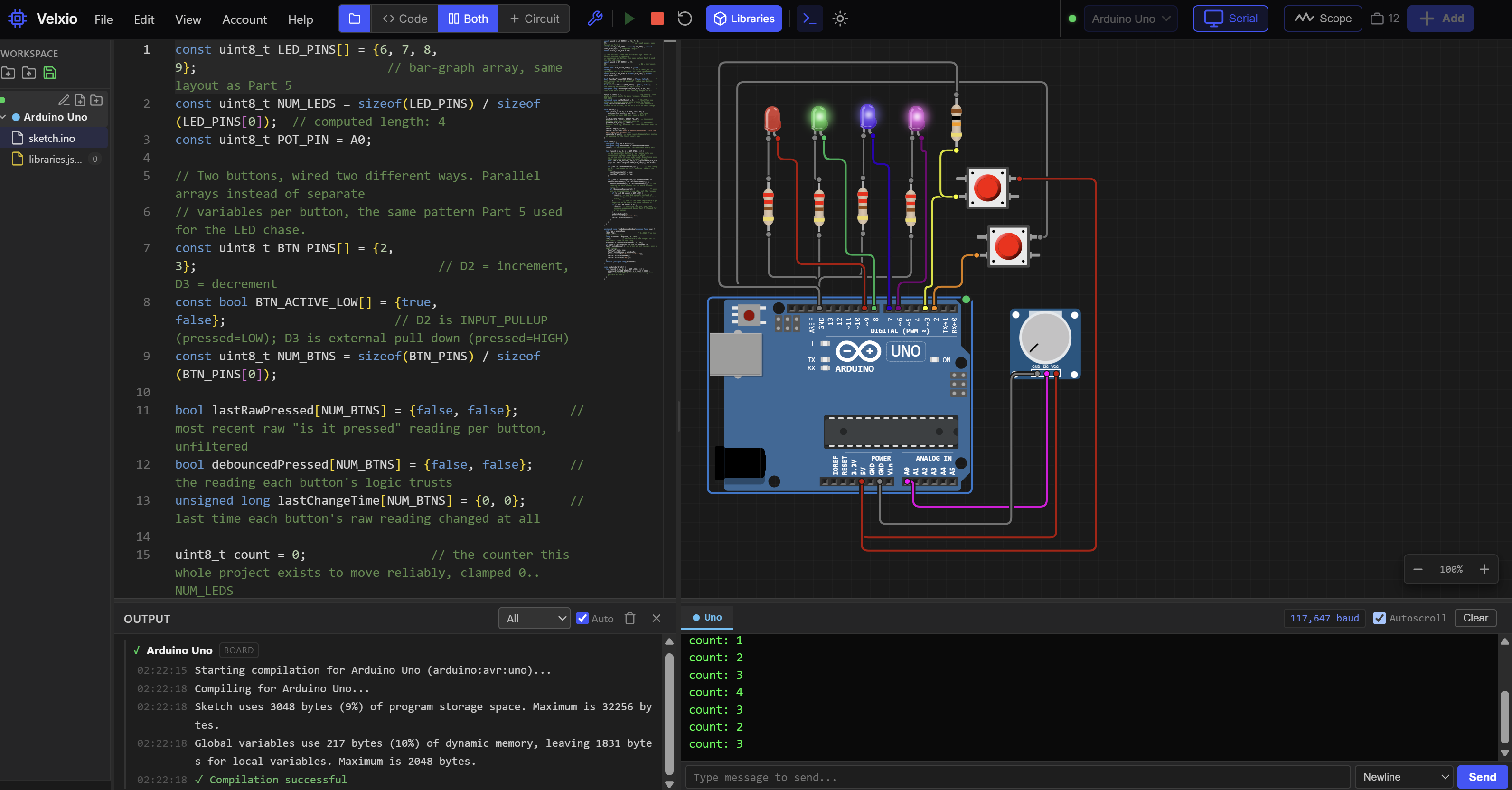
You don't need to buy or install anything to meet your first ESP32. The Makers Workbench Electronics Lab can simulate an ESP32 right in your browser. The sketch below asks the chip to describe itself: its model, how many cores it has, its clock speed, its memory, and the unique hardware address it uses on Wi-Fi networks. You don't need to understand the code yet. Read the comments to get a feel for it, and we'll build up every piece of it over the coming parts.
// Mastering ESP32 Part 1: the ESP32 chip report.
// Asks the ESP32 to describe itself, then repeats the report every 5 seconds.

const unsigned long REPORT_INTERVAL_MS = 5000;   // how often to print the report: 5,000 ms is 5 seconds
unsigned long lastReport = 0;                    // when the last report was printed (in milliseconds since startup)

void printChipReport() {
  Serial.println();
  Serial.println("===== ESP32 chip report =====");

  Serial.print("Chip model: ");
  Serial.println(ESP.getChipModel());            // the chip's name, for example "ESP32-D0WD-V3"

  Serial.print("Chip revision: ");
  Serial.println(ESP.getChipRevision());         // which manufacturing revision of the silicon this is

  Serial.print("Processor cores: ");
  Serial.println(ESP.getChipCores());            // 2 on the original ESP32

  Serial.print("CPU speed: ");
  Serial.print(ESP.getCpuFreqMHz());             // current clock speed in MHz, usually 240
  Serial.println(" MHz");

  Serial.print("Flash memory: ");
  Serial.print(ESP.getFlashChipSize() / 1024);   // flash size in bytes, divided by 1024 to show kilobytes
  Serial.println(" KB");

  Serial.print("Free working memory (heap): ");
  Serial.print(ESP.getFreeHeap() / 1024);        // SRAM still available for your program, in kilobytes
  Serial.println(" KB");

  uint64_t mac = ESP.getEfuseMac();              // the chip's unique 48-bit hardware address, stored in the chip at the factory
  Serial.print("Factory MAC address: ");
  for (int i = 0; i < 6; i++) {                  // a MAC address has six bytes; print each one in turn
    uint8_t part = (mac >> (8 * i)) & 0xFF;      // slide the wanted byte to the right end, then keep only those 8 bits
    if (part < 0x10) {                           // add a leading zero so every byte prints as two digits
      Serial.print("0");
    }
    Serial.print(part, HEX);                     // print the byte in hexadecimal (base 16), the usual way to write MAC addresses
    if (i < 5) {                                 // put a colon between bytes, but not after the last one
      Serial.print(":");
    }
  }
  Serial.println();

  Serial.print("Running for: ");
  Serial.print(millis() / 1000);                 // millis() counts milliseconds since startup; divide by 1000 for seconds
  Serial.println(" seconds");
}

void setup() {
  Serial.begin(115200);                          // open the serial connection at 115200 baud, the usual ESP32 speed
  printChipReport();                             // print one report right away at startup
}

void loop() {
  unsigned long now = millis();
  if (now - lastReport >= REPORT_INTERVAL_MS) {  // has it been 5 seconds since the last report?
    lastReport = now;                            // remember when this report happened
    printChipReport();
  }
}
The Lab circuit is wired like this:
| From | To | Why |
|---|---|---|
| Nothing | Nothing | This sketch only asks the ESP32 about itself, so the board needs no external parts |
How to use it:
- Press Run. The Lab builds the sketch and starts the simulated ESP32. Building an ESP32 sketch takes noticeably longer than an Arduino one, so give it a moment.
- Open the Serial Monitor panel. The first few lines, starting with something like
ets Jul 29 2019andrst:0x1 (POWERON_RESET), aren't from our sketch. They come from a tiny startup program built permanently into the ESP32 (its ROM bootloader), which prints a short log every time the chip powers up. A real board does the same thing. Right after that comes the chip report, then a fresh copy every 5 seconds with the "Running for" time counting up. - Compare the numbers with the "What's Inside the ESP32" table above. The core count and CPU speed match. The free working memory comes out around 320 KB rather than 520 KB, because the ESP32's own system software, including the code that runs Wi-Fi and Bluetooth, reserves part of the SRAM before your sketch even starts.
On a real board, the chip model and MAC address are specific to your exact chip. Every ESP32 ever made has its own MAC address, a little like a serial number for its network hardware.
Common First-Day Problems
You won't plug in a real board until Part 2, but these are the problems almost everyone meets in the first week, and it helps to know their names now.
| Symptom | Likely cause | Fix |
|---|---|---|
| Board lights up, but the computer doesn't see it | Charge-only USB cable | Use a cable you know carries data |
| Computer sees an "unknown device" | Missing driver for the CP2102 or CH340 USB chip | Install the driver for your board's chip (Part 2) |
| Upload stops at "Connecting......" | Board didn't enter download mode | Hold BOOT while the upload starts, release when it begins writing (Part 2) |
| Board won't boot after wiring something new | A part is pulling a strapping pin (often GPIO 12) the wrong way at startup | Move that part to one of the comfortable pins listed above |
| Random restarts when Wi-Fi turns on | Weak power: Wi-Fi transmit bursts draw about 240 mA | Use a better USB port, a powered hub, or a shorter cable |
| A pin stopped working after connecting a 5 V module | 5 V on a 3.3 V pin | Use a level shifter or voltage divider next time; try a different pin |
Where This Fits in the Series
You now know what an ESP32 is, at every level from the chip to the module to the development board. You know what's inside it and what those features mean, how the ESP32 family members differ, which board this series uses, how to read the pinout, which pins to avoid, why 3.3 V matters, and when an ESP32 is a better choice than an Arduino Uno.
- Companion reference: How Microcontrollers Work explains the CPU, memory, and peripherals inside any microcontroller, the ESP32 included.
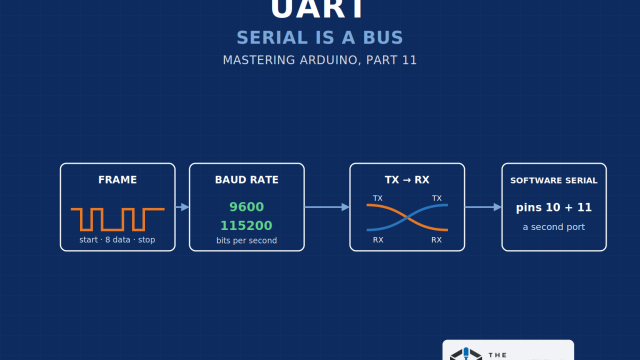
- Coming from Arduino? The Mastering Arduino series covers many of the same fundamentals on a 5 V board, and Mastering Arduino Part 11: UART: Serial Is a Bus explains the serial connection your ESP32 uses to talk to your computer.
- Already on the site: our ESP32 project tutorials, such as How to Use an HC-SR04 Ultrasonic Distance Sensor with an ESP32 and How to Control a Servo Motor with an ESP32, are good places to see an ESP32 doing real work once you've finished Part 3.
Wrap-Up and What's Next
The ESP32 is a low-cost, 32-bit, dual-core microcontroller with Wi-Fi and Bluetooth built in, usually sold on a development board that adds USB, power regulation, and breadboard-friendly pins. It runs at 3.3 V, has far more speed and memory than an Arduino Uno, and programs with the same Arduino tools. A few of its pins come with rules, and knowing them now will save you from the most common beginner mistakes.
Next up, Mastering ESP32 Part 2: Installing and Configuring ESP32 Support in Arduino IDE, where we install the ESP32 board package, sort out USB drivers, upload a first program to a real board, and fix the upload problems that trip up almost everyone the first time.
Subscribe so you don't miss the rest of the Mastering ESP32 series.
Hack The World and Make Awesome.