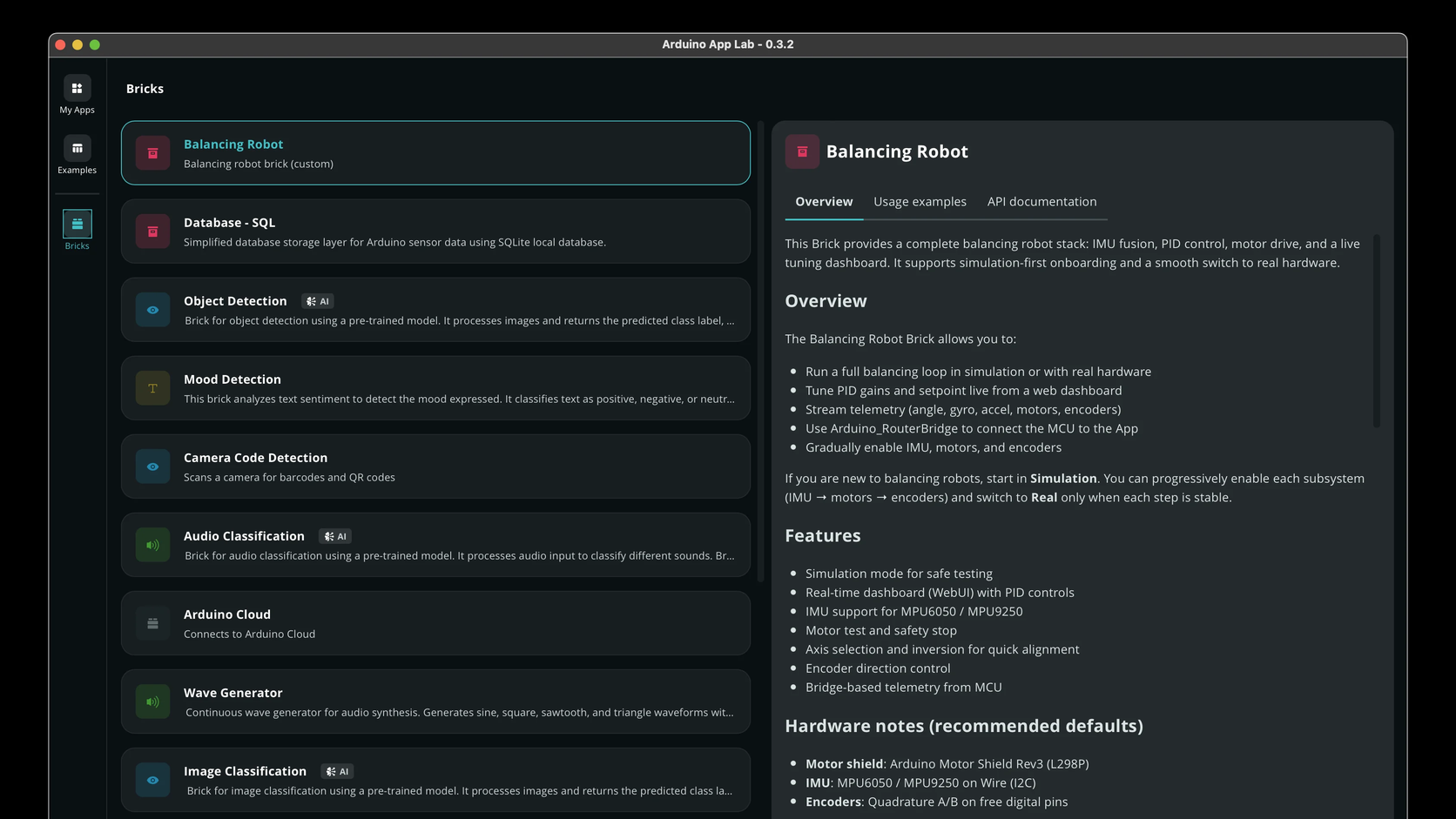
Think of a Brick like a ready-made accessory for your project, the way you might buy a finished GPS module instead of designing the radio circuit yourself. In App Lab, a Brick is a prebuilt chunk of functionality you add to an App instead of writing that chunk from scratch. Arduino's examples include AI models, web interfaces, REST APIs (HTTP interfaces other programs call), databases, Cloud connectors, and similar services.
This is not an Arduino library. A library is C++ (or sometimes Python) you #include or import into your own file, compiled or loaded with your code. Part 3 of the Mastery Series is that world. A Brick runs beside your Python, as its own process. Arduino's develop-apps guide describes Bricks as separate processes in isolated Docker containers. Docker, here, means a boxed-in program with its own files and dependencies so it does not fight the rest of Linux.
Your main.py talks to a Brick through that Brick's API (the set of functions it offers to other code) after you add it in the editor. You do not paste the model's internals into main.py.
The container boundary is what makes that possible, and it is worth understanding why Arduino chose it. An object-detection model typically needs its own specific version of Python, its own machine-learning libraries, and gigabytes of dependencies that have nothing to do with your own main.py. Installing all of that directly alongside your project would mean every App on the board fighting over the same Python environment, where one Brick's required library version could quietly break another Brick's, or break your own code. A container gives each Brick its own sealed-off environment, dependencies and all, so it can demand whatever Python version and libraries it needs without touching anything else running on the board. Your main.py only ever sees the small, stable API that Brick chooses to expose, never the mess underneath it.
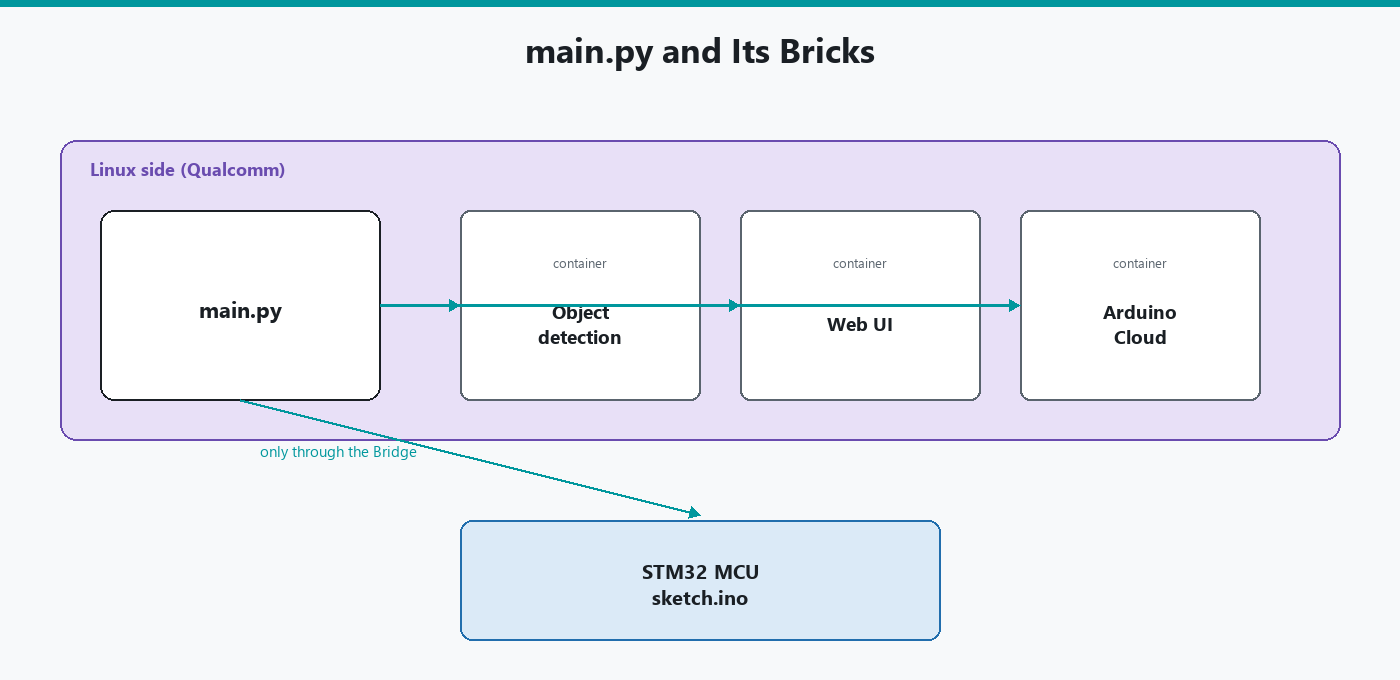
Where a Brick sits in an App
An App can have:
- Python on Linux (required).
- Bricks (optional).
- An Arduino sketch on the microcontroller (optional).
The sketch talks to pins. Python makes decisions and talks to Bricks. If a Brick detects a person in a camera frame, Python gets a small result (a label, a score). Python can then Bridge.call("set_relay", True) so the microcontroller drives a pin. The Brick never wiggles GPIO on the STM32. The sketch never runs the neural network.
How to add one
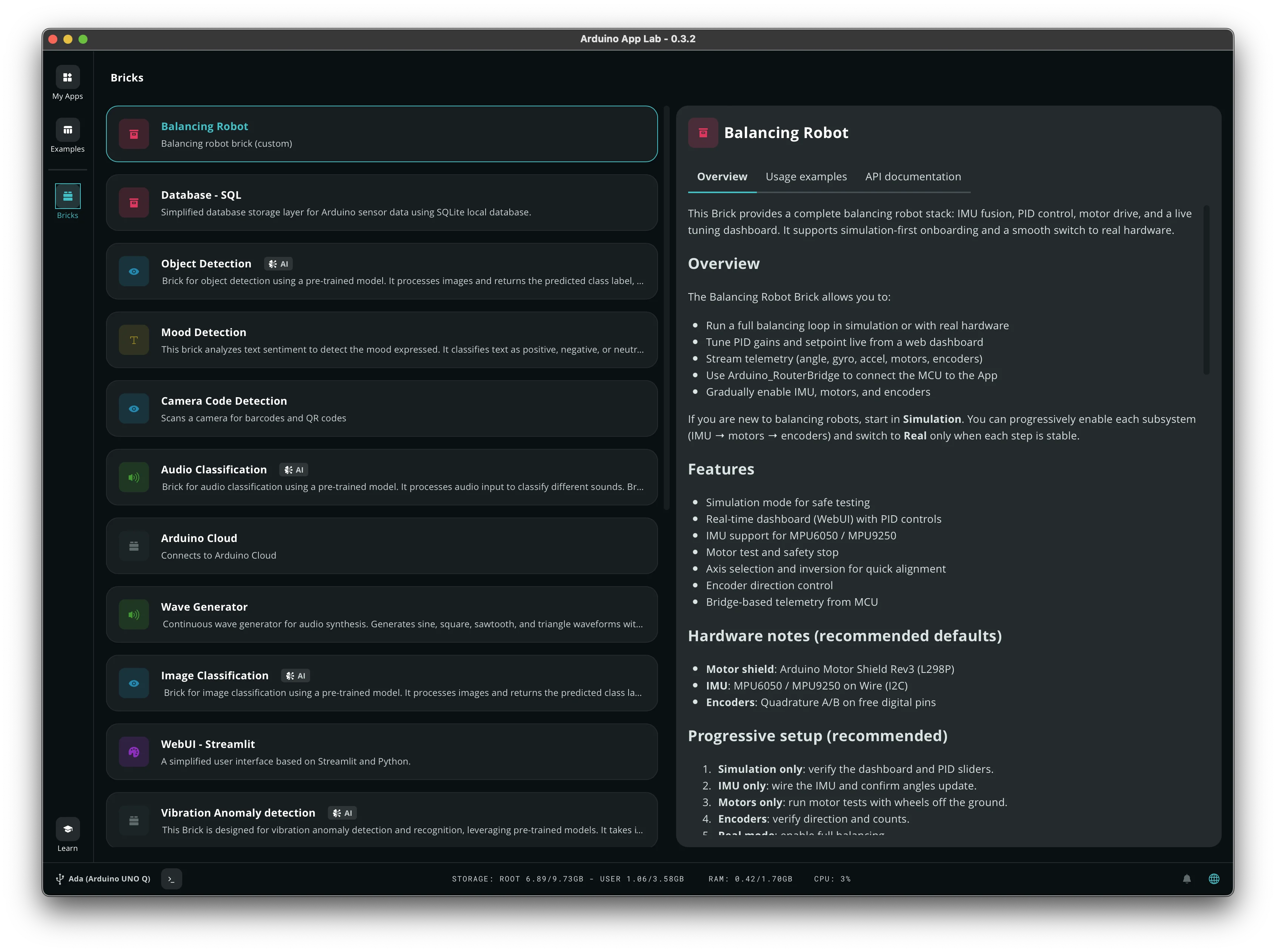
In the App editor, Arduino documents an Add Brick control in the sidebar. Open the catalog, pick a Brick, finish any settings it asks for (camera, Cloud login, model choice). Import it in main.py the way that Brick's docs show. Run the App. App Lab starts the Brick processes with the rest of the App.
Start from an example that already has the Brick, then duplicate it ("Copy and edit app"). Wiring Docker, a camera, and a model from a blank folder is a second-week job.
Gotcha: adding a Brick is not the same as having the hardware it wants. Object detection wants a camera. An Arduino Cloud Brick wants the board registered in Cloud. If Run fails after you added a Brick, read that Brick's requirements before you rewrite main.py.
What is actually in the catalog
The catalog leans toward the jobs a UNO Q's Linux side is genuinely good at, ones that would be painful or impossible on the microcontroller alone: object detection and face detection Bricks that take a camera feed and return a label, a web UI Brick that serves a page you can control the App from, a Cloud connector Brick that links an App to Arduino Cloud variables, and an edge AI assistant Brick that runs a small language model locally. Each one is the same shape underneath: a sealed container with its own dependencies, a small API your main.py calls into, and Arduino's own example App showing the minimum code needed to use it.
The catalog is also the thing most likely to be different by the time you read this than it was when this was written. New Bricks get added as Arduino ships them, and exact names shift. The pattern does not: pick one from the sidebar, read what hardware or account it expects, duplicate an example that already uses it.
Removing a Brick
There is no separate "uninstall Brick" step the way there is a Library Manager Remove button. A Brick is only running because your App's configuration says to start its container; deleting the import and the Brick's entry from your App's configuration in the editor stops App Lab from starting that container the next time you Run. The container image itself can stay cached on the board's storage without costing you anything while the App is not using it, the same way a Docker image sitting unused on a normal Linux machine does not run or consume RAM until something starts it.
Custom Bricks
Arduino allows custom Bricks once you outgrow the catalog. That is packaging your own service in the Brick shape. This article will not walk Dockerfile authorship. If the catalog has the job (web UI, a stock vision model, Cloud), use the catalog.
Brick vs library vs sketch
| Feature | Library | Brick | Sketch |
|---|---|---|---|
| Runs where | Compiled into MCU firmware, or imported in Python | Linux, separate process | MCU firmware |
| Typical job | DHT22 protocol, Wire |
Model, web UI, API | Pins, timing |
| How you add it | Library Manager / import |
App Lab catalog | sketch/sketch.ino |
If you need digitalWrite, that is the sketch. If you need a temperature formula, that might be a Python import or a C++ library on the MCU. If you need "run this camera model," that is a Brick (or Python plus a model runtime on Linux).
A Brick that will not start
Read the App Lab log from the top. Missing camera, missing Cloud login, and out-of-memory look different. 2 GB UNO Q boards run out of RAM on fat vision Bricks more often than Blink would suggest. Close other Apps. Use the 4 GB version of the board (SKU just means the specific product variant you order) for camera models.
A vision model's memory use is not optional overhead you can trim by writing tighter Python. The model itself, loaded into RAM so it can run inference on each frame, is often hundreds of megabytes before your code runs a single line, and a 2 GB board is sharing that same RAM with Debian, App Lab, and whatever else is running. An out-of-memory failure here usually looks like the Brick container simply dying partway through startup, with a log line that is easy to skim past if you are expecting a Python traceback instead.
If two Bricks both want the same camera device, start with one Brick. Arduino's examples usually ship one vision Brick at a time for a reason.
Updates: a new App Lab version can change catalog names. If an old App points at a Brick that is gone, duplicate the current official example and copy your Python rule over. Do not hand-edit Docker internals unless you are writing a custom Brick.
What Bricks are not
They are not App Lab's name for functions. They are not MicroPython packages on a Nano. They are not IDE 2 Library Manager entries. Mixing those three is how people install App Lab to program an Uno, which cannot run it at all: App Lab is a UNO Q and VENTUNO Q tool because those are the only boards with a Linux side for a Brick's container to live on.
Troubleshooting
| Symptom | Likely cause | Fix |
|---|---|---|
| Brick added, Run fails immediately | Missing camera, Cloud, or RAM | Read the Brick's requirements. Try 4 GB SKU |
| Example worked, your copy does not | YAML / Brick config not copied | Duplicate the example again. Do not start empty |
| MCU never sees a detection | You expected the Brick to call GPIO | Python must Bridge.call a provided function |
Wrap-up
A Brick is a packaged Linux-side service you clip into an App: AI, web, API, Cloud, and similar. Python calls it. The microcontroller stays on pins. Duplicate an example that already includes the Brick you want, then change one thing.
Hack The World and Make Awesome.