
A library is a package of reusable code so you are not typing a sensor protocol from a datasheet every time. You install it, you #include its header, you call functions it documented. Part 3 of the Mastery Series is why libraries exist and how they fit a sketch. This article is the IDE 2 mechanics: Manager, zip, folder, update, remove, and the fights two DHT libraries will start.
The DHT22 temperature and humidity tutorial on this site is a real example. That project needs a DHT library. The steps below are how that library gets onto the machine.
It is worth knowing what the library saves you from. The DHT22 does not send "23.5 degrees." It sends a burst of 40 bits down one wire, and each bit is encoded in how long the line stays high, measured in millionths of a second. Reading that by hand means writing precise timing code, stitching bits into bytes, checking a checksum, and converting the result into Celsius. With a library, all of that becomes one call: dht.readTemperature(). Somebody already did the fiddly part and tested it, and Library Manager is how you borrow their work.
What a library is, on disk
On Windows, user libraries live in:
Documents\Arduino\libraries\<LibraryName>\
Inside you expect a .h header, source files, usually library.properties, often examples/. The folder name should be the library name, not DHT-sensor-library-master nested inside another DHT-sensor-library-master. GitHub's "Download ZIP" button is famous for that extra wrapper. Library Manager does not make that mistake. A sloppy unzip does.
Some libraries also ship inside a core: on AVR, that includes Wire (for the I2C sensor bus), SPI (for the faster SPI bus used by displays and SD cards), and EEPROM (for saving small values that survive power-off). You do not install those from Library Manager. They appear when you select that board. If you select ESP32, you get that core's Wire, not the AVR one.
IDE 2 indexes libraries at startup and when you install from the Manager. If you drop a folder in by hand and Sketch → Include Library does not list it, restart the IDE.
Three ways to install
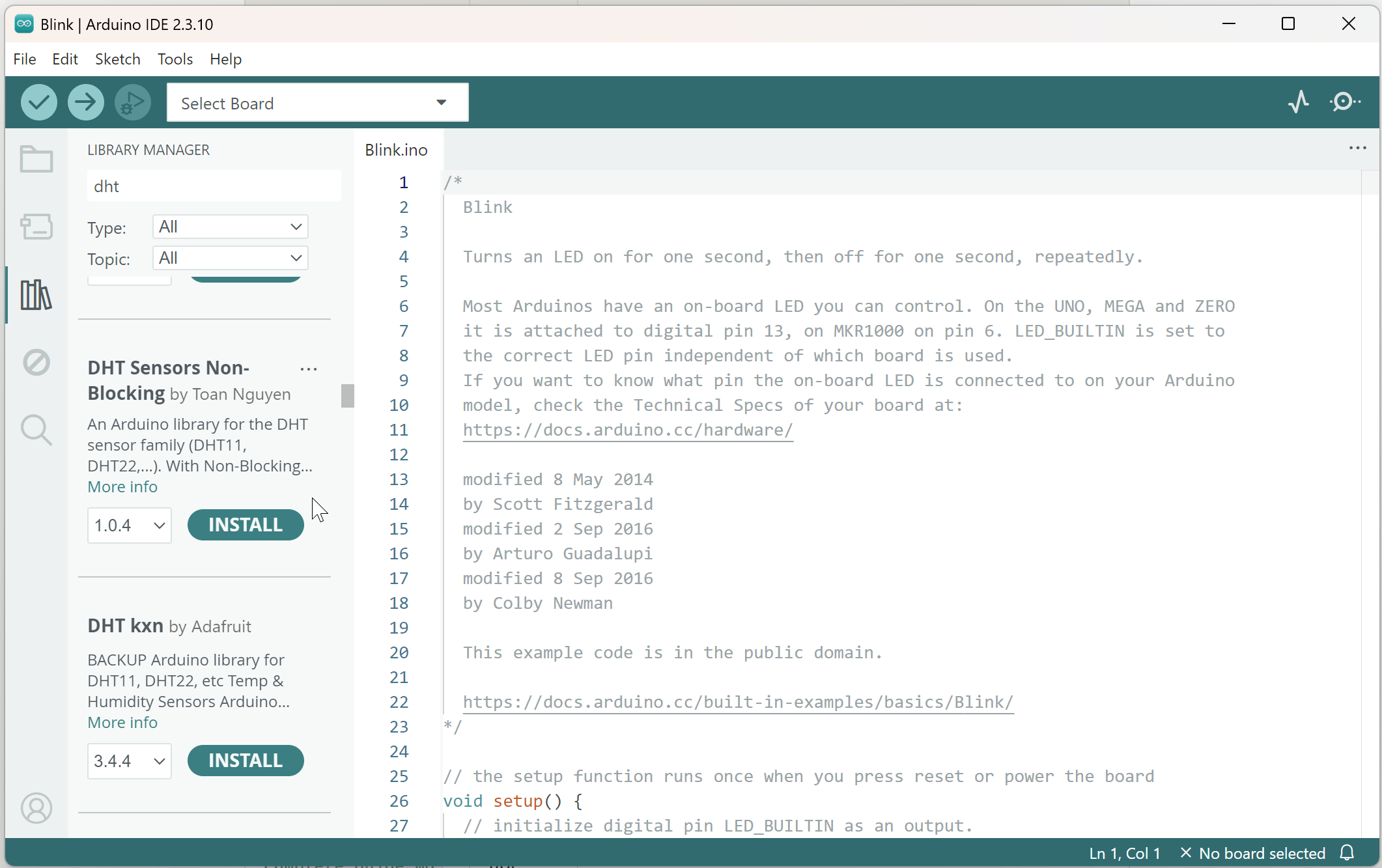
1. Library Manager (default). Left sidebar library icon, or Sketch → Include Library → Manage Libraries. Search the Library Manager name, check the author, Install. If the library depends on others, IDE 2 usually offers to install those too. Say yes unless you already have them.
Search by sensor name (DHT, SSD1306) or library name. Several results can share a title. Adafruit's DHT and some other DHT packages both exist. Pick the one the tutorial named, including author.
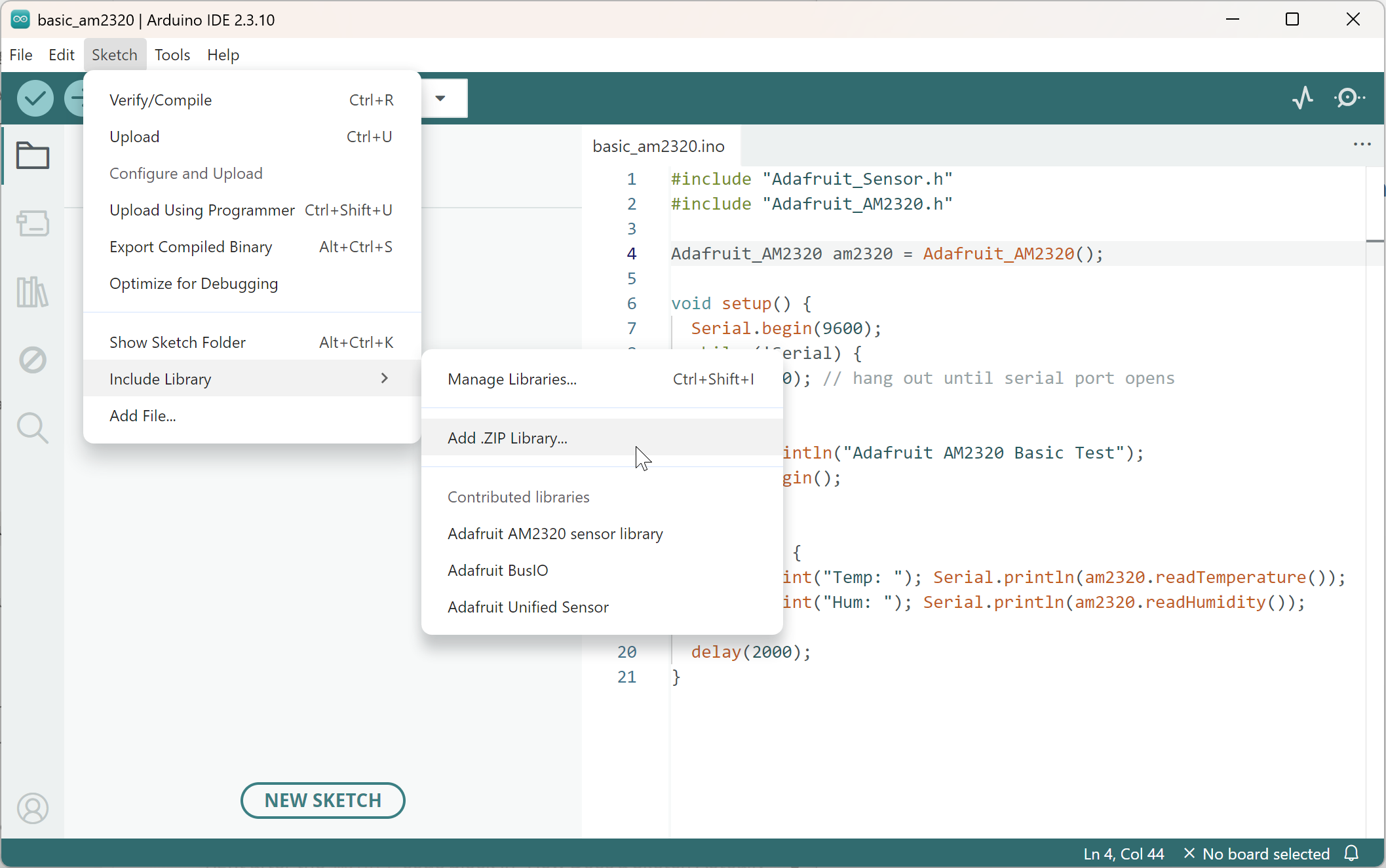
2. Add .ZIP Library. Sketch → Include Library → Add .ZIP Library. Point at the zip. Do not unzip it first. Use this when GitHub or a vendor is ahead of Library Manager, or the library is not in the index at all.
3. Folder drop. Unzip correctly so Documents\Arduino\libraries\MyLib\MyLib.h exists, not libraries\MyLib-master\MyLib-master\MyLib.h. Restart the IDE.
I use Manager unless the tutorial's GitHub readme is newer than Manager, or the library is private.
Using the library in a sketch
Sketch → Include Library → pick the name. IDE 2 inserts #include <...> for you. You can type the include yourself if you know the header filename. The header name is not always the Library Manager display name.
Examples: File → Examples → the library's name, if it shipped any. Run an example before you merge it into a big sketch. Examples assume a pin. Change the pin to match your wiring.
Here is roughly what using the DHT library looks like once it is installed, trimmed to the essentials:
#include <DHT.h>            // The header Library Manager installed

DHT dht(2, DHT22);          // Create a sensor object: data wire on pin 2, model DHT22

void setup() {
  Serial.begin(9600);       // Open Serial Monitor at 9600 baud
  dht.begin();              // Let the library set up the pin and timing
}

void loop() {
  // One call replaces all the bit-timing work described at the top of this article
  float tempC = dht.readTemperature();
  Serial.println(tempC);    // Print the reading
  delay(2000);              // The DHT22 needs about 2 seconds between readings
}
The DHT22 article on this site has the full, wired version of this sketch.
A sketch still needs the right board selected. A library that pokes AVR registers directly (registers are the chip's internal control switches, and every chip family has different ones) will not compile for ESP32. That is not a failed Library Manager install. That is the wrong core.
Update and remove
In Library Manager, an installed library offers a version dropdown and Update. Updates can change APIs. If a project is finished, I leave that project's library version alone. If you are in active development, update, then compile immediately so you see breakage on your machine, not a year later.
Remove: Library Manager → Remove, or delete the folder under Documents\Arduino\libraries. Close the IDE first if Windows says the folder is in use. Restart. If #include still resolves, another copy exists (core, or a second libraries path in Preferences).
Do not delete libraries that live inside Arduino15\packages\... unless you mean to damage a core. Those are not user libraries.
Conflicts: two libraries, one class name
If two packages both define class DHT, the compiler error looks like a broken sketch. It is two headers fighting. IDE 2 usually drops a hint in the output pane: a line starting "Multiple libraries were found for..." followed by which one it used and which one it ignored. Read that line before you change any code. Remove the one you did not mean to install. If a tutorial says "install DHT sensor library" and you also installed Adafruit DHT and a third GitHub zip, delete extras until one remains.
Include order can also bite: #include "foo.h" (quotes) looks in the sketch folder first; #include <foo.h> looks in the libraries path. For a library, use the form the author documented.
ZIP vs Manager, which "is official"?
Library Manager entries are published through Arduino's library index. That is not a safety certification. It means someone registered the library. Read the author, the last update date, and whether examples compile for your board.
A GitHub zip can be newer or abandoned. Prefer Manager for classroom machines so twenty PCs get the same version. Prefer zip when a vendor told you to use one exact snapshot of their code (on GitHub, each saved snapshot is called a commit).
Arduino CLI uses the same libraries
arduino-cli lib install "DHT sensor library" talks to the same index. If IDE 2 and the CLI share Arduino15 and the same sketchbook (config dump vs Preferences), an install in one shows up in the other. If they do not share paths, you will get "No such file or directory" in one tool and a fine compile in the other. Align the directories instead of installing twice at random.
Troubleshooting
| Symptom | Likely cause | Fix |
|---|---|---|
No such file or directory on a header |
Not installed, or nested GitHub folder | Install from Manager, or flatten the folder under libraries |
'DHT' does not name a type |
Wrong header, or board/core mismatch | Include the header the example uses. Confirm board |
| Duplicate definition | Two libraries, same class | Remove one |
| Examples missing | Library has none, or IDE not restarted | Restart. Check the library folder |
| Install does nothing | Offline, or Manager search matched a different package | Network. Check author name after install |
Wrap-up
Library Manager is how most Arduino C++ libraries should land on the machine: search, check author, Install, #include, run an example. Zips and folder drops are for packages the index does not have. User libraries live in Documents\Arduino\libraries. And if you only take one habit away from this article, make it this one: install one library per job, from a known author, and remove the extras before they start arguing with each other.
Hack The World and Make Awesome.