Arduino IDE 1.8 would let you type digitalWri and leave you there. IDE 2 tries to finish the word, show parameter hints, and jump to the header that defined it. That is autocomplete and code navigation. They are the same idea as VS Code, aimed at Arduino C++ and the core you selected.
Part 3 of the Mastery Series is the language. This article is the editor help that sits on top of a core. A core is the board-support package. Autocomplete reads it. If no board is selected, suggestions are thin or wrong. Select Tools → Board before you judge the feature.
Autocomplete
Start typing analog. IDE 2 should offer analogRead, analogWrite, and whatever that core has. Tab or Enter accepts, depending on keybindings. A hint may show the arguments (pin, value).
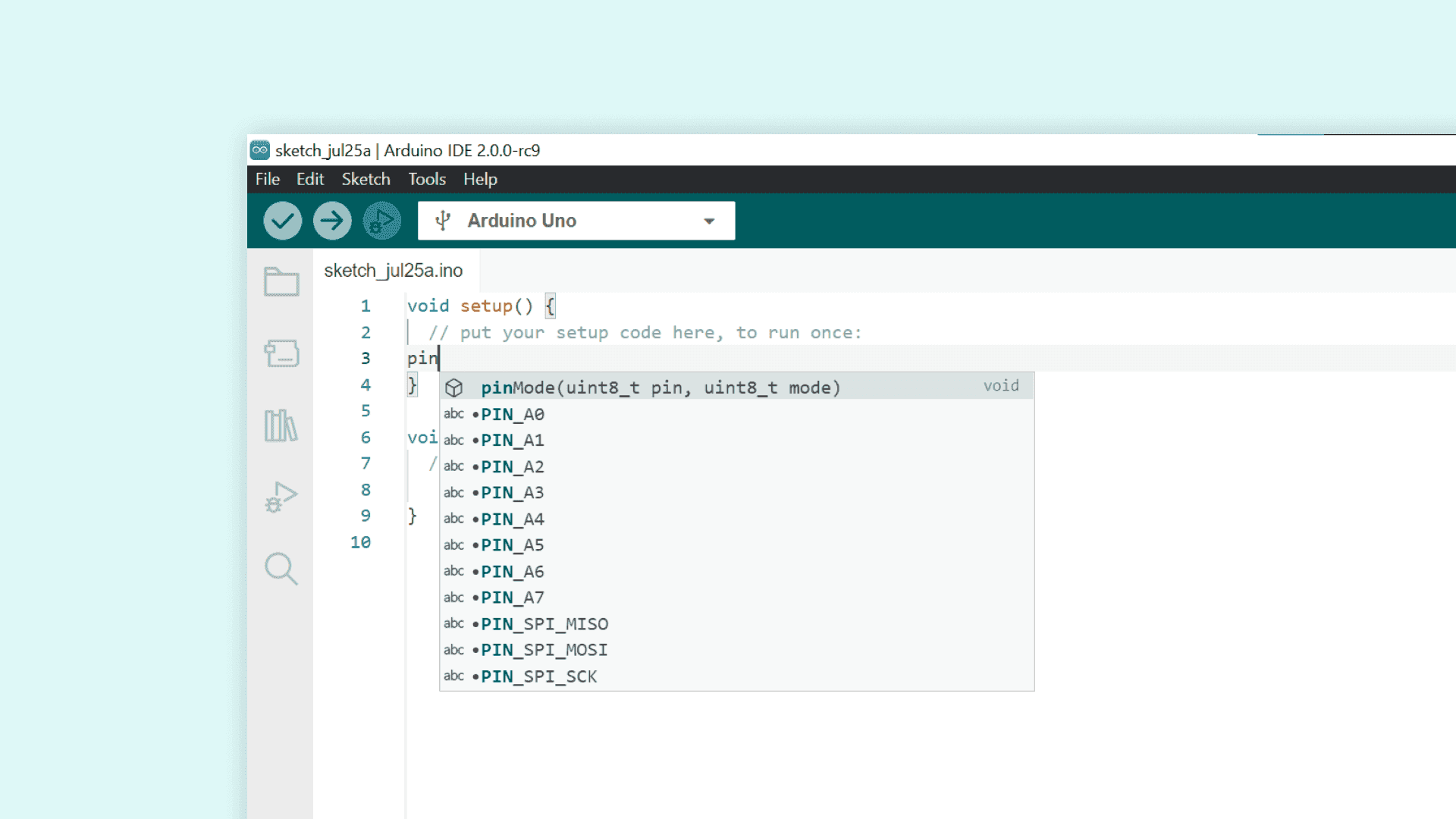
The suggestions come from a language server: a background process that parses the core, your includes, and the sketch. After you install a core or a library, the first open of a sketch can be slow while it indexes. Wait. Type again.
If you are on an Uno, analogWrite will happily autocomplete even if you are about to use it on pin 13, which cannot do PWM (the fast on-off switching analogWrite uses to dim an LED) on an Uno. Autocomplete is not a wiring checker. It is a name list for this core. ESP32 vs AVR will offer different names: ESP32 cores have their own ledcWrite function for the chip's dedicated PWM hardware, and older ESP32 cores did not offer analogWrite at all. That is a reason to select the real board, not "whatever Uno" while writing ESP32 code.
Turn it down in Preferences if it fights you in comments. I leave it on. It is the fastest way to discover that a function is not in this core, because it never appears.
Code navigation
Right-click a function name → Go to Definition (or the keybinding in that menu). IDE 2 should open the .h or .cpp that declared it. Find All References lists every use it knows about.
Image: Arduino
This is how you stop guessing what a library function does. You go read it. On a large ESP32 core the first jump can take a few seconds.
If navigation does nothing:
- No board selected.
- Language server still starting (look for a spinner or wait after install).
- You clicked a
#definemacro (a name the compiler swaps for other text before compiling, likeLED_BUILTINbecoming13), which has no function body to jump to. - The include failed, so the name is just text.
Restart the IDE once. It is not a satisfying fix, but it works more often than it should.
You can Ctrl-click (Cmd-click on macOS) in many IDE 2 builds. If your version does not, use the right-click menu.
A small habit that makes suggestions better
Write the #include first, then type. Autocomplete cannot offer dht.readTemperature() until it has seen #include <DHT.h> (or whatever header that library uses). Same for Wire.begin: #include <Wire.h> first.
If you installed a library one minute ago and suggestions are missing, save the sketch, wait a few seconds, or close and reopen the file. The language server does not always notice a new folder the instant Library Manager finishes.
Hover a name when the server is healthy. IDE 2 often shows a short comment from the header. That comment is only as good as the library author, but it is still better than guessing.
Keyboard: Ctrl+Space (Windows/Linux) often forces a suggestion list if you are stuck mid-word. If that does nothing, you are back to "no board selected" or "server not ready."
What this is not
It is not a compiler. Red squiggles, when they appear, can lag or lie until Verify. Trust Verify for "will this build." Trust autocomplete for "what is this function called."
It is not Serial Monitor. It will not tell you the pin is floating.
It is not the debugger. Jumping to a definition does not run the chip.
Troubleshooting
| Symptom | Likely cause | Fix |
|---|---|---|
| No suggestions | No board, server not ready | Select a board. Wait. Restart IDE |
| Suggestions for the wrong API | Wrong board selected | Pick the board you will upload to |
| Go to Definition dead | Include missing, or macro | Verify first. Open the library header from the libraries folder |
| Fan spin, editor lag | Indexing a huge core | Wait. Close extra sketches. IDE 2 is heavier than 1.8 |
If two sketches are open, the server is still using this sketch's board and includes. A tab that has no board selected will look "broken" while the other tab works. Click the tab, select the board, wait a few seconds, then type again.
Wrap-up
Autocomplete and jump-to-definition in IDE 2 are powered by the selected core and your includes. Select the board, let the language server catch up, then type. Use Verify when you need the truth about compile errors. Use navigation when you need the truth about what a library contains.
Hack The World and Make Awesome.