Walk into almost any makerspace and ask how someone programs an Arduino, and they will point at one program: the Arduino IDE. An IDE, an integrated development environment, is a desktop app that puts an editor, a compiler (the program that translates your human-readable code into the machine code a chip actually runs), and an uploader in the same window so you can write code and send it to a board without juggling three other tools. For a lot of years that answer was complete. Arduino made a desktop editor, you installed it, you wrote a sketch (Arduino's word for a program), you clicked Upload. That was the software.
Open Arduino's current software page in 2026 and that picture does not hold. There is a modern IDE, a command-line engine underneath it, a Cloud editor, a Python editor, an industrial PLC environment, and a whole second toolchain for boards that run Linux next to a microcontroller.
If you are standing there with an Uno on the bench, you do not need all of that. You need a clear map of what each tool is for, who it is aimed at, and which one you should install today.
This is that map. I will walk through every official offering on Arduino's software page, show you where the tools overlap, and help you pick. If you are brand new to Arduino itself, start with Part 1 of the Arduino Mastery Series, then come back here when you are ready to choose a toolchain (the set of programs that turns your code into something running on a board).
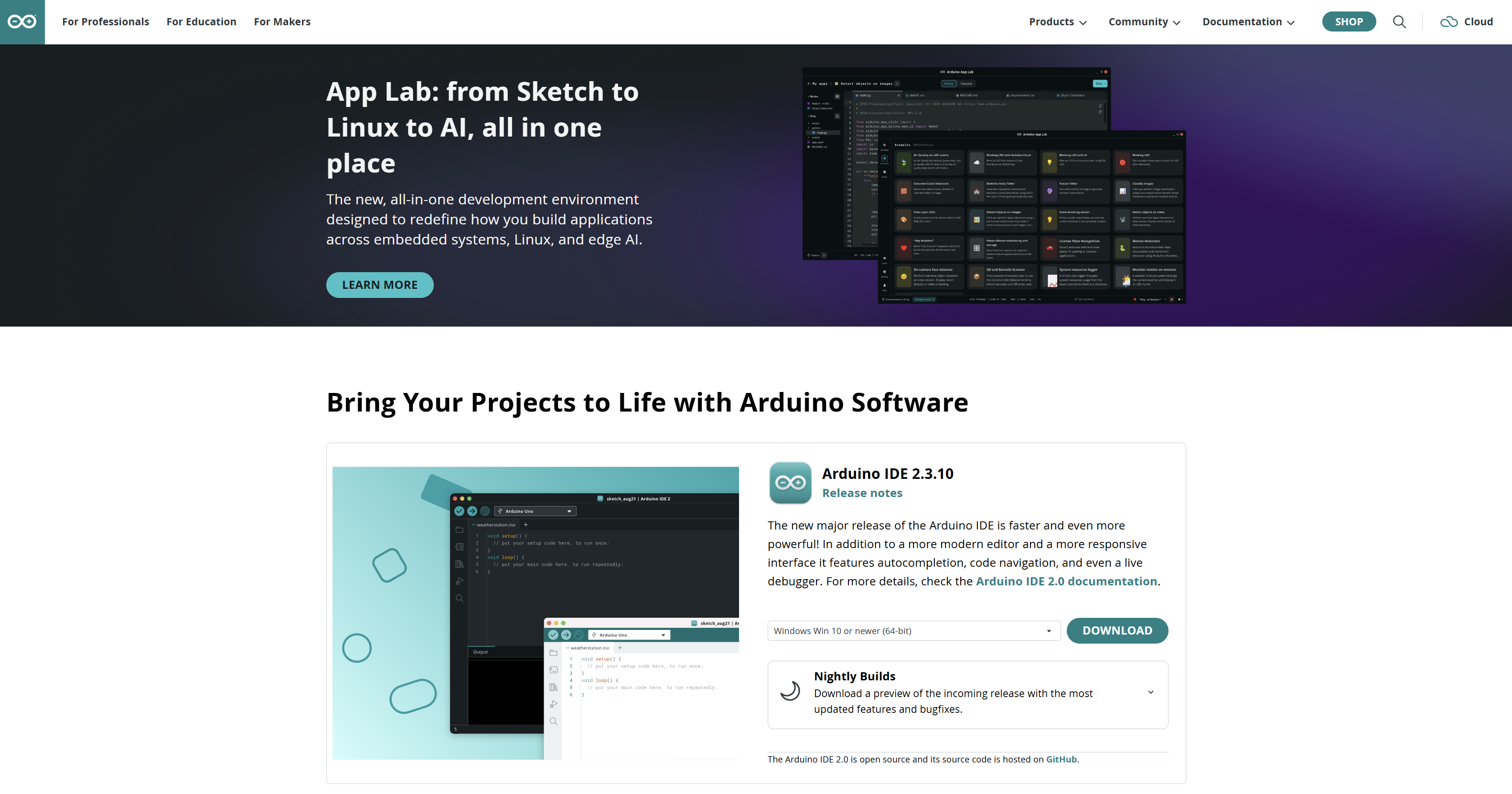
What software does Arduino actually make?
Arduino does not make "an IDE" anymore. It makes a small family of tools that share some plumbing and then go off in very different directions.
As of September 2026, the official software page lists the following.
| Software | Primary purpose | Main audience | Languages |
|---|---|---|---|
| Arduino IDE 2 (currently 2.3.10) | Write, compile, upload, serial | Makers, students, most developers | Arduino C++ (C++ with helper functions) |
| IDE Nightly Builds | Preview of incoming IDE 2 features and bug fixes | People testing a fix | Same as IDE 2 |
| Legacy IDE 1.8.19 | Last classic Java IDE, security fixes only | Old tutorials, old plugins, old machines | Arduino C++ |
| Arduino CLI | Headless compile, upload, board and library management | Developers, automation, CI (a server that builds on every commit) | Same C++ toolchain, from a terminal |
| Arduino App Lab 0.10.0 | Linux apps + MCU sketches + AI Bricks on UNO Q / VENTUNO Q | Advanced makers, edge AI | Python + Arduino C++ |
| Arduino Flasher CLI | Write a Linux OS image onto UNO Q (VENTUNO Q has a separate path) | Recovering or reimaging those boards | Command line |
| Linux images | Preconfigured OS for UNO Q and VENTUNO Q | Same boards as App Lab | The OS, plus Python and packages |
| Arduino PLC IDE 1.1.0 | Industrial PLC programming | Automation / PLC developers | IEC 61131-3 + Arduino sketches |
| Lab for MicroPython | Lightweight MicroPython editor | Python users, classrooms | MicroPython |
| Arduino Cloud / Cloud Editor | Browser IDE, IoT Things, dashboards, OTA | Makers, IoT, schools, Chromebooks | Arduino C++, MicroPython, integrations |
| IoT Remote | Phone app for Cloud dashboards | People already using Cloud | N/A (not a code editor) |
| Science Journal | Log phone sensors and Arduino-connected sensors | Education, STEM | N/A (data collection) |
Two products on that list confuse people because they share a name with something else.
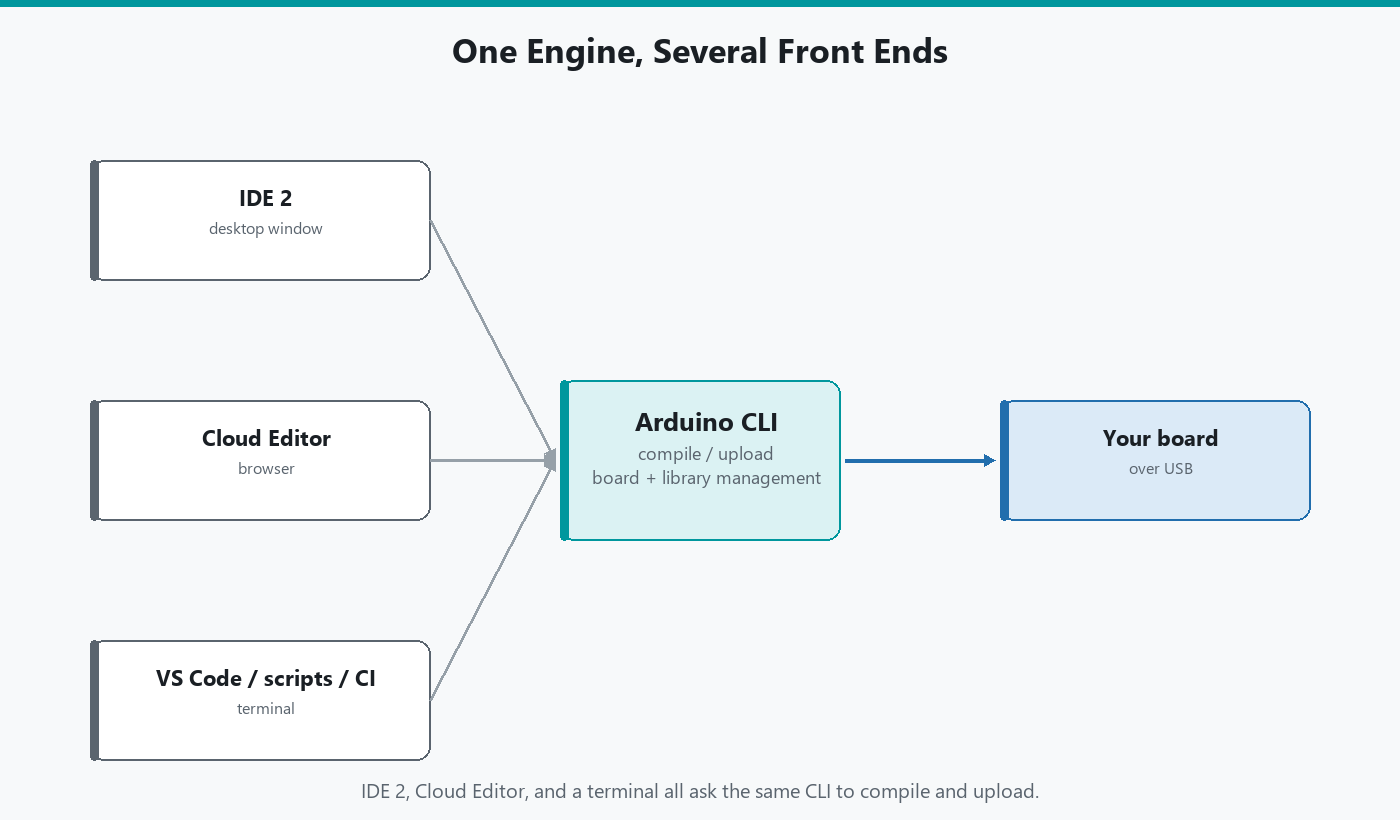
Arduino CLI is not "IDE 2 without the window." Arduino describes it as the heart of official Arduino development software, including the IDE and the Cloud/Web Editor. When you click Verify in IDE 2, you are asking the CLI to compile. When Cloud compiles a sketch, it is using the same family of tooling. I like to picture it as a car engine. The CLI is the engine that does the real work. IDE 2 and the Cloud Editor are two different cars built around that same engine, one with a comfortable desktop dashboard and one you drive from a web browser.
Arduino App Lab is not "IDE 3." It is a different kind of environment for a different kind of board. More on that in a minute.
How Arduino's tools fit together
It helps to split the family into four jobs, not twelve product names.
Job 1: put firmware on a microcontroller. Firmware is the program that lives on the chip and runs until you overwrite it. IDE 2, the Legacy IDE, the CLI, and the Cloud Editor all do this job. They compile Arduino C++ (or, in Cloud, sometimes MicroPython) and upload the result over USB or, in Cloud, over the air.
Job 2: run a whole computer next to that microcontroller. The UNO Q and VENTUNO Q are hybrid boards. One chip is a microcontroller (MCU: a small chip that is excellent at reading pins and hitting timing deadlines). The other is a microprocessor (MPU: a Linux computer, closer to a Raspberry Pi than to an Uno). App Lab, the Linux images, and the Flasher CLI exist because of that second chip. IDE 2 can still program the MCU side of a UNO Q. It cannot orchestrate the Linux side, the Python apps, and the AI models. That is App Lab's job.
Job 3: connect a project to the network and to a dashboard. Arduino Cloud, the Chromebook app, IoT Remote, and the Cloud pieces of App Lab live here. A dashboard is a web (or phone) screen of widgets (gauges, switches, charts) tied to variables on your board.
Job 4: speak a different programming tradition. Lab for MicroPython speaks Python. PLC IDE speaks the IEC 61131-3 languages factory automation has used for decades (Ladder Diagram, Structured Text, Function Block Diagram, and friends). Those are different ways of thinking about a machine. They are not Arduino C++ with a new coat of paint.
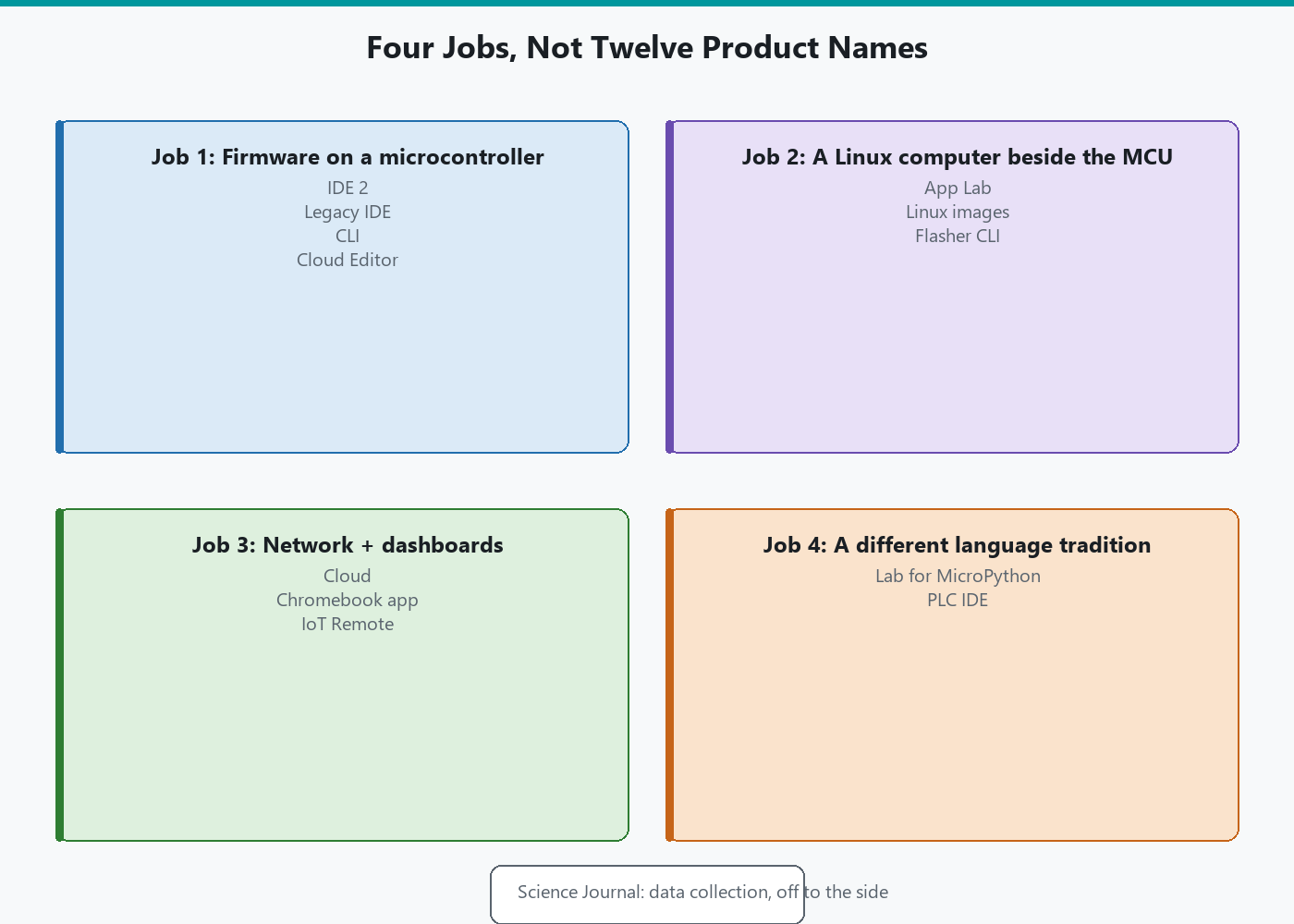
Two tools can share an engine (CLI inside IDE 2) and still be for different people. Two tools can target the same board (IDE 2 and App Lab on a UNO Q) and still do different halves of the work.
Which tool should you use?
Start from the bench, not from the product list.
-
Classic Arduino (Uno, Nano, Mega, most R3/R4 boards), learning or building: Arduino IDE 2. That is the default, and the tool Part 3 of the Mastery Series assumes when it teaches sketches, core functions, and libraries.
-
Chromebook, or a classroom that will not install desktop software: Arduino Cloud in the browser, or the Chromebook app. Many machines also need the Arduino Create Agent (a small helper that lets the browser talk to USB).
-
Python on a regular microcontroller, not C++: Lab for MicroPython, after you put a MicroPython firmware image on the board.
.inosketches will not open there. -
Terminal, VS Code, or compile-on-every-commit: Arduino CLI. Keep IDE 2 around for Serial Monitor if you want a window.
-
UNO Q or VENTUNO Q, because you want Linux, Python, and on-board AI next to pin control: App Lab. IDE 2 still talks to the MCU side. App Lab treats the board as one App: Python on Linux, a sketch on the MCU, and prebuilt Bricks.
-
Opta, Portenta Machine Control, ladder logic or Structured Text: Arduino PLC IDE, on Windows. Not IDE 2.
-
A Cloud dashboard you already built, on your phone: IoT Remote.
-
A science class logging phone sensors plus Arduino sensors: Science Journal.
Two of those at once is normal. IDE 2 on the desk and Cloud for the dashboard is a reasonable split. You do not have to pick a single tool for the rest of your life.
Arduino IDE 2
Arduino IDE 2 is the current desktop environment for almost everyone who is not on a hybrid Linux board or an industrial PLC. The current stable release, as of this writing, is 2.3.10 (9 June 2026). It runs on Windows 10 64-bit and newer, macOS, and Linux.
You get a modern editor with autocomplete (suggestions as you type) and code navigation (jump to a definition). Board Manager installs cores, the board-support packages with compilers, upload recipes, and pin definitions. The AVR core (Uno, classic Nano, Mega) ships ready to go. ESP32 and ESP8266 do not; you add those later. Library Manager installs reusable code so you are not writing a sensor protocol from the datasheet. Verify compiles, Upload sends the result to the board, Serial Monitor shows whatever the sketch prints, and Serial Plotter graphs numbers on that same link. A debugger exists for boards that support live debugging. Classic AVR Unos generally do not, without extra hardware.
Under the hood, IDE 2 is a graphical shell around Arduino CLI. A sketch that compiles in IDE 2 will compile with the CLI using the same core and libraries, as long as both tools share a configuration. I still send beginners here first. The menus have names, errors land in a pane, and Serial Monitor is one click.
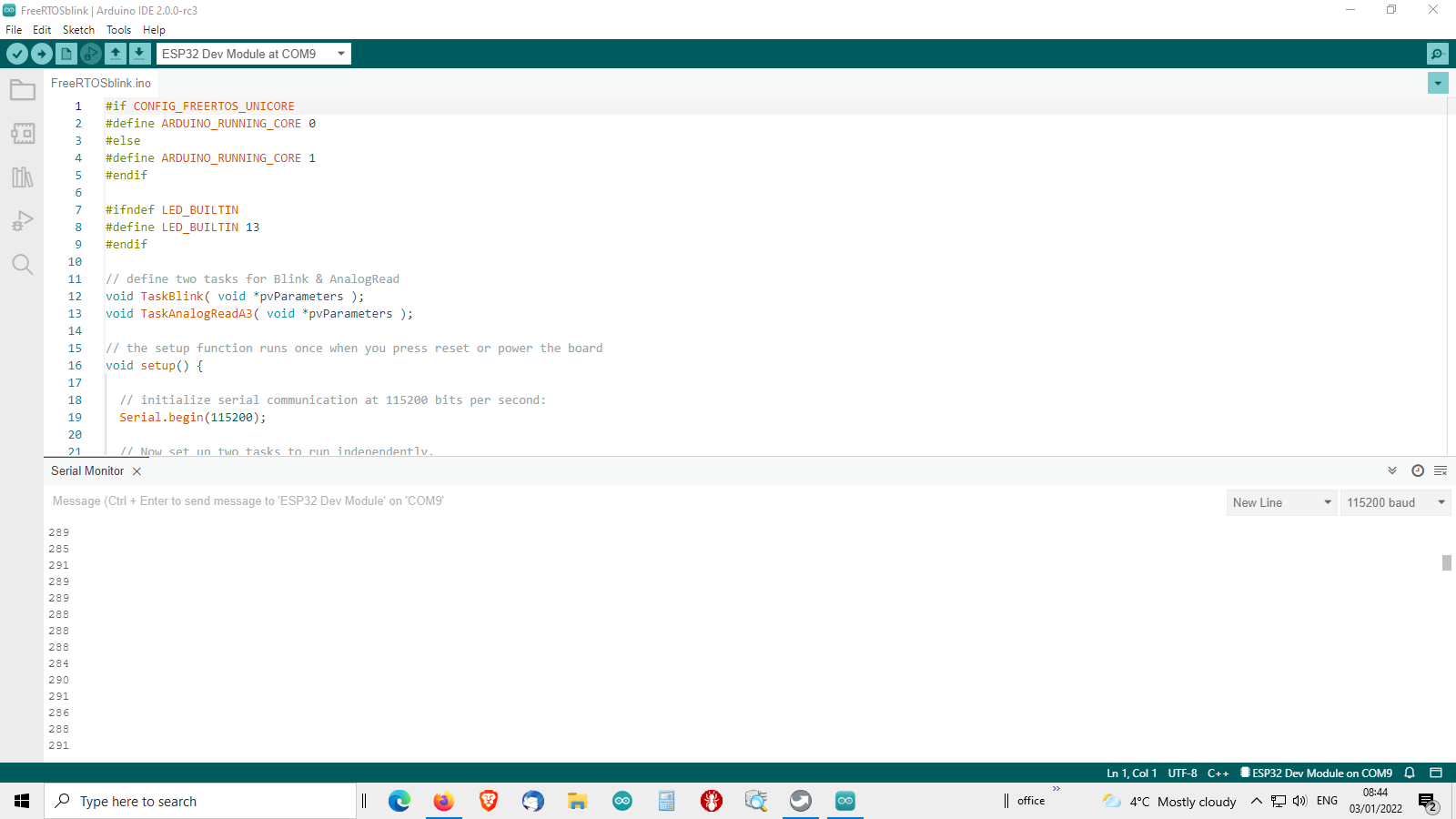
A dedicated IDE 2 guide is next in this cluster: install, interface, boards, libraries, ports, compile, upload, serial, autocomplete, debugging, and the usual "it will not upload" traps.
Arduino IDE 1.8 (Legacy) and nightly builds
Arduino still publishes IDE 1.8.19 as the Legacy IDE. It is the last of the old Java-based editor. Arduino's own support article is blunt: 1.8.19 only receives high-severity security fixes. New features go into IDE 2.
You will still bump into 1.8.19 for honest reasons: an old tutorial's screenshots, a plugin or classroom image built around 1.8, or a computer that will not run IDE 2 comfortably. If you are starting fresh in 2026, do not install 1.8.19 as your daily driver. Keep it only if a specific old workflow forces you to.
Nightly builds are the other side of that coin. A nightly is a fresh compile of IDE 2 from the development branch, not a tested release. Arduino describes them as previews: incoming features and current bug fixes. Install one if you have been asked to verify a fix, or if you are following a feature that has not landed in 2.3.10 yet. Do not make a nightly your only copy. Keep stable installed, back up your sketchbook and your Arduino15 package folder (where cores and libraries live), and treat the nightly as a second, disposable app.
Arduino CLI
Arduino CLI is a command-line interface: you type commands in a terminal (a plain text window such as Windows Terminal, PowerShell, or macOS Terminal) instead of clicking buttons. It can update the board index, install cores, install libraries, detect a board, compile a sketch, and upload firmware. It also exposes machine-friendly interfaces (including gRPC, a way for other programs to talk to it) so editors and cloud services can drive it.
Arduino's own docs say the quiet part out loud: in addition to being a standalone tool, Arduino CLI is the heart of official Arduino development software such as Arduino IDE and the Arduino Web Editor. That is the architectural point this whole cluster hangs on. IDE 2 is not a separate compiler that happens to look similar. It is a GUI on top of this engine.
When would you bother with the engine directly?
-
You want to compile from VS Code, from a script, or from a server.
-
You are building the same sketch for three board types and you are tired of clicking Tools → Board in between.
-
You want GitHub Actions (or any other CI system) to compile every commit so a broken sketch never sits unnoticed on
main. -
You are setting up a classroom image and you want
arduino-cli core installinstead of 24 machines clicking through Board Manager.
Once it is installed, the daily commands look like this. FQBN means Fully Qualified Board Name: vendor:architecture:board.
# List boards the CLI can already see on USB
arduino-cli board list

# Install the AVR core (Uno, classic Nano, Mega, and friends)
arduino-cli core install arduino:avr

# Compile, then upload, a sketch named Blink for an Uno
arduino-cli compile --fqbn arduino:avr:uno ./Blink
arduino-cli upload --fqbn arduino:avr:uno --port COM3 ./Blink
On Windows the port looks like COM3. On macOS it looks like /dev/cu.usbmodem1101. On Linux it is usually /dev/ttyACM0 or /dev/ttyUSB0. If the CLI cannot see a port, that is the same USB-cable and driver problem the IDE hits. Switching tools will not fix it, because the problem lives in the cable or the driver, not in the software you typed the command into.
Install the CLI when the IDE's buttons start feeling like the slow way to do a job you now understand. A later article in this cluster will go through Windows install, the command set, and VS Code.
Arduino App Lab
App Lab is the tool I get the most questions about, because the marketing makes it sound like a replacement for IDE 2. It is not.
Arduino App Lab is a development environment for the new dual-processor boards, currently the UNO Q and the VENTUNO Q. Those boards put a Linux-capable microprocessor next to a real-time microcontroller.
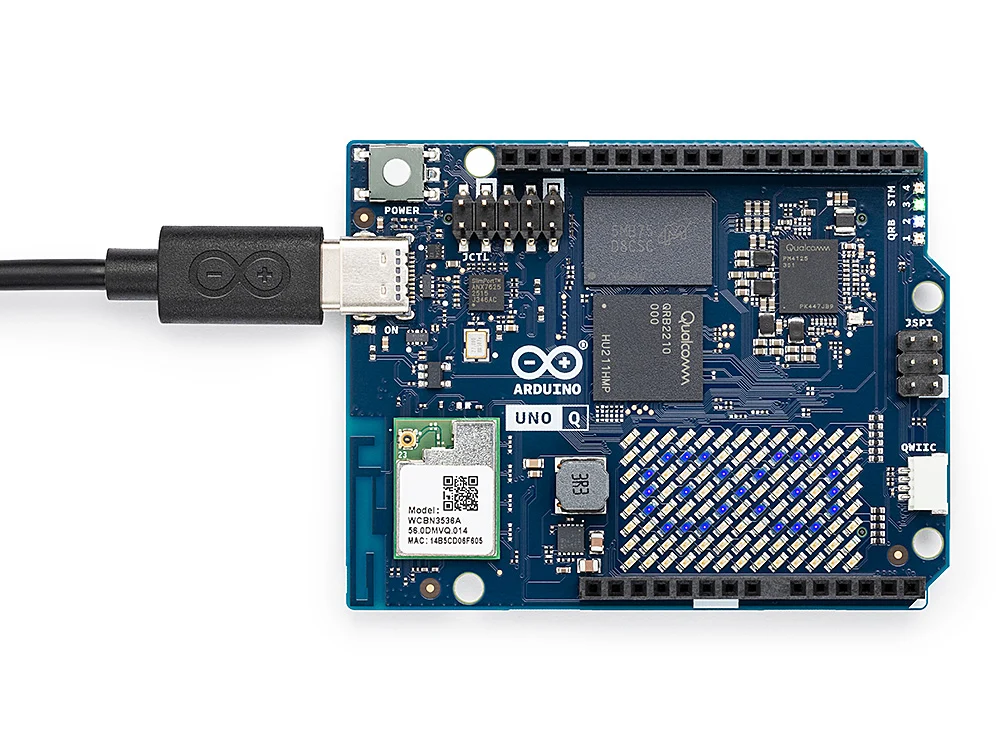
Image: Arduino
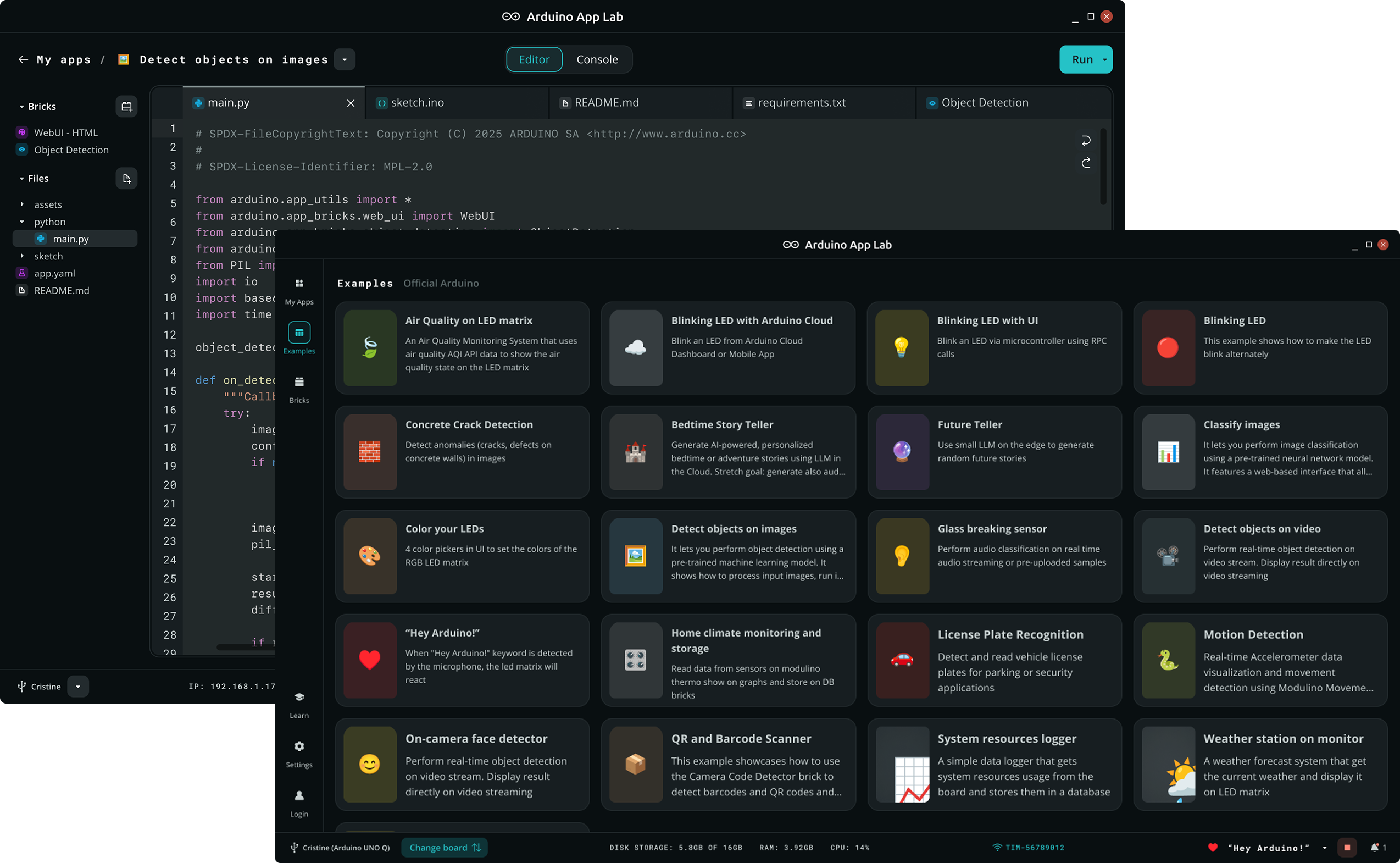
App Lab's job is to let you build an App: one project that can include a Python program on Linux, an Arduino sketch on the MCU, and prebuilt modules Arduino calls Bricks.
A Brick is a packaged chunk of functionality you drop into an App instead of writing that chunk from scratch. Arduino's examples include AI models, web interfaces, REST APIs (a REST API is a way for programs to talk to each other over HTTP), sensor integrations, and other services. You can also write custom Bricks once you are past the examples.
The two processors talk through a Bridge, which is Arduino's library for RPC. RPC, remote procedure call, means code running on Linux can ask the MCU to run a function (and the other way around) without you hand-rolling a serial protocol. From Python it feels like calling a function. On the MCU it is still a sketch, with pins and timing.
App Lab runs on Windows 10 64-bit or later, macOS 11 or later, Ubuntu 22.04 or later, and Debian Trixie 64-bit, and talks to the board over USB-C or the local network. It can also run on the board. Plug a UNO Q into a monitor and keyboard through a USB-C dongle that supports power delivery (the dongle has to pass charging power through to the board, not just data), and you can use the board as a small computer. App Lab is already on the board's Debian image (Debian is a long-running, popular flavor of Linux). Arduino recommends the 4 GB RAM variant for that setup.
You can still open IDE 2 and program the MCU side of a UNO Q. IDE 2 talks to the microcontroller subsystem. App Lab is how you work across both processors at once. If you only need the MCU, IDE 2 is simpler. If you bought the board for Python, Linux, and an AI model next to a sketch, App Lab matches the hardware. Current download: 0.10.0, released under GPL 3.0 (an open-source license, so the source code is public).
Linux images and the Flasher CLI
A classic Uno does not have a desktop operating system. It runs your sketch, and that is the whole show. A UNO Q ships with a Debian-based Linux image on onboard eMMC (soldered flash, not an SD card). That image is why Python, App Lab, and a desktop can exist on the board at all. Arduino publishes preconfigured images for UNO Q and VENTUNO Q. You install a fresh one when the board will not boot, when you want a clean slate, or when a new image has updates you want.
On UNO Q there are two ways to write an image. Use App Lab's built-in flasher if the board is already discovered. Use Arduino Flasher CLI if it is not, or if you want a low-level rewrite. The CLI path requires Emergency Download Mode (EDL), a recovery USB mode so a host can rewrite storage even if Linux is dead. The command is along the lines of arduino-flasher-cli flash latest (on Windows, arduino-flasher-cli.exe flash latest). Add --preserve-user if you want to keep /home/arduino instead of wiping it.
Two gotchas. Flashing a Linux image is not the same as uploading a sketch. A sketch overwrites MCU firmware. An image overwrites the Linux OS. And VENTUNO Q does not use the UNO Q flash instructions. Arduino points VENTUNO Q readers at a separate Ubuntu image guide. Do not follow a UNO Q EDL procedure on the wrong board.
Arduino Lab for MicroPython
MicroPython is a Python interpreter built to run on a microcontroller. An interpreter reads your program as text and executes it on the board. That is different from Arduino C++, which is compiled (translated ahead of time into machine code) and then uploaded as firmware. The practical feeling is: MicroPython lets you poke at the board live; C++ makes you compile and upload between tests.
Arduino Lab for MicroPython is an experimental, lightweight editor Arduino Labs ships for that workflow. It can connect to a board over serial, upload code, move files on and off the board, and open a REPL. REPL stands for Read-Eval-Print Loop: you type a line of Python, the board runs it, and you see the result immediately. That live conversation is the reason people reach for MicroPython when they are exploring a sensor.
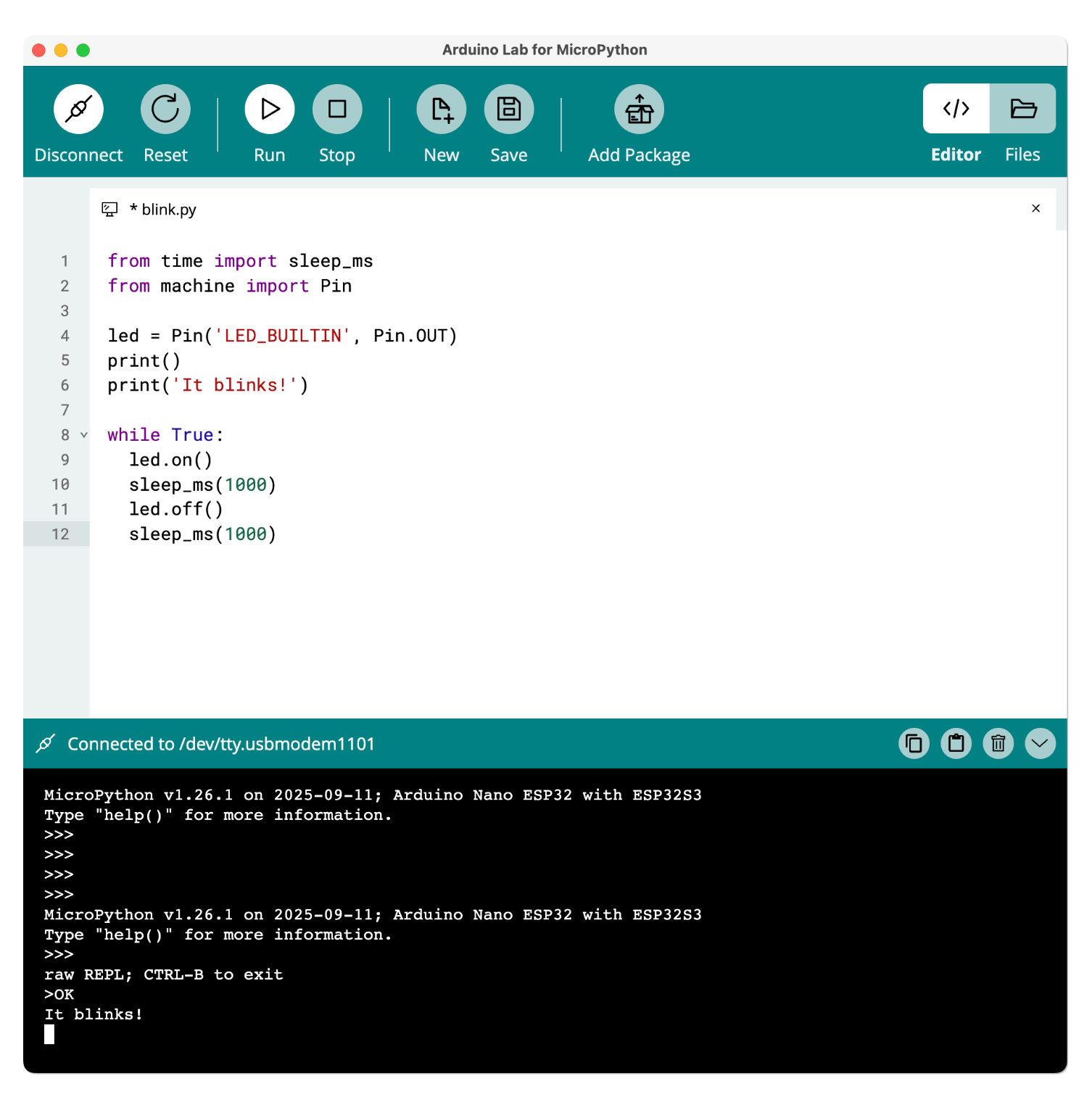
Arduino is clear that this editor is experimental pre-release software. Questions go to GitHub issues. You still have to get MicroPython onto the board first. Lab for MicroPython does not replace that firmware-install step. Once the board is running MicroPython, the editor is how you write main.py, drop files on the board, and talk to the REPL.
Use Lab for MicroPython when Python on the microcontroller is what you want. Use IDE 2 when you want the Arduino C++ ecosystem, the Library Manager, and the years of sketches that assume setup() and loop(). A later article in this cluster will compare the two languages: compiled vs interpreted, speed, memory, libraries, and hardware access. Neither one makes the other obsolete.
Arduino Cloud
Arduino Cloud is Arduino's browser-based platform for writing sketches, connecting boards to the internet, and building dashboards around the data. You log into app.arduino.cc, and the editor, the device list, the Things, and the dashboards all live there.
A Thing, in Cloud vocabulary, is the virtual twin of a physical setup. Inside a Thing you create Cloud variables. A Cloud variable is a named value that exists both on the board and in the Cloud, and stays in sync while the board is connected. A dashboard is then a page of widgets bound to those variables: a gauge for temperature, a switch that writes a boolean back to the board, a chart of the last hour.
Cloud also does jobs the desktop IDE does not. OTA (over-the-air) uploads a new sketch without USB, once a compatible board is on the network. Two Things can share a variable, so a garage sensor can flip a house relay without you writing a server. Triggers fire when a variable crosses a threshold. APIs and integrations reach Alexa, Google Home, Node-RED (a free, drag-and-drop tool for wiring IoT services together), JavaScript, and Python.
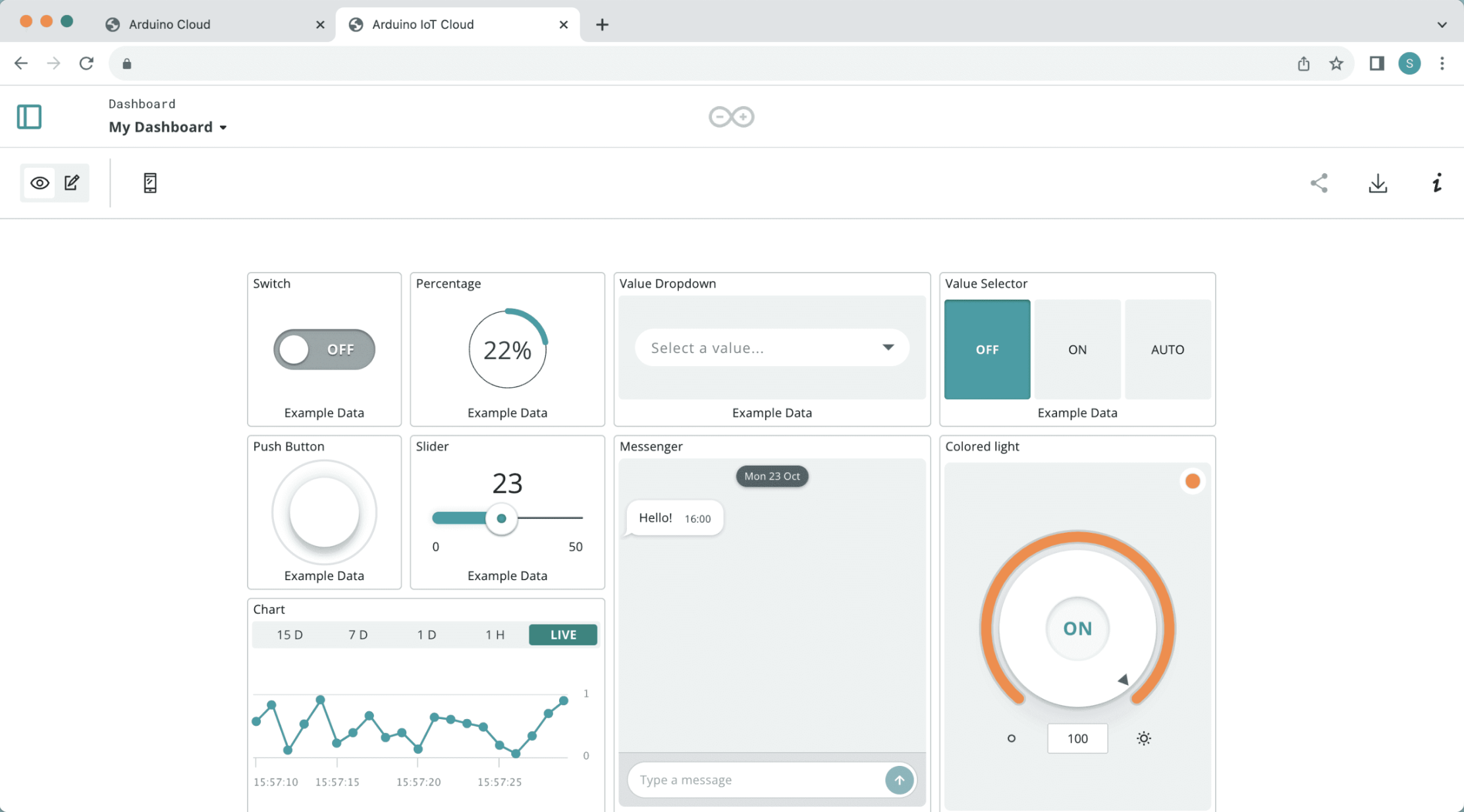
The Cloud Editor is the IDE-in-a-browser piece: sketches saved online, boards talking through the Create Agent, contributed libraries available without a separate Library Manager dance. The Chromebook app is that same editor in a school-friendly wrapper, not a different IDE.
Skip Cloud as an IDE replacement if you are offline, if you want Serial Plotter, if you want local files in Git, or if you are debugging a USB-only board. Use it when the point of the project is "this board should show up on my phone," or when the computer in front of you cannot install IDE 2. Pricing changes; check Arduino's plans page when you outgrow the free tier. IoT Remote itself is free to download. Background "phone as a device" mode is the piece that starts needing a paid plan.
IoT Remote
IoT Remote is the mobile companion to Arduino Cloud. You build the dashboard in a browser, install the app on Android or iOS, log in with the same Arduino account, and the dashboard comes with you. It can also publish the phone's own sensors (GPS, light, the IMU or motion sensor that knows how the phone is tilted, and whatever else that model exposes) as Cloud variables, which you can sync to a board.
What it cannot do: create dashboards. Arduino's FAQ says those are created from the browser. The phone is for viewing, controlling, and optionally contributing phone-sensor data. If you do not have a Cloud project, you do not need this app yet.
Arduino PLC IDE
A PLC, a programmable logic controller, is the computer that runs a factory cell, a packaging line, a building's mechanical room. The programming tradition around PLCs is not setup() and loop(). It is IEC 61131-3, an international standard that defines several languages, including:
-
Ladder Diagram (LD): looks like the relay logic electricians already knew how to read.
-
Structured Text (ST): looks closer to Pascal than to Arduino C++.
-
Function Block Diagram (FBD): boxes and wires, like a schematic for software.
A PLC also has a scan cycle: read inputs, run the logic, write outputs, repeat, on a tight, predictable loop. That is a cousin of loop(), but the industrial tools, the I/O mapping, and the fieldbuses around it are a different world. A fieldbus is the wiring and protocol industrial devices use to talk to each other across a machine or a factory floor. Modbus and CAN, which you will see in a second, are two of the most common.
Arduino PLC IDE 1.1.0 is the Windows-only environment for that world, aimed at industrial hardware such as Opta and Portenta Machine Control. You program in the IEC 61131-3 languages, you can mix in Arduino sketches, and Arduino documents support for fieldbuses including Modbus TCP, Modbus RTU, and CAN, plus Cloud integration and pin mapping. Download is a Windows 10-or-newer 64-bit installer. There is no macOS or Linux build. Compatible devices need a license activation.
If you are blinking an LED on an Uno, this is not your next download. If you think in ladder logic and want that on Arduino-class industrial hardware, this is the front door.
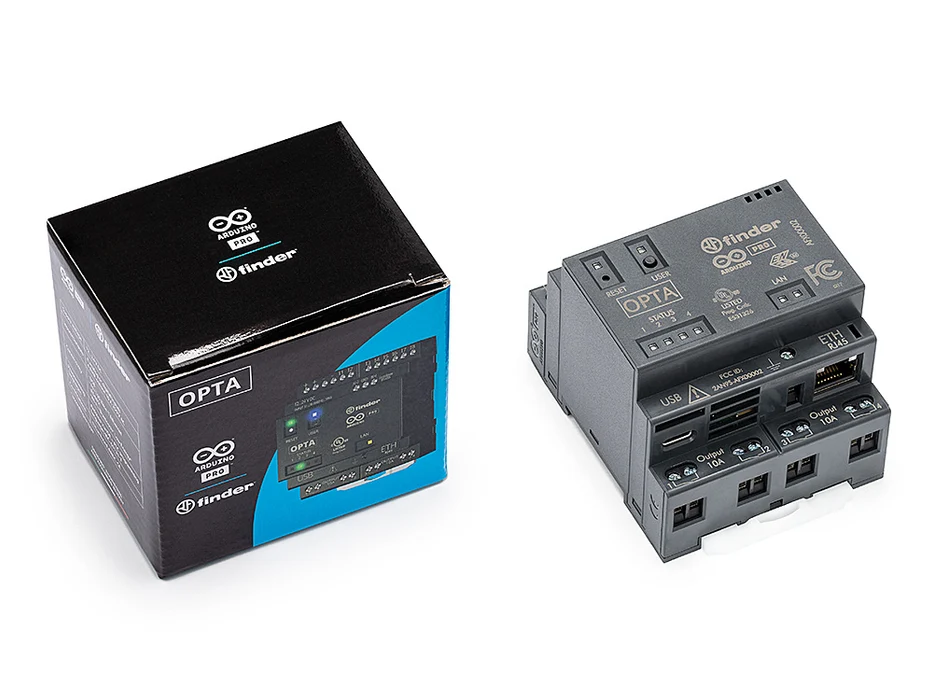
Image: Arduino
Arduino Science Journal
Science Journal is not a development environment. It is a data-collection app for phone sensors (sound, acceleration, light, magnetometer, and so on) plus sensors connected to Arduino hardware. Arduino still lists it on the software page. The audience is a classroom or a science-fair bench. If you came here to pick an IDE, skip it. A later STEM article in this cluster can turn it into real experiments.
Which tools overlap?
Overlap is the rule. Ask "overlap at what job?"
-
IDE 2, Legacy IDE, Cloud Editor, and CLI all compile and upload Arduino C++ to a microcontroller. Pick one primary: IDE 2 at a desk, CLI for scripts and editors, Cloud when the browser is the computer, Legacy only when you are stuck with it.
-
IDE 2 and App Lab both talk to a UNO Q, on different halves. IDE 2: MCU firmware. App Lab: the App across Linux + MCU + Bricks.
-
App Lab, Flasher CLI, and Linux images exist because those boards run an OS. App Lab is daily development. Flasher CLI is recovery. The image is what you flash.
-
Cloud, the Chromebook app, and IoT Remote are one product line: editor, dashboards, phone.
-
Lab for MicroPython and IDE 2 can target overlapping boards in different languages. You generally run one firmware or the other, not both.
-
PLC IDE and IDE 2 can both touch some industrial boards. They are still different programming models. Do not install PLC IDE because you saw "IDE" in the name.
Which tools support Python?
Python shows up in three different places, and mixing them up is a common way to install the wrong thing.
- MicroPython on a microcontroller, edited with Arduino Lab for MicroPython (or another MicroPython editor). The Python runs on the board, in place of Arduino C++.
- Python on Linux, on UNO Q / VENTUNO Q, inside an App Lab App. That Python has a real Linux underneath it. It talks to the MCU through Bridge/RPC. This is closer to "a Raspberry Pi that happens to have an Arduino welded to it" than to MicroPython.
- Python talking to Arduino Cloud through APIs and integrations. Your Python is on a PC or a server. The board is still running whatever firmware Cloud installed.
App Lab is the one that also keeps Arduino C++ in the same project, on the MCU side. Lab for MicroPython works differently. With it, Python replaces C++ on the board entirely, so there is no sketch running alongside your Python code.
Which tools need particular hardware?
IDE 2, the Legacy IDE, the CLI, Cloud Editor, and Lab for MicroPython talk to a long list of boards. You still have to install the right core, pick the right port, and in Cloud's case use a board that supports the feature you want (WiFi, OTA, and so on).
A few tools are hardware-gated:
-
App Lab, Linux images, Flasher CLI: UNO Q and VENTUNO Q. Not an Uno R3.
-
PLC IDE: Opta, Portenta Machine Control, and the rest of that industrial line, plus a device license.
-
IoT Remote: any Cloud-connected board you already set up, plus a phone.
-
Science Journal: a phone, and optionally a supported Arduino.
If you are still choosing a board, that decision lives in Part 2 of the Mastery Series. A classic Uno, Nano, or R4 pairs with IDE 2. A UNO Q pairs with App Lab, with IDE 2 as the MCU-side option. Do not buy a UNO Q because you wanted a slightly nicer Uno. Buy it because you wanted Linux and an MCU in the same footprint.
Local vs cloud
Local means the editor and compiler run on your computer: IDE 2, Legacy IDE, Nightly, CLI, App Lab (on a PC, or running on the board itself), Flasher CLI, PLC IDE, Lab for MicroPython. Cloud means they run in Arduino's browser app, with sketches stored on Arduino's servers: Cloud Editor, dashboards, Things, OTA, APIs, the Chromebook app, and IoT Remote (a Cloud client, not a local compiler).
App Lab can register a UNO Q with Cloud from Settings so a Linux-side App can join dashboards. You still develop the App locally in App Lab. Cloud only gets involved for the dashboard part.
If you want Git, offline work, Serial Plotter, or a custom editor, stay local. If you want a phone dashboard, OTA, or a Chromebook, you will be in Cloud for at least that part. Compiling in IDE 2 and using Cloud for the dashboard is a reasonable split.
Windows, Linux, macOS, and Chromebook
| Tool | Windows | macOS | Linux | Chromebook |
|---|---|---|---|---|
| Arduino IDE 2 | Win 10 64-bit+ | Yes | Yes | Use Cloud |
| Legacy IDE 1.8.19 | Yes | Yes | Yes | Use Cloud |
| Arduino CLI | Yes | Intel and ARM | x86 and ARM | Possible in Linux mode; Cloud is simpler |
| App Lab | Win 10 64-bit+ | macOS 11+ | Ubuntu 22.04+, Debian Trixie 64-bit | No |
| PLC IDE 1.1.0 | Win 10 64-bit+ only | No | No | No |
| Lab for MicroPython | Yes | Yes | Yes | Use a desktop |
| Cloud Editor | Browser | Browser | Browser | Yes, including a Play Store app |
| IoT Remote / Science Journal | Phone app only (Android / iOS) | Phone app only | Phone app only | Android app may run on some Chromebooks |
One Windows trap that is not about the IDE vs the CLI: if Device Manager never loaded a driver for the USB-UART chip, no Arduino tool will see a COM port. The USB-UART chip is the little translator on the board that converts USB from your computer into the simple serial signal the microcontroller speaks. CH340, CP210x, and FTDI chips are common on ESP32 boards and Nano clones, and each one needs its own driver. Official Unos usually just work. A later article in this cluster is dedicated to that.
PLC IDE being Windows-only is not a typo. On a Mac, you would need to run Windows inside a virtual machine (software that runs a second operating system in a window), or use a different PC.
Where Arduino IDE fits now
Arduino IDE 2 is not the only official tool, and it is not obsolete. It is still the right default for a microcontroller, a USB cable, and Arduino C++. It matches Board Manager, Library Manager, Serial Monitor, Serial Plotter, and years of .ino examples. It is also the graphical interface on top of the CLI. The same cores and libraries are there when you add the CLI or VS Code later.
What changed is the rest of the map. Hybrid Linux + MCU boards belong in App Lab. Dashboards and Chromebooks belong in Cloud. MicroPython belongs in Lab for MicroPython. Ladder logic belongs in PLC IDE. Install IDE 2 unless you have a specific reason not to, then add tools as the project demands them. IDE 2 and the CLI live on the same machine without fighting, because they share the same engine.
This article is the hub for a software cluster, not a replacement for the Mastering Arduino series. The series teaches what to do with a board. This cluster teaches which official program to launch first. Next up is the IDE 2 flagship. When a version string in this article ages, trust arduino.cc/en/software over a cached copy of this page.
Wrap-up
Arduino still has a default answer for most people: IDE 2, on your computer, talking to a microcontroller over USB. Around that default there is now a real toolchain. The CLI is the engine under the IDE and the Cloud. App Lab is for Linux-plus-MCU boards. Cloud is for dashboards, OTA, and machines that should not install desktop software. MicroPython and PLC IDE are different languages. The phone apps are companions, not IDEs.
Pick from the bench in front of you. Add tools as the project grows.
The Mastering Arduino series is where the electronics and the C++ get taught, one part at a time. This cluster will keep filling in the software side, one tool per article, and I will link each new piece back here as it goes live.
Hack The World and Make Awesome.