Windows 11 will install almost anything you double-click, including the wrong Arduino. This page is the slow, boring path that ends with Arduino IDE 2 running, an Uno (or similar) talking over USB, and a sketch that compiles. If you have never used Arduino at all, Part 1 of the Mastery Series is what a board is. Part 3 is what you write after the installer finishes. This article is only the installer.
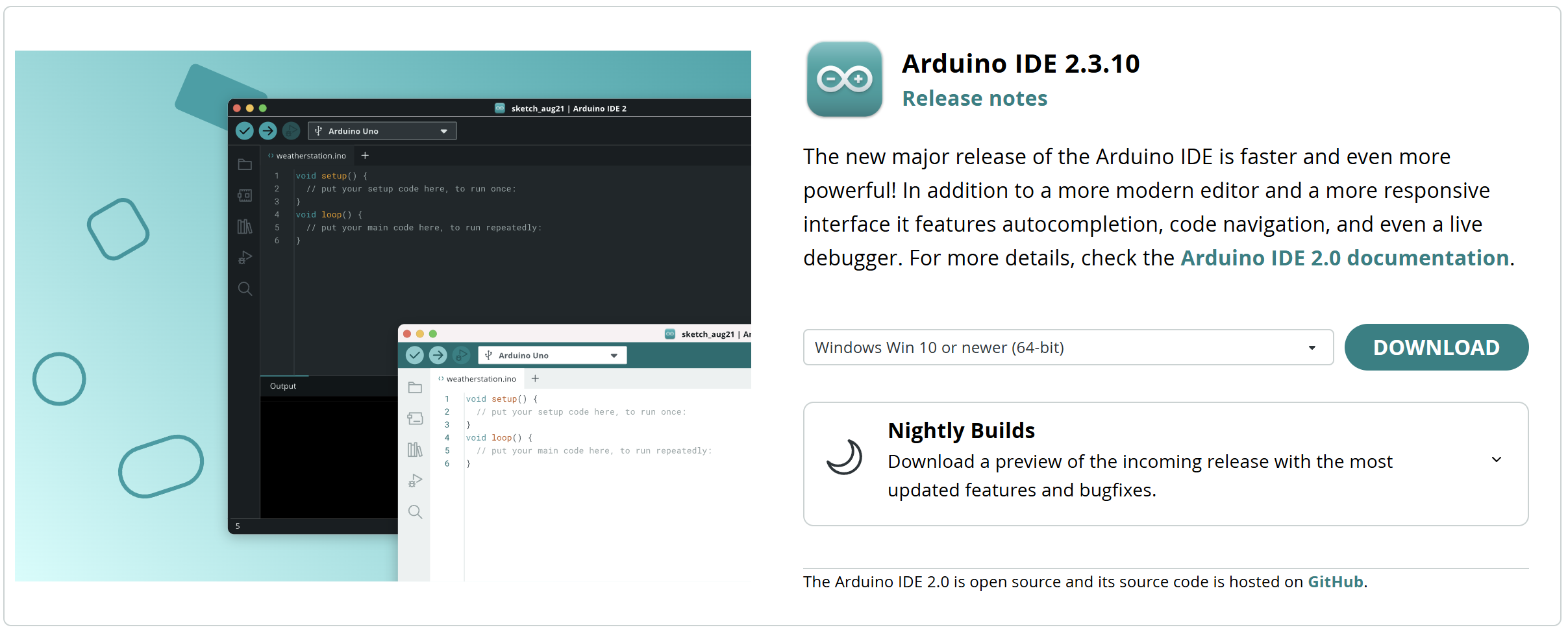
Current stable IDE, as of this writing: 2.3.10. Arduino lists it for Windows 10 64-bit and newer, which includes Windows 11. There is no 32-bit IDE 2. If you are on an ancient 32-bit Windows, you are on Legacy IDE 1.8.19, and that is a different article.
Where to download
Open arduino.cc/en/software in a browser you trust. Find Arduino IDE 2, not Legacy IDE 1.8.19, not App Lab, not PLC IDE.
For Windows you will usually see:
- Windows Win 10 and newer, 64 bits (MSI). This is the installer I use on a PC I own. It puts the app in a normal Program Files-style location, adds a Start Menu shortcut, and plays nicely with Windows Installer for later upgrades.
- Windows Win 10 and newer, 64 bits (EXE). Also an installer. You still get IDE 2. If both MSI and EXE are offered, I take the MSI.
- ZIP file. Not an installer. You unzip a folder and run
Arduino IDE.exefrom inside it. Use this when you do not have admin rights, when you want a copy on a USB stick, or when you want IDE 2.3.10 sitting next to a nightly build without them fighting.
Gotcha: search engines and "driver pack" sites love to serve IDE 1.8, or a bundle with extra junk. Check the filename. You want arduino-ide_2.3.10_Windows_64bit.msi (or .exe / .zip) or whatever the current 2.3.x string is. If the version is 1.8.19, you grabbed Legacy on purpose or by accident.
Do not install from the Microsoft Store unless Arduino's own software page is the thing that sent you there. Third-party Store listings go stale.
SmartScreen and "unknown publisher"
Windows 11 SmartScreen (Microsoft's built-in download checker) may say Windows protected your PC. That is SmartScreen not recognizing the download yet, not a virus scan of Arduino's servers. Click More info, then Run anyway, if you came from arduino.cc. If you came from a random blog's mirror, do not click through. Delete it and download from Arduino again.
SmartScreen's warning is really a reputation check, not a content scan. It looks at how many other Windows machines have already run this exact file and how long it has been circulating, and a freshly released installer, even one signed and published by a legitimate company, can trip the warning simply because not enough copies of that specific build have been seen yet to build up a reputation. That is why a brand-new Arduino IDE release triggers it more often than a version that has been out for months: the file itself did not become less trustworthy, fewer people had downloaded that particular build yet.
If your school PC blocks all unsigned installers, use the ZIP and run it from a folder you own, or ask IT to allow Arduino's MSI. Those blocks usually come from group policy (settings IT pushes to every machine they manage). Please do not try to get around them with a repackaged installer from some other site. That is exactly how lab computers end up with malware.
MSI / EXE install, click by click
- Quit any old Arduino IDE (1.8 or 2.x) so files are not locked.
- Run the MSI or EXE.
- Accept the license.
- If the installer asks which users, "just me" is fine on a home PC. All users needs admin.
- When Windows asks to install USB drivers, allow it. (Screenshot of this prompt is planned for the IDE 2 complete guide; reuse it here.) Those drivers are how official Unos show up as COM ports. Skipping this step is a common "Tools → Port is empty" report that is not a cable.
- Finish. Open Arduino IDE from the Start Menu (the one that says 2.x, not "Arduino" leftover from 1.8 if you still have it).
You can keep 1.8.19 installed at the same time. They use similar sketchbook defaults and can confuse you about which window uploaded last. If you are migrating, finish this install, then use the migration article in this cluster. If you are new, you do not need 1.8 at all.
ZIP / portable install
- Unzip to a stable folder, for example
C:\tools\arduino-ide-2.3.10\. NotDownloads. Windows 11 Storage Sense (the automatic disk-cleanup feature) can empty Downloads without asking. - Pin
Arduino IDE.exeto Start or the taskbar if you want. - First launch still needs network for the AVR core download unless you already have an
Arduino15folder from another copy.
Portable is not fully self-contained. Cores and libraries still land in %LOCALAPPDATA%\Arduino15 by default, and sketches in Documents\Arduino. Two portable copies of IDE 2 on one user account still share that data directory unless you change it in Preferences. That sharing is useful (one Board Manager install serves both). It is surprising if you thought the USB stick was the whole install.
First launch on Windows 11
The window can sit on "downloading" for a minute. IDE 2 is fetching indexes and installing the AVR core. A core is the board-support package: compiler, upload tool, and pin names for a family of boards. AVR covers Uno, classic Nano, Mega. Let it finish. If you kill the process, the next launch looks empty or broken until the core is there.
This first-run download is the IDE quietly doing on your behalf what the Board Manager article in this cluster covers as a manual step for every other core: fetching a toolchain and installing it before anything can compile. AVR gets this automatic treatment because it is the family official Arduino boards like the Uno ship with, so nearly everyone opening IDE 2 for the first time needs it immediately. Every other family, ESP32, SAMD, RP2040, still needs that same manual Board Manager trip the first time you touch a board from that family, which is normal and not a sign this initial install went wrong.
Windows 11 may ask for firewall access. IDE 2 talks to the network for Board Manager and updates. Allow it on private networks. You can compile Blink offline after the core is installed. You cannot install ESP32 offline without already having the package.
If the UI is a blank dark rectangle, wait, then restart once. IDE 2 is an Electron app (a desktop app built from the same web technologies a browser uses). GPU quirks on some laptops need a graphics driver update, or you try the ZIP build as a comparison.
Folders Windows 11 just created
| Folder | What lives there |
|---|---|
Documents\Arduino |
Your sketchbook: sketches you write |
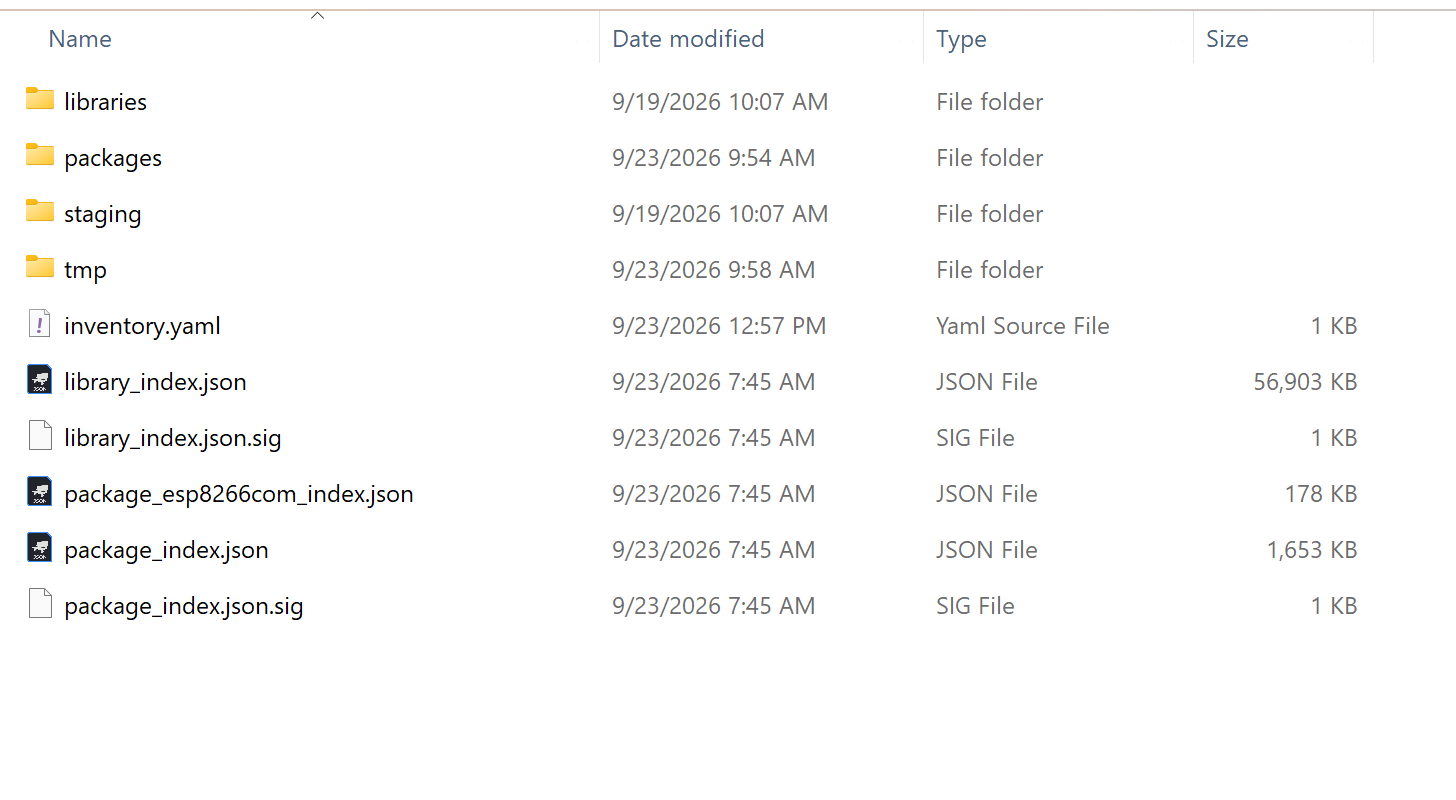
%LOCALAPPDATA%\Arduino15 |
Cores, indexes, some tools. Full path: C:\Users\<you>\AppData\Local\Arduino15 |
Documents\Arduino\libraries |
Libraries you install for this user |
AppData is hidden. In File Explorer, paste %LOCALAPPDATA%\Arduino15 into the address bar. You do not need to live in that folder. You need to know it exists so a "cleanup" of AppData does not erase every board package.
Set the sketchbook in File → Preferences if you want it on another drive. Point it at a folder you back up. OneDrive-locked Documents folders sometimes fight the IDE on save. If saves fail with a lock error, move the sketchbook off a syncing folder.
Confirm the install with Blink
- File → New Sketch. You should see
setup()andloop(). - Tools → Board → Arduino AVR Boards → Arduino Uno (or your real board).
- Click the check mark (Verify). You do not need the board plugged in to compile.
- A successful compile prints program storage and dynamic memory in the bottom pane.
If Verify fails with a missing core, the first-launch download did not finish. Use Tools → Board → Boards Manager, search Arduino AVR, Install.
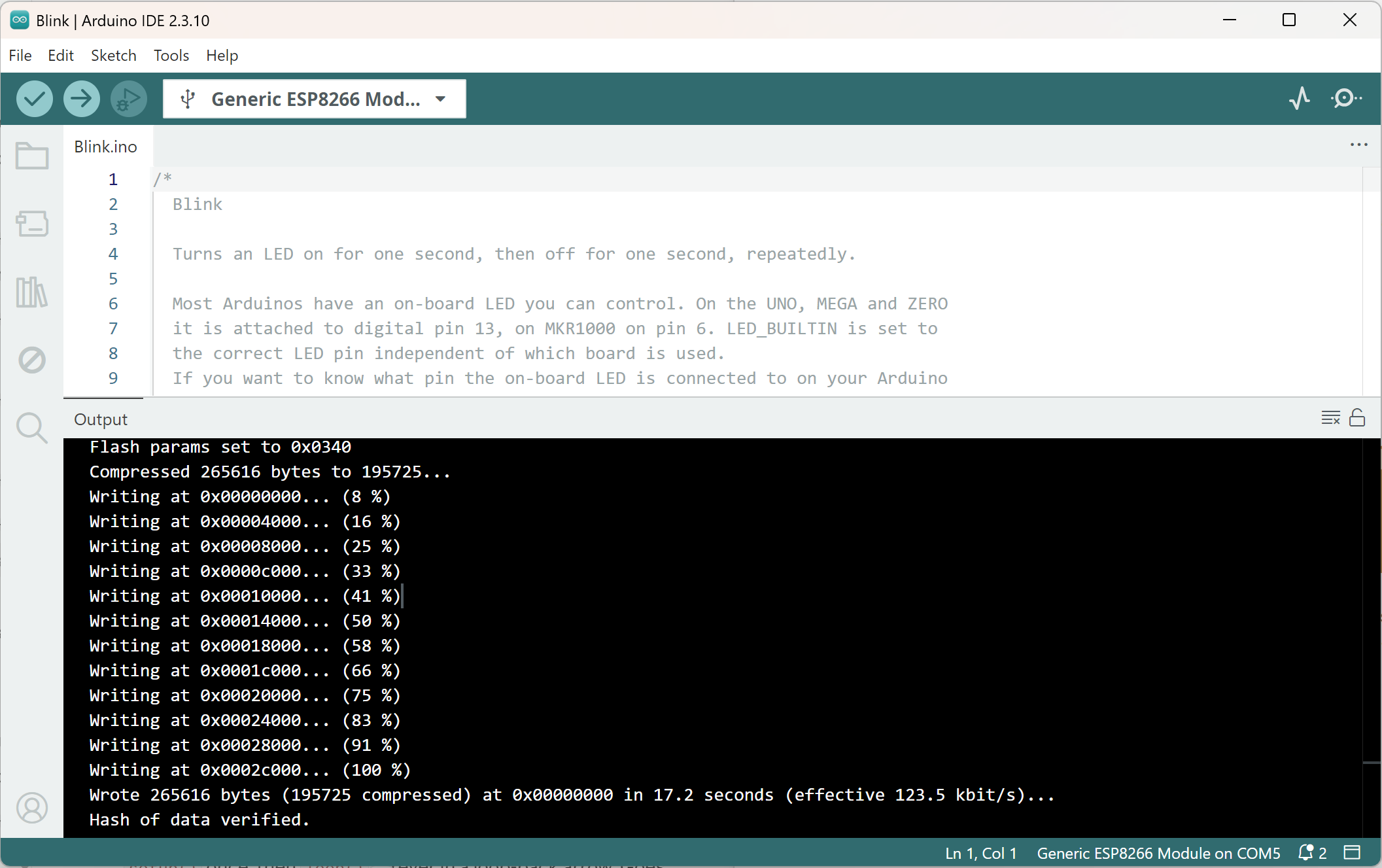
Plug the board in with a data USB cable. Tools → Port should show a COM number. Upload. The onboard LED on an Uno is pin 13 / LED_BUILTIN. If Port is empty, that is a cable or driver problem, not a failed IDE install. Device Manager → Ports should show a COM device when you plug in.
A minimal sketch:
void setup() {
  pinMode(LED_BUILTIN, OUTPUT);     // Onboard LED (pin 13 on an Uno) becomes an output
}

void loop() {
  digitalWrite(LED_BUILTIN, HIGH);  // LED on
  delay(250);                       // Wait a quarter second
  digitalWrite(LED_BUILTIN, LOW);   // LED off
  delay(250);                       // Fast blink, easy to tell apart from the factory 1-second blink
}
If that compiles, the IDE is installed. If it uploads and the LED blinks, USB works too.
Uninstalling or reinstalling cleanly
Sometimes the right fix for a broken install is not another repair attempt, it is starting over. Windows 11's Settings → Apps → Installed apps lists Arduino IDE if you used the MSI or EXE installer; Uninstall there removes the application files the same way it would for any other Windows program. If you used the ZIP version, there is no Windows-registered install to remove at all, since you never ran an installer; just delete the folder you unzipped it into.
What an uninstall does not touch is %LOCALAPPDATA%\Arduino15 or your Documents\Arduino sketchbook. Those are data folders IDE 2 writes to while it runs, not part of the application package Windows knows how to remove, the same way uninstalling a web browser does not delete your bookmarks file. That is usually what you want: uninstall and reinstall IDE 2, and your sketches and installed cores are still sitting there waiting for the next launch to find them.
It is also exactly why "just reinstall it" does not always fix a genuinely corrupted setup. If the problem is a broken index file or a half-finished core download inside Arduino15 itself, reinstalling the application on top of it changes nothing, because the actual broken files were never part of what got removed. For that specific situation, close IDE 2, rename Arduino15 to Arduino15-old (do not delete it yet, in case something in there turns out to matter), and let a fresh launch of IDE 2 rebuild it from scratch. If the fresh folder fixes the problem, you can delete the old one. If your sketchbook lives in the default Documents\Arduino location, leave it exactly where it is; only the Arduino15 support folder needs the fresh start.
Updates
IDE 2 can offer an in-app update. You can also download a newer MSI from the software page. I prefer the software page when a release just dropped, so I see the changelog.
Nightly builds are a different download. Do not replace your only copy with a nightly. The nightly article in this cluster covers that.
Troubleshooting
| Symptom | Likely cause | Fix |
|---|---|---|
| SmartScreen block | Normal on a fresh Arduino download | More info → Run anyway, only from arduino.cc |
| No Start Menu entry | You used the ZIP | Run the exe from the unzipped folder |
| IDE opens, boards missing | AVR core download interrupted | Boards Manager → Arduino AVR → Install |
| Port empty after install | Drivers skipped, or charge-only cable | Re-run installer and allow USB drivers. Try a data cable |
| Two "Arduino" apps | 1.8 and 2.x both installed | Open the 2.x shortcut. Check Help → About |
| Save errors in Documents | OneDrive file lock | Move sketchbook in Preferences |
Wrap-up
Install IDE 2.3.x from Arduino's software page. On Windows 11, MSI is the default on a PC you own. ZIP is the default when you cannot run an installer. Allow USB drivers. Let the first-launch core download finish. Verify Blink. Then go write real sketches.
Hack The World and Make Awesome.