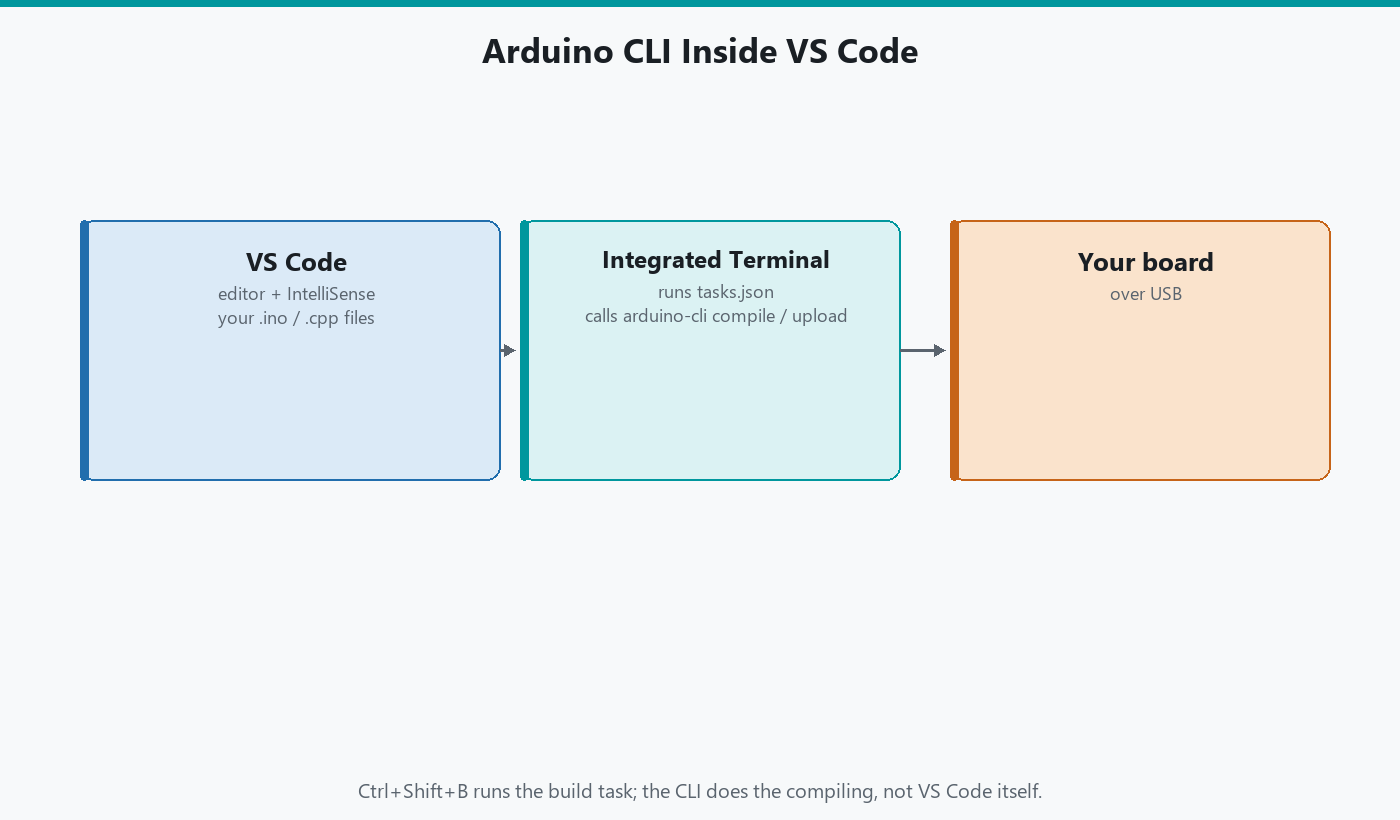
Visual Studio Code is a free editor from Microsoft. Arduino CLI is the official command-line compiler. Together they mean: you write in VS Code, you build with the same engine Arduino IDE 2 uses, you never click Tools → Board if you do not want to.
This is not PlatformIO (a third-party toolchain with its own boards and libraries). This is Arduino's CLI, so cores and Library Manager names match the IDE. Part 3 of the Mastery Series is still the sketch. Install the CLI on Windows first (the install article in this folder). arduino-cli version must work in PowerShell before you bind it to a VS Code task.
Microsoft's old "Arduino" VS Code extension has been a moving target. Marketplace add-ons that wrap the CLI come and go. The path that does not depend on them is tasks.json: VS Code runs the same arduino-cli commands you already typed.
What you need
- Arduino CLI on PATH
- AVR core installed:
arduino-cli core install arduino:avr - VS Code
- Optional: the C/C++ extension from Microsoft, for syntax colors and a little IntelliSense (Microsoft's name for code suggestions and error underlines as you type). It will not be perfect Arduino IntelliSense until include paths are set. Colors alone are already worth it.
- A sketch folder that follows Arduino rules:
CliBlink\CliBlink.ino
Open the folder in VS Code (File → Open Folder), not a single .ino with no folder. The CLI compiles the folder.
Create a sketch if you need one
cd $HOME\Documents\Arduino       # Your sketchbook folder
arduino-cli sketch new CliBlink  # Creates CliBlink\CliBlink.ino
Open CliBlink in VS Code. Put a blink in CliBlink.ino if it is still empty setup/loop.
tasks.json
In VS Code: Terminal → Configure Tasks → Create tasks.json file from template → Others. Or create .vscode\tasks.json yourself.
Replace with something you will edit (COM port and FQBN). VS Code allows // comments in tasks.json, so I left mine in:
{
  "version": "2.0.0",
  "tasks": [
    {
      "label": "arduino: compile Uno",          // Name shown in the Run Task list
      "type": "shell",                          // Run it like a terminal command
      "command": "arduino-cli",
      "args": [
        "compile",
        "--fqbn",
        "arduino:avr:uno",                      // Change this for a different board
        "${workspaceFolder}"                    // The sketch folder you opened
      ],
      "group": {
        "kind": "build",
        "isDefault": true                       // Makes Ctrl+Shift+B run this task
      },
      "problemMatcher": ["$gcc"]                // Turn compiler errors into clickable Problems
    },
    {
      "label": "arduino: upload Uno",
      "type": "shell",
      "command": "arduino-cli",
      "args": [
        "compile",
        "--fqbn",
        "arduino:avr:uno",
        "--upload",                             // Upload right after a successful compile
        "--port",
        "COM7",                                 // Change to your board's port
        "${workspaceFolder}"
      ],
      "problemMatcher": ["$gcc"]
    },
    {
      "label": "arduino: monitor",
      "type": "shell",
      "command": "arduino-cli",
      "args": [
        "monitor",
        "--port",
        "COM7",                                 // Same port as upload
        "--config",
        "baudrate=115200"                       // Must match Serial.begin()
      ]
    }
  ]
}
A quick word on problemMatcher: it tells VS Code how to read the compiler's error messages. $gcc is a built-in matcher for GCC-style errors, which is what Arduino's compilers print, so a failed compile shows up in VS Code's Problems panel and clicking an error jumps to the line.
Change COM7 to whatever arduino-cli board list prints. Change arduino:avr:uno if the board is a Nano (arduino:avr:nano) or something else.
${workspaceFolder} is the open folder. That is why you open CliBlink, not Documents\Arduino.
Run Build Task (Ctrl+Shift+B) compiles. Terminal → Run Task → arduino: upload Uno compiles and uploads. Stop the monitor task (trash can on the terminal) before upload if the port is busy.
IntelliSense, without promising magic
The C/C++ extension wants include paths. Arduino headers live under Arduino15\packages\.... They move when cores update.
A durable approach: let the CLI write a compilation database (a file listing exactly how every source file is compiled, including every include folder), then point the C/C++ extension at it. On current CLI:
# Do not build firmware; just write compile_commands.json into .\build
arduino-cli compile --fqbn arduino:avr:uno --only-compilation-database --output-dir build CliBlink
If your CLI version accepts those flags, you get compile_commands.json under build. In .vscode\c_cpp_properties.json you can set "compileCommands": "${workspaceFolder}/build/compile_commands.json". If the flag is missing on your version, skip this and live with weaker squiggles. Verify with the compile task, not with red underlines.
Do not copy a random c_cpp_properties.json from a 2019 gist. AVR-GCC paths in that gist are stale.
Serial
Use the monitor task, or a VS Code terminal:
# Serial Monitor in the VS Code terminal. Ctrl+C to stop.
arduino-cli monitor --port COM7 --config baudrate=115200
There is no Serial Plotter in this setup. Open IDE 2 for graphs, or print CSV (comma-separated values that any spreadsheet can open) and graph it elsewhere.
What I keep IDE 2 for
Board Manager UI when I am adding a core the first time (CLI can do it too). Plotter. A debugger on a probe-capable board. The rest of the week can be VS Code plus tasks.
Git
Commit the sketch and .vscode\tasks.json if the FQBN is the team's board. Avoid committing a COM port that is only valid on your PC. VS Code can prompt for the port each time instead, using what it calls an input variable in tasks.json. For a personal repo, COM7 in the file is fine. For a shared repo, document "edit the port."
Arduino15 does not go in Git. Cores stay on each machine (core install).
Troubleshooting
| Symptom | Likely cause | Fix |
|---|---|---|
| Task: command not found | CLI not on PATH in VS Code | New VS Code window after PATH edit. Confirm integrated terminal runs arduino-cli version |
| Compile cannot find sketch | Opened a file, not the sketch folder | Open Folder on CliBlink |
| Upload port busy | Monitor task still running | Kill that terminal |
| Red squiggles, compile OK | IntelliSense paths | Trust the compile task. Optional compile_commands |
| Wrong board | FQBN in tasks.json | Match board listall |
Wrap-up
VS Code edits. Arduino CLI builds. tasks.json is the glue: compile as the default build task, upload as a second task, monitor in the terminal. Share cores with IDE 2 through Arduino15. Change COM port and FQBN in one file when the bench changes.
Official CLI flags: docs.arduino.cc/arduino-cli. When a compile flag name moves, trust that page.
Hack The World and Make Awesome.